1
Nesting AP Divs
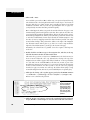
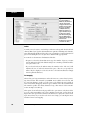
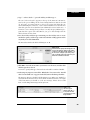
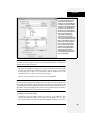
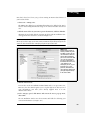
If you draw a 100-pixel-tall and 50-pixel-wide AP div, you can move it to the very
top-left corner of the page by selecting it, and then typing 0 in both the L and T
boxes. To position that same AP div so that it’s just off the left edge of the page,
type -50px in the L box.
Aligning AP Elements
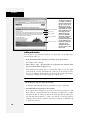
At times, you may want to align several AP elements so that their left, top, bottom,
or right edges line up with each other. Dreamweaver’s Align command does just
that; it can even make the width and height of selected AP elements the same.
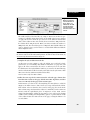
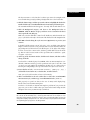
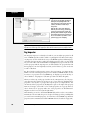
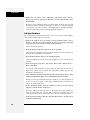
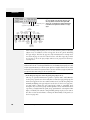
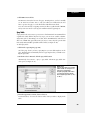
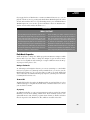
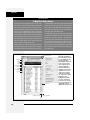
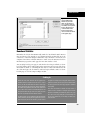
To use this feature, select two or more AP divs (by Shift-clicking them), choose
Modify ➝ Arrange, and then select one of the following options from the submenu:
• Align Left aligns the left edges of all selected AP divs. In other words, it gives
each AP div the same L property.
• Align Right aligns the right edges.
• Align Top aligns the top edges, so that the T properties are all set the same.
• Align Bottom aligns the bottom edges of the AP divs.
• Make Same Width sets the same width for all selected AP divs (in the W box in
the Property inspector). Make Same Height does the same for the height of the
AP divs.
The AP div you select last dictates how Dreamweaver aligns the AP divs. Say you
have three AP divs—A, B, and C—and select them in order from A to C. You then
align them to Left. Dreamweaver uses the left edge of AP div C (the last one you
selected) as the value for the other AP divs.
Background Image and Color
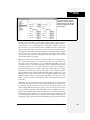
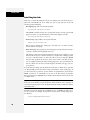
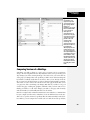
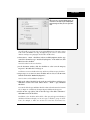
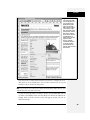
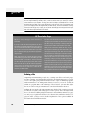
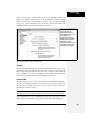
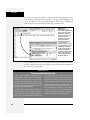
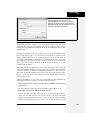
To add a background image to the AP div, click the folder icon next to the Bg
Image field, and then select an image from your site folder. As usual, Dreamweaver tiles the image, if necessary, until the entire AP div’s filled with repeating
copies of the graphic. (To adjust how or whether the image tiles, you’ll need to edit
the style using the normal CSS-style editing techniques; see page 218.)
Setting a background color is even easier. Just use the Bg Color box to select a
color or sample a color off the screen.
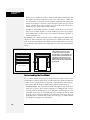
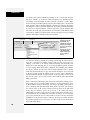
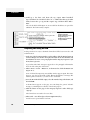
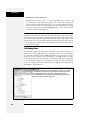
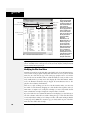
Nesting AP Divs
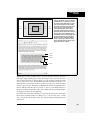
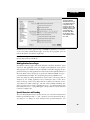
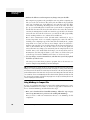
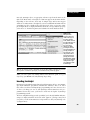
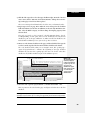
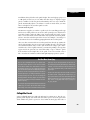
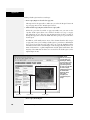
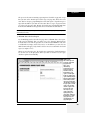
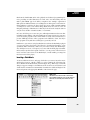
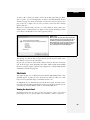
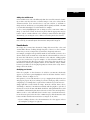
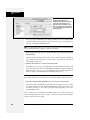
Nesting doesn’t necessarily mean that one AP div appears inside another AP div;
rather, it means that the HTML for one AP div is written inside the code for
another. The nested AP div itself can appear anywhere on the page. The main benefit of nested AP divs is that the parent AP div—the AP div containing the HTML
of one or more other AP divs—can control the behavior of its child AP divs.
350
Dreamweaver CS3: The Missing Manual