1
Structuring a Web
Site
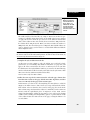
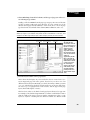
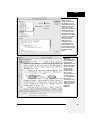
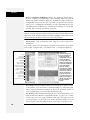
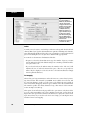
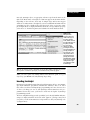
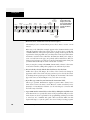
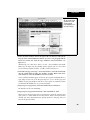
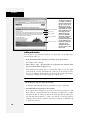
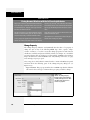
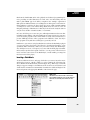
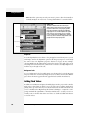
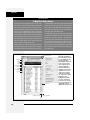
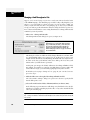
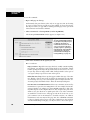
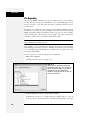
Unfortunately, there’s no program-wide setting to control which columns appear.
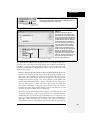
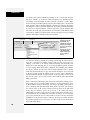
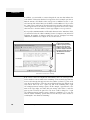
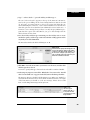
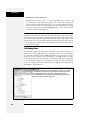
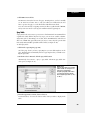
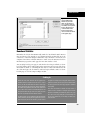
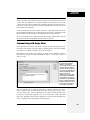
You have to define the visible columns on a site-by-site basis. Start by editing the Site
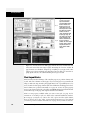
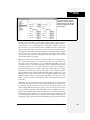
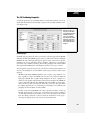
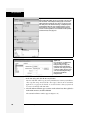
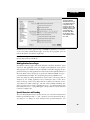
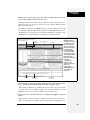
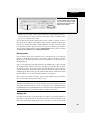
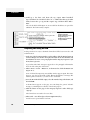
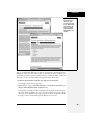
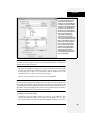
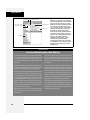
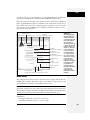
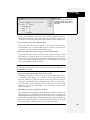
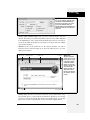
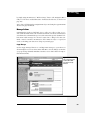
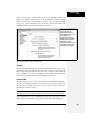
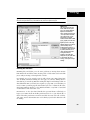
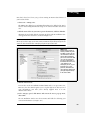
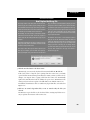
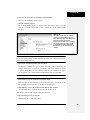
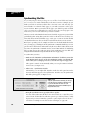
definition, following the instructions on page 564. Next, click the File View Columns category (under the Advanced tab of the Site Definition window; see
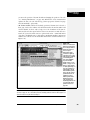
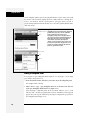
Figure 15-7). Select a column you wish to hide and turn off the Show checkbox.
The column’s status under the Show column changes from Show to Hide as shown
in Figure 15-7.
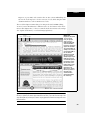
Figure 15-7:
Use the File View Columns
category to show or hide
columns of information in the
Files panel. It’s also useful for
working with Dreamweaver’s
collaborative note sharing
feature called Design Notes.
Information on Design Notes and
instructions for how to use them
start on page 637.
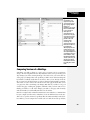
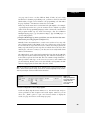
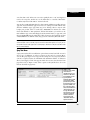
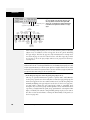
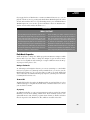
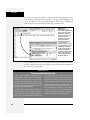
You can also change the order of the columns—perhaps the Modified date information is more important than the file size to you. Select a column and click the
up or down arrow. The up arrow moves the column to the left in the Files Panel,
while the down arrow demotes a column to the right in the Files panel.
Adding New Folders and Files
The Files panel provides a fast way of adding blank Web pages to your site. With
one click, you can create a new page in any folder you like, saving several steps
you’d otherwise have to perform using the File menu.
Adding files
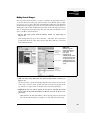
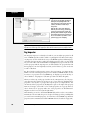
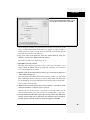
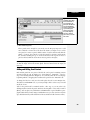
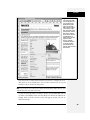
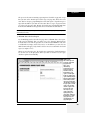
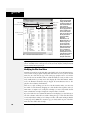
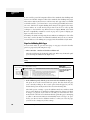
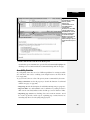
To create a new, blank Web page, open the Files panel using one of the methods
described on page 567, and then right-click (Control-click) a file or folder in the
Files panel.
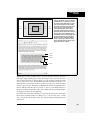
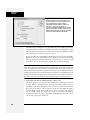
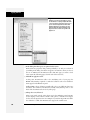
In the shortcut menu that appears, choose New File. Dreamweaver creates a new,
empty Web page. (Actually, the page doesn’t have to be empty; you can edit the file
Dreamweaver uses as its default new page, as described in the box below.)
Chapter 15: Introducing Site Management
569