1
Code View
than” symbol (<), for example, indicates the beginning of an HTML tag, so you
can’t just link to a page named bob<zero.html. If you did, a Web browser would
think a new HTML tag (called zero) was starting after the < symbol.
There are several ways to avoid this problem. The simplest and wisest method:
Avoid strange characters when you name pages, graphics, CSS styles, or any other
object in your site. Sticking to letters, numbers, hyphens, and underscores (_)
makes your life much easier.
Another option is to let Dreamweaver encode those special characters. Encoding a
character simply means using a code to represent it. For example, you can represent a space as %20, or a < symbol as %3C. Thus, the infamous bob<zero.html file
becomes bob%3C.html, and your link will work just fine. To set up encoding,
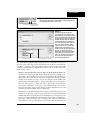
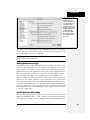
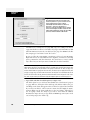
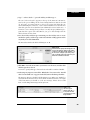
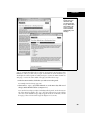
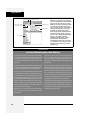
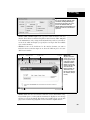
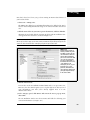
choose Edit ➝ Preferences (Dreamweaver ➝ Preferences on the Mac) and select the
Code Rewriting category. Your options are as follows:
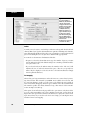
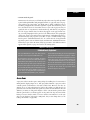
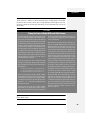
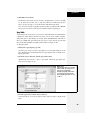
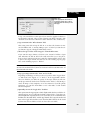
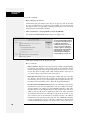
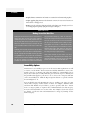
• Special characters. Turning on this checkbox means that Dreamweaver converts any special character you might type in the Property inspector, or another
dialog box, into the % notation described above. (This feature has no effect on
code you type in Code view.)
Dreamweaver comes with this option turned off, since it can sometimes interfere with server-side code (see Part 6 of this book). If you stick to the simple
rule, “Don’t use strange characters in your file names,” you’ll probably never
notice the difference.
• Do not encode special characters. Selecting this option, the first of three under
“URL encoding,” tells Dreamweaver not to touch any Web addresses you enter
(in the Property inspector’s Link box, say). (Again, selecting this option has no
effect on any links you type in Code view.)
• Encode special characters in URLs using &# is the safest choice. It’s especially
helpful if you use a language that has a non-Latin alphabet. If you name your
files using Japanese characters, for example, choosing this option can translate
them into code that successfully transmits over the Internet.
• Encode special characters in URLs using % is intended for use with older
browsers (and we’re talking old, as in pre-Internet Explorer 4).
Code View
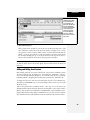
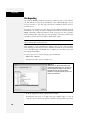
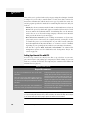
Dreamweaver provides several different ways to view a page’s HTML code:
• Code view. In Code view, Dreamweaver displays your page’s raw code.
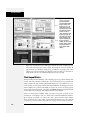
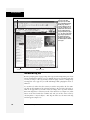
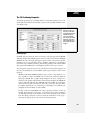
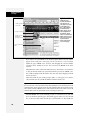
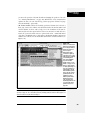
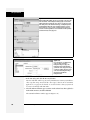
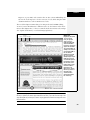
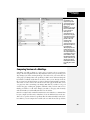
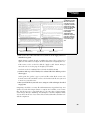
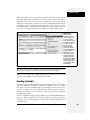
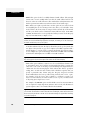
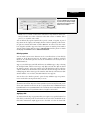
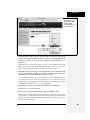
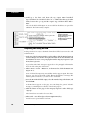
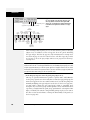
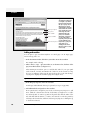
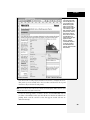
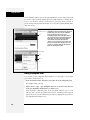
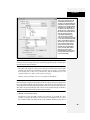
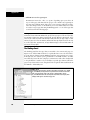
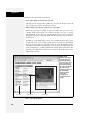
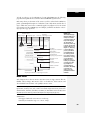
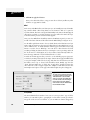
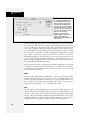
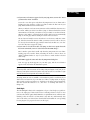
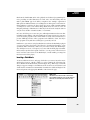
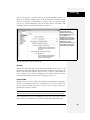
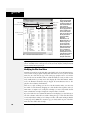
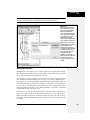
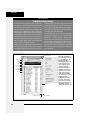
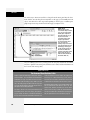
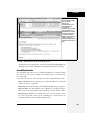
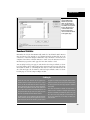
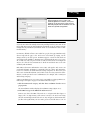
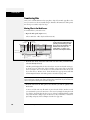
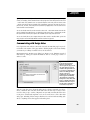
• Split view. This shows the HTML code and the “regular” Design view simultaneously (Figure 10-2).
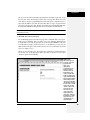
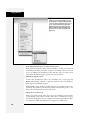
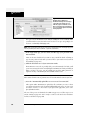
• Code inspector. The Code inspector is a floating code window that lets you use
Design view in its full glory (not cut in half as in Split view), while still providing access to the code. (To open the Code inspector, choose Window ➝ Code
370
Dreamweaver CS3: The Missing Manual