1
Code View
POWER USERS’ CLINIC
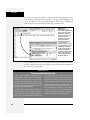
Take Control of Code Formatting
For ultimate control over tag formatting, Dreamweaver
includes the Tag Library Editor. Not only does it let you control
exactly how Dreamweaver formats every HTML tag it inserts
into a page, it also lets you dictate the formatting for nine other
Tag Libraries, such as ASP, PHP, JSP, and Cold-Fusion tags.
Even if you’re using some new bleeding-edge tag language
unfamiliar to Dreamweaver, you’re not out of luck. You can
create additional Tag Libraries, and even import custom
ASP.NET and JSP tags, as well as DTD Schemas for XML.
You can also add additional tags to any Library; so if the
HTML standard suddenly changes, you can add new or
remove obsolete tags.
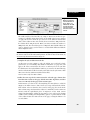
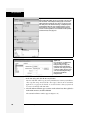
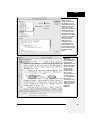
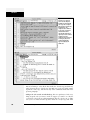
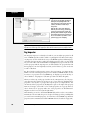
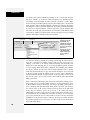
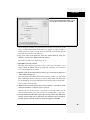
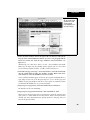
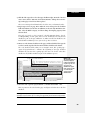
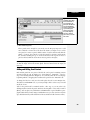
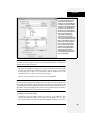
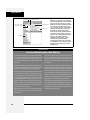
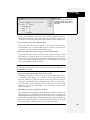
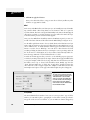
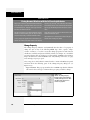
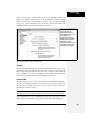
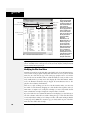
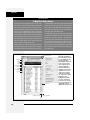
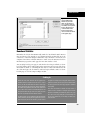
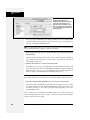
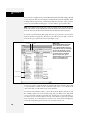
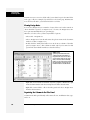
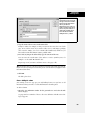
To control the formatting of tags in a Library, choose Edit ➝
Tag Libraries to open the Tag Library Editor window. A list
of all Tag Libraries appears. Click the + symbol to the left of
a Tag Library name to see a list of tags for that Library.
Select a tag, and then select formatting options from the
Tag Format area in the bottom half of the window. A shortcut for quickly reformatting a particular tag already present
on a page is to select the tag in the Tag selector first, and
then choose Edit ➝ Tag Libraries; that tag will then be preselected for you.
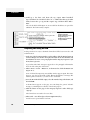
You can control where a line breaks in relation to the tag,
choosing: no line breaks after the tag; no breaks before and
after the tag; or no breaks before, inside, and after the tag.
In addition, you can choose whether any formatting rules
are applied to the contents of a tag and choose the case—
upper, lower, mixed—to be used when Dreamweaver adds
the tags to the code.
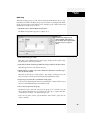
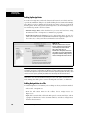
Advanced formatting options
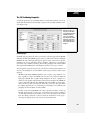
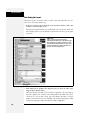
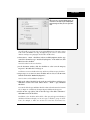
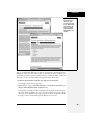
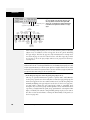
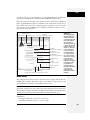
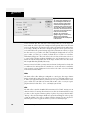
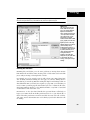
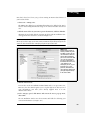
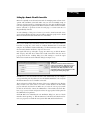
For real sticklers, two advanced formatting buttons let you instruct Dreamweaver
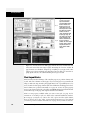
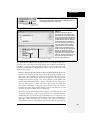
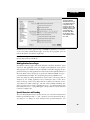
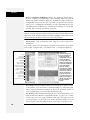
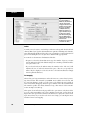
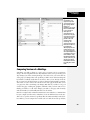
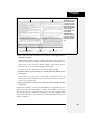
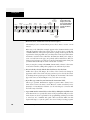
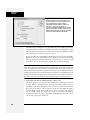
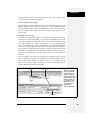
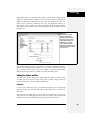
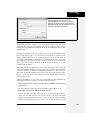
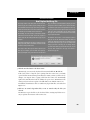
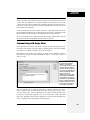
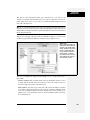
how to format every aspect of your CSS and HTML code. The Tag Libraries button opens the Tag Library, discussed in the box above. The CSS button opens the
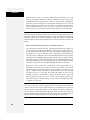
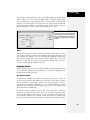
CSS Source Format Options window, which lets you dictate how the CSS code
Dreamweaver creates should be written: whether properties get indented; whether
CSS properties should appear one per line; the placement of the opening brace
used in the CSS rule; and whether there should be a blank line between rules to
make the CSS more readable. All these options are matters of personal preference,
and don’t affect the performance of your Web pages or CSS.
If you find yourself wading through lots of HTML and CSS code, you might want to
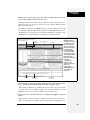
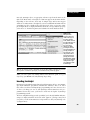
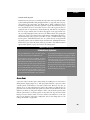
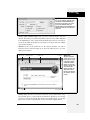
experiment with these settings to see if you can make the code Dreamweaver produces more readable. Both the Tag Library Editor and Source Format Options windows provide previews of what the formatted HTML and CSS code will look like
with the settings you select. Keep in mind that these settings aren’t going to affect
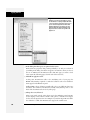
how you write your code. But if you do find that your own HTML or CSS hand coding doesn’t look as elegant as Dreamweaver’s, you can turn to the Apply Source Formatting command (Commands ➝ Apply Source Formatting to make Dreamweaver
clean up your code. That command changes a page’s code—adds indents, line
breaks, and so on—based on the instructions defined by these two options.
Note: There are another set of preference settings that affect how Dreamweaver creates its CSS code.
The Preferences window’s CSS Styles category tells Dreamweaver whether or not to use CSS shorthand
properties. See page 332 for more on CSS shorthand properties.
384
Dreamweaver CS3: The Missing Manual