1
Communicating
with Design Notes
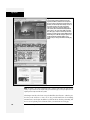
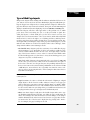
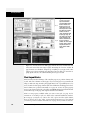
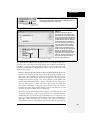
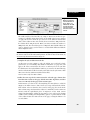
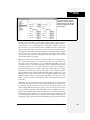
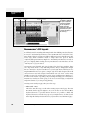
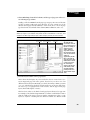
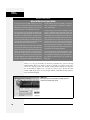
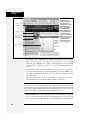
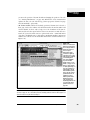
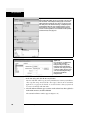
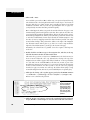
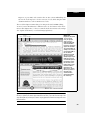
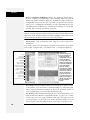
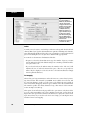
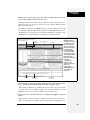
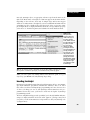
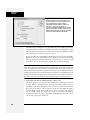
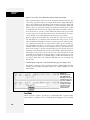
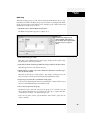
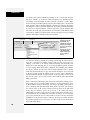
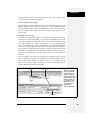
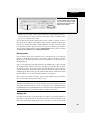
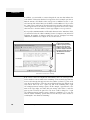
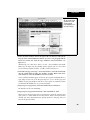
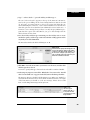
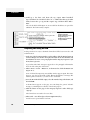
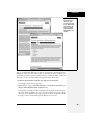
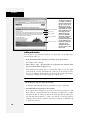
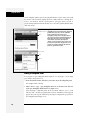
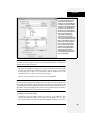
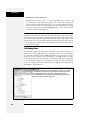
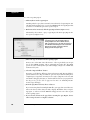
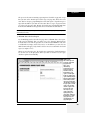
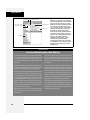
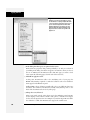
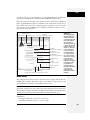
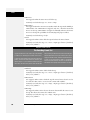
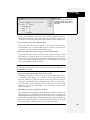
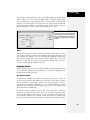
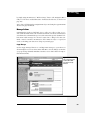
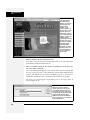
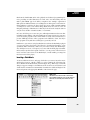
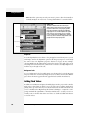
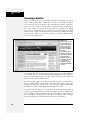
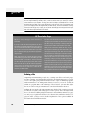
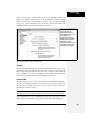
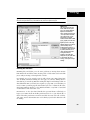
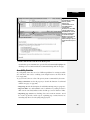
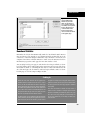
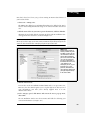
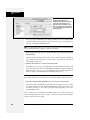
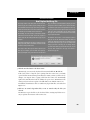
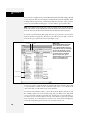
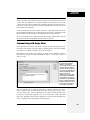
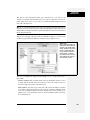
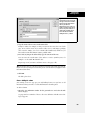
In any case, the Design Notes window now opens (Figure 17-14). If you like, you
can use the Status pop-up menu to let your team members know where the file
stands. For example, is it ready to move to the Web server? Is it just a draft version? Or is there something wrong with it that requires specific attention? Dreamweaver provides eight different options: “draft,” “revision1,” “revision2,”
“revision3,” “alpha,” “beta,” “final,” and “needs attention.” If these categories
don’t match your workflow—for example, you want a “needs proofing” flag—you
can change them; see the box “Create Your Own Status Menu.”
The note itself, which you type into the Note box, could be a simple question you
have for the author of the page (“Are you sure ‘Coldplay: Defining a New Musical
Language for the Modern Age’ is an appropriate title for this article?”) or more information about the status of the page (“Still need studio shot of latest indoor mowers”).
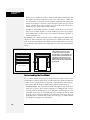
POWER USERS’ CLINIC
Create Your Own Status Menu
The Status pop-up menu in Design Notes is a great feature.
With a flick of the mouse, you can assign a status to a page
or file, letting others know if a page is finished or just a
rough draft. But the preset status options may not exactly fit
your process. Your team may not use the terms “alpha” or
“beta.” Instead, you may have other stages you’d like to
add, such as “copy edit,” to signify that a page is ready to
be proofread and tested.
With a little sly hacking, you can change the status categories to suit your needs. The file Design Notes.htm holds the
key to the puzzle. On Windows the file is located in C:\Program Files\Adobe Dreamweaver CS3\configuration\Commands\Design Notes.htm. On a Mac the file is in
Applications ➝ Adobe Dreamweaver CS3 ➝ Configuration
➝ Commands ➝ Design Notes.htm. Start by making a
backup copy of the file; you can always return to it if something goes wrong.
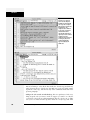
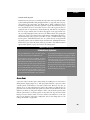
Find line 29 in the file, which looks like this:
STATUS_ITEMS = new
Array("","draft","revision1","revision2",
"revision3", "alpha","beta","final","needs
attention");
The words between the double-quotes are the choices that
appear in the Status menu. You can change or delete them
as you see fit (if you delete one, be sure to delete the word,
both sets of quotation marks, and the following comma).
Then, after saving changes to the file, quit and restart
Dreamweaver, where you’ll see your new, improved Status
pop-up menu ready for action.
To make sure you and your co-workers see the same
choices, give each of them the modified Design Notes.htm
file, and advise them to put it in their own Adobe Dreamweaver CS3 ➝ configuration ➝ Commands folders.
Then open this file in a text editor like NotePad or TextEdit,
or even within Dreamweaver’s Code view.
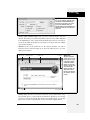
Tip: Click the calendar icon (circled in Figure 17-14) to pop the date into your note—a great way to keep
a running tally of notes and the dates they were made.
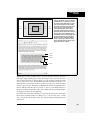
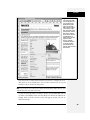
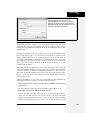
When you click OK, Dreamweaver creates a file with all the note information in it.
This file ends with the extension .mno and begins with the name of the file; for the
file index.html, for example, the note would be called index.html.mno.
Chapter 17: Moving Your Site to the Internet
639