1
Output presentations
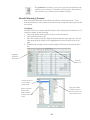
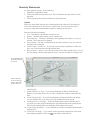
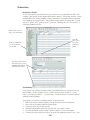
There are several things that can be done to change the appearance of the report.
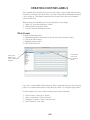
1. Page Setup
2. Fonts
3. Presentation
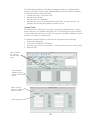
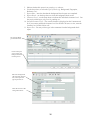
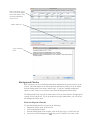
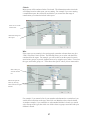
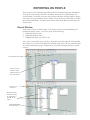
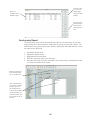
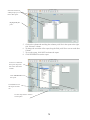
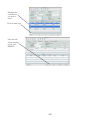
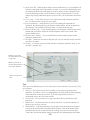
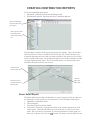
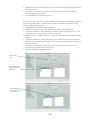
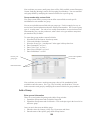
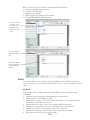
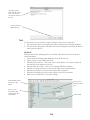
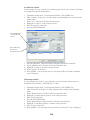
To change the orientation of the report from portrait to landscape, select File>Page Setup
from the quick report menu. Choose the appropriate orientation.
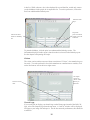
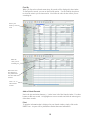
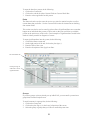
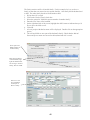
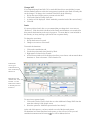
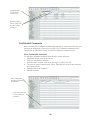
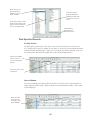
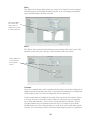
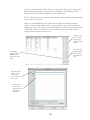
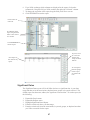
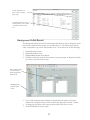
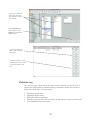
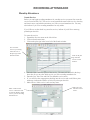
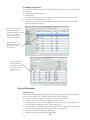
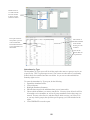
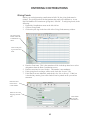
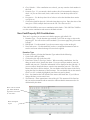
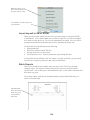
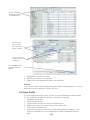
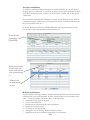
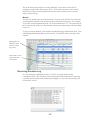
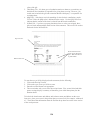
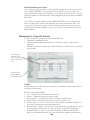
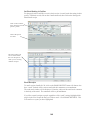
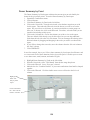
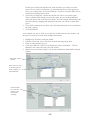
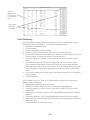
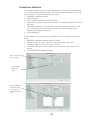
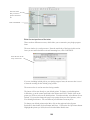
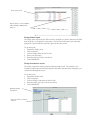
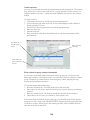
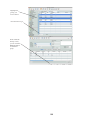
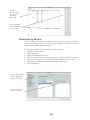
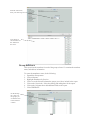
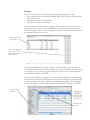
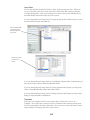
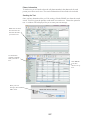
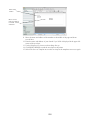
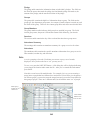
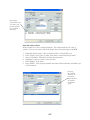
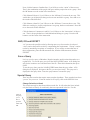
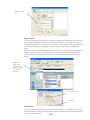
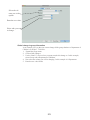
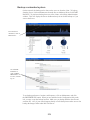
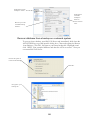
You may change the font or the font size for a row, column or specific cell. Highlight the
area you wish to change, then select the font style in size from the drop down boxes in the
middle top of the window.
Highlight area where
you’d like to change
the size and font.
Change the
font size and
type here.
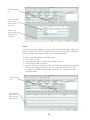
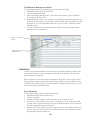
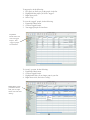
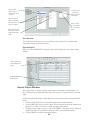
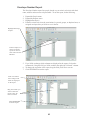
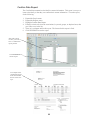
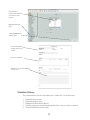
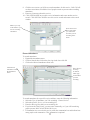
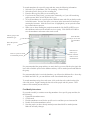
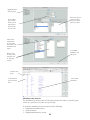
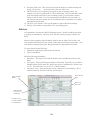
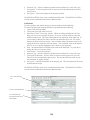
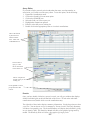
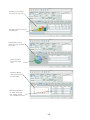
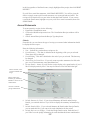
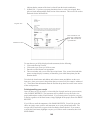
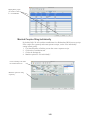
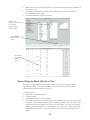
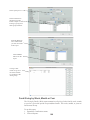
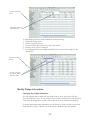
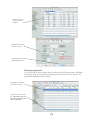
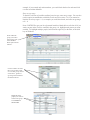
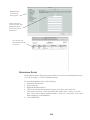
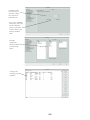
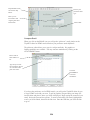
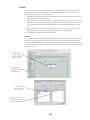
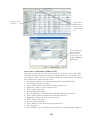
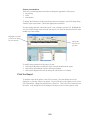
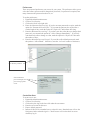
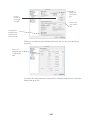
To modify the presentation of the report you can:
1. Select Style>Borders to modify the types of border included in the report.
2. Select Style>Presentation to pick a certain presentation.
3. Select Style>Right/Left Justify to change the justification of a column.
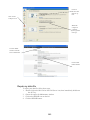
Print the Report
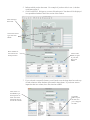
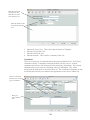
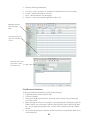
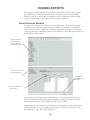
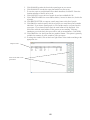
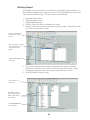
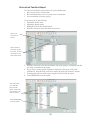
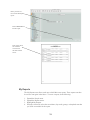
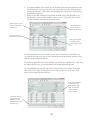
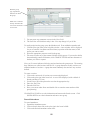
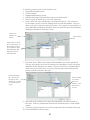
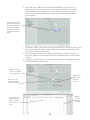
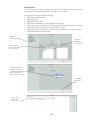
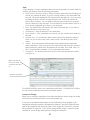
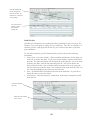
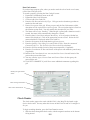
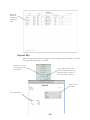
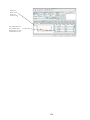
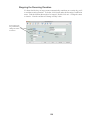
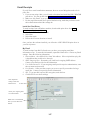
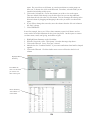
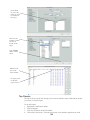
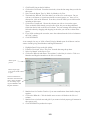
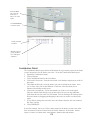
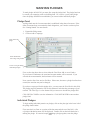
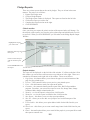
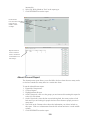
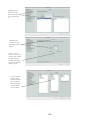
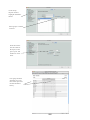
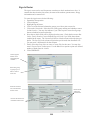
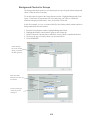
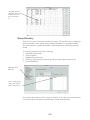
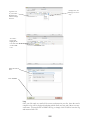
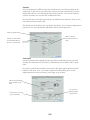
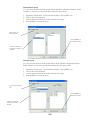
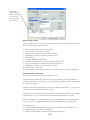
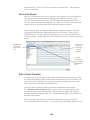
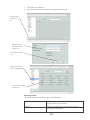
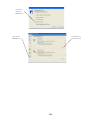
To send the report to the printer, select File>Generate. The print dialog box will be
displayed, so you may choose your printer. If you’d like to save the report to a file, select
File>Destination. Change the destination to a Disk File. Then select File>Generate from
the menu. A file dialog box will be displayed so that you can save this report as a tab
263