1
DynaSCAPE Design (version 6.4)
5.
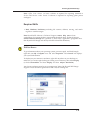
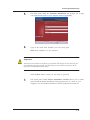
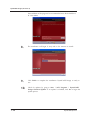
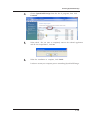
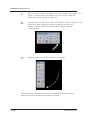
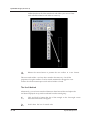
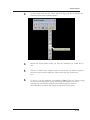
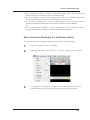
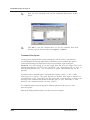
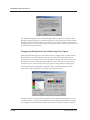
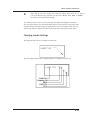
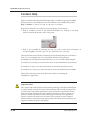
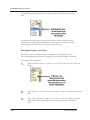
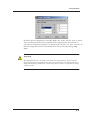
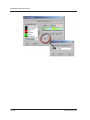
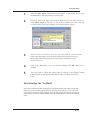
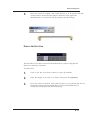
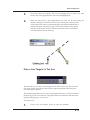
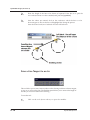
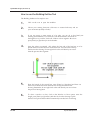
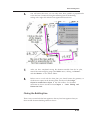
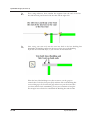
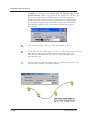
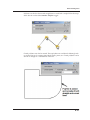
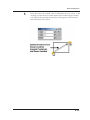
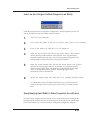
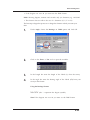
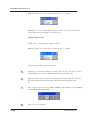
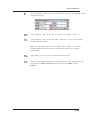
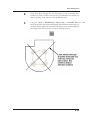
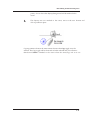
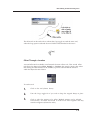
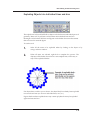
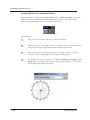
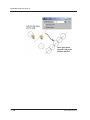
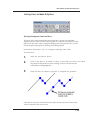
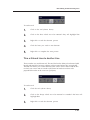
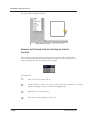
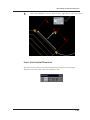
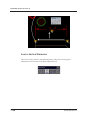
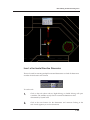
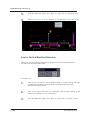
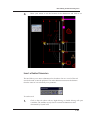
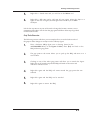
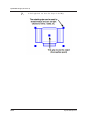
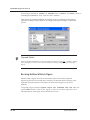
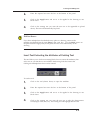
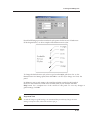
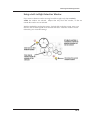
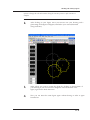
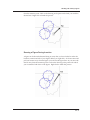
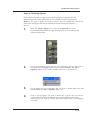
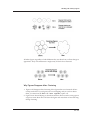
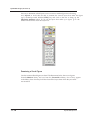
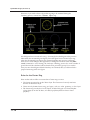
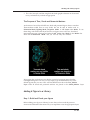
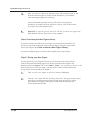
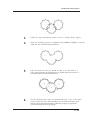
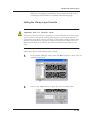
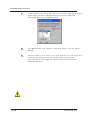
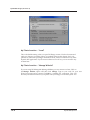
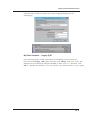
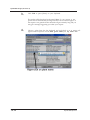
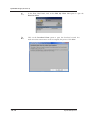
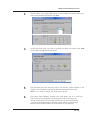
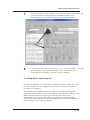
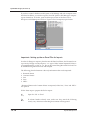
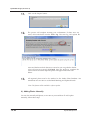
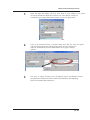
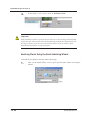
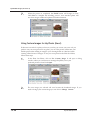
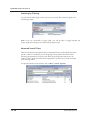
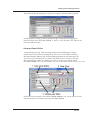
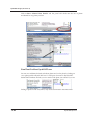
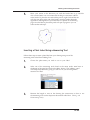
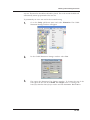
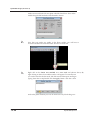
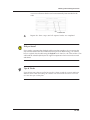
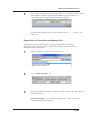
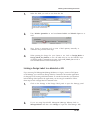
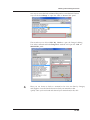
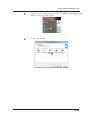
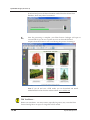
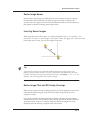
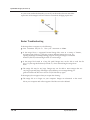
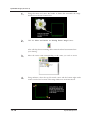
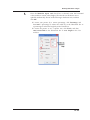
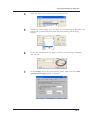
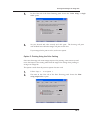
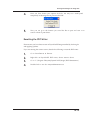
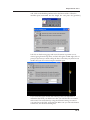
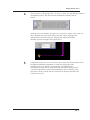
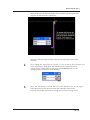
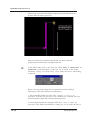
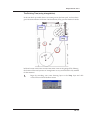
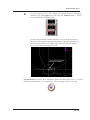
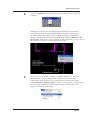
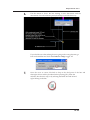
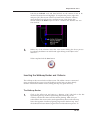
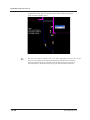
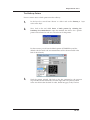
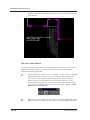
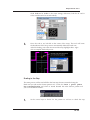
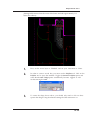
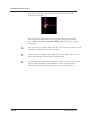
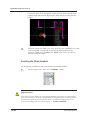
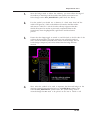
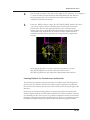
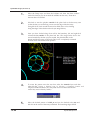
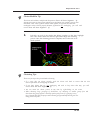
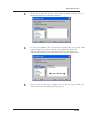
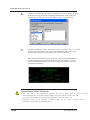
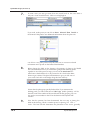
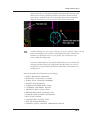
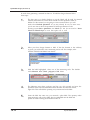
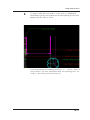
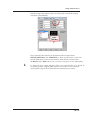
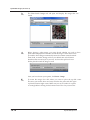
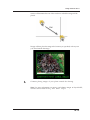
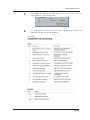
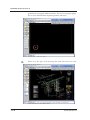
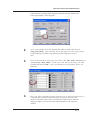
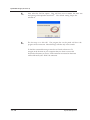
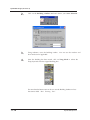
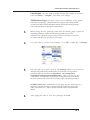
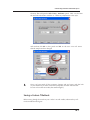
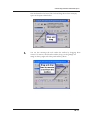
Once you have selected all the figures to be clustered, right-click to
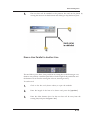
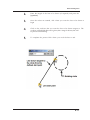
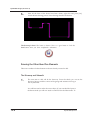
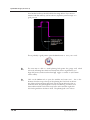
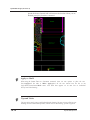
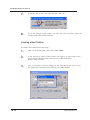
complete the process. The figures that can be trimmed will change. It may
take a few moments if you have selected a large number of figures to
cluster.
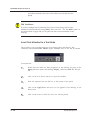
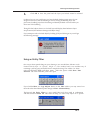
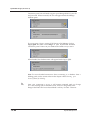
Tip
Clustering large groups of figures may take a long time. To speed up the process, cluster small
groups of five to ten figures first. Then cluster the groups together, two or three groups at a
time. If you find the clustering process is progressing too slowly, you can right-click to stop
and undo the action, to begin again, taking smaller groups at a time.
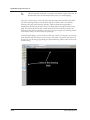
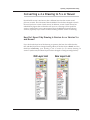
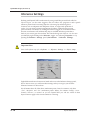
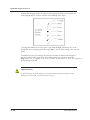
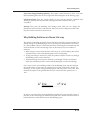
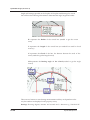
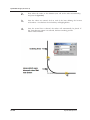
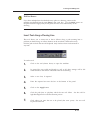
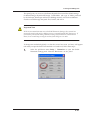
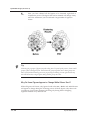
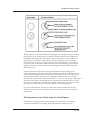
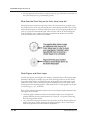
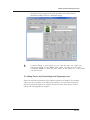
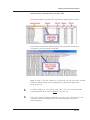
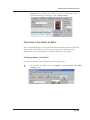
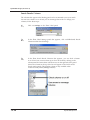
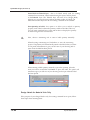
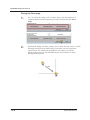
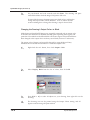
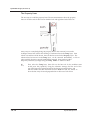
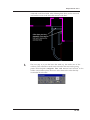
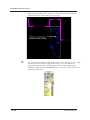
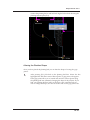
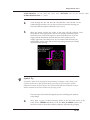
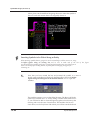
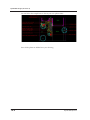
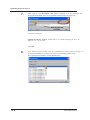
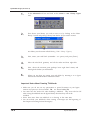
Why Do Some Figures Appear to Change While Others Don’t?
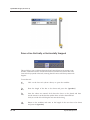
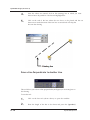
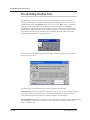
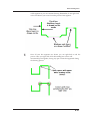
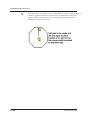
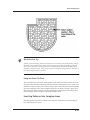
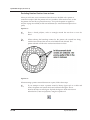
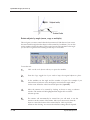
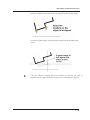
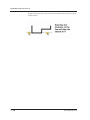
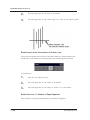
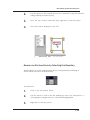
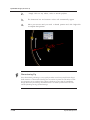
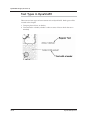
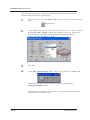
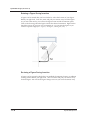
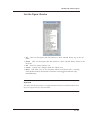
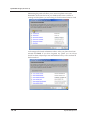
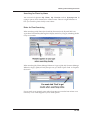
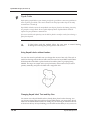
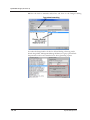
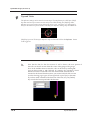
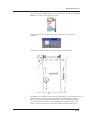
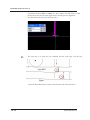
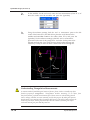
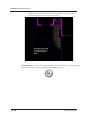
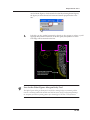
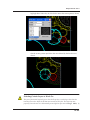
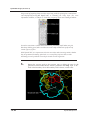
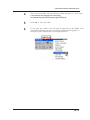
While all figures will cluster, only figures found in the tree, shrub and rock libraries
will appear to change during the clustering process. Of those figures, only those with
a continuous, closed outer perimeter will change by having their overlapping
segments trimmed away and removed.
11.10
DynaSCAPE Software