1
Basic Drawing Tools
2.
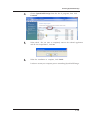
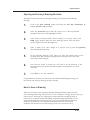
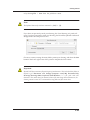
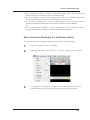
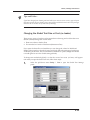
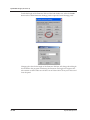
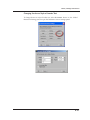
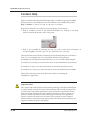
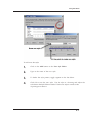
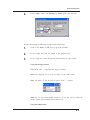
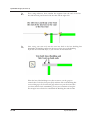
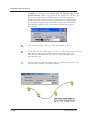
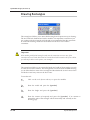
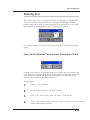
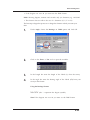
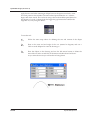
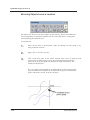
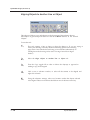
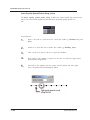
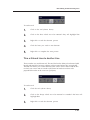
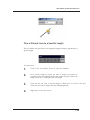
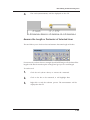
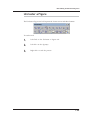
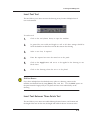
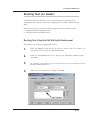
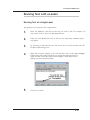
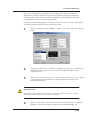
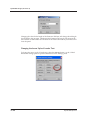
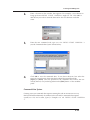
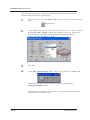
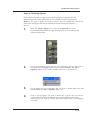
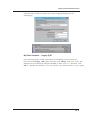
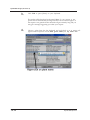
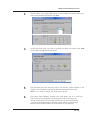
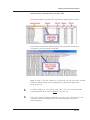
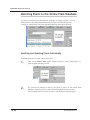
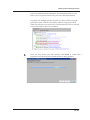
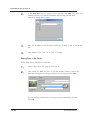
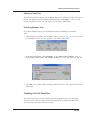
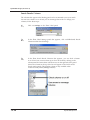
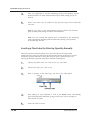
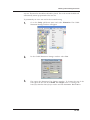
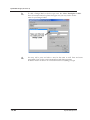
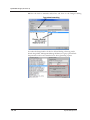
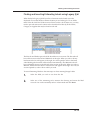
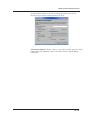
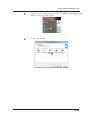
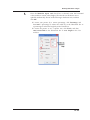
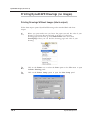
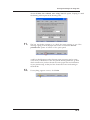
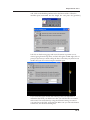
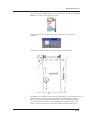
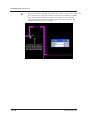
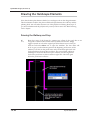
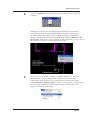
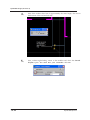
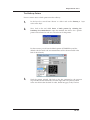
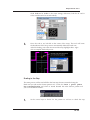
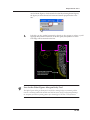
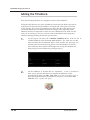
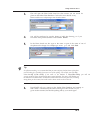
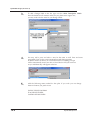
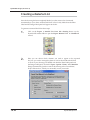
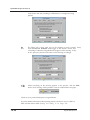
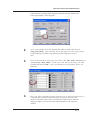
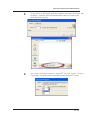
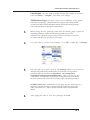
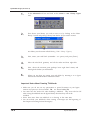
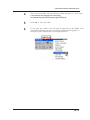
Enter the length of the line to be drawn (if required) and press the
[spacebar].
3.
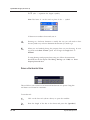
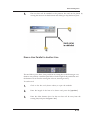
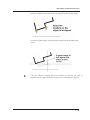
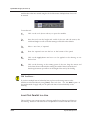
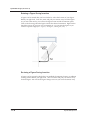
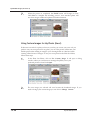
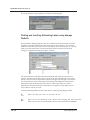
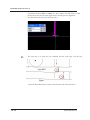
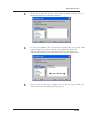
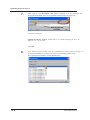
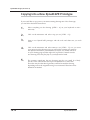
Once the values are entered, click where you want the line to be drawn to
begin
4.
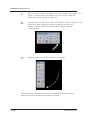
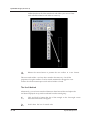
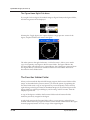
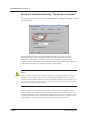
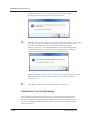
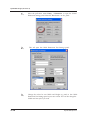
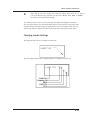
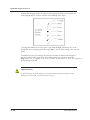
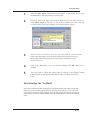
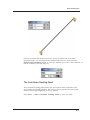
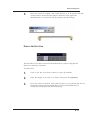
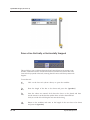
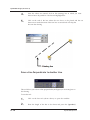
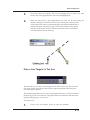
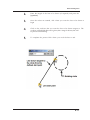
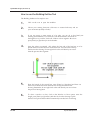
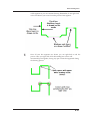
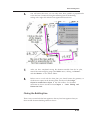
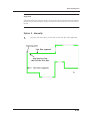
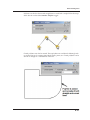
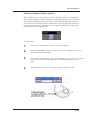
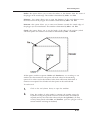
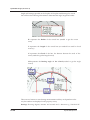
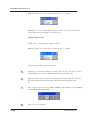
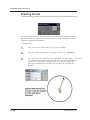
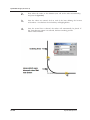
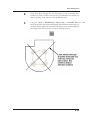
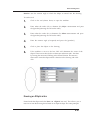
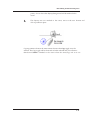
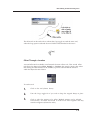
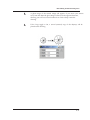
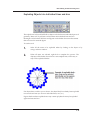
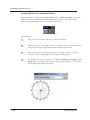
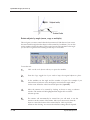
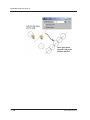
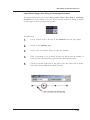
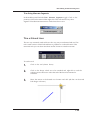
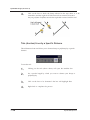
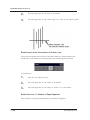
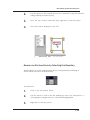
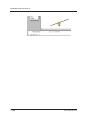
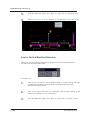
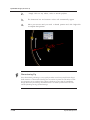
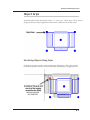
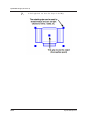
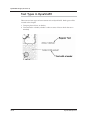
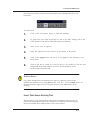
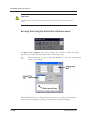
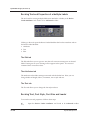
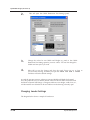
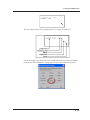
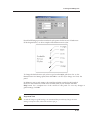
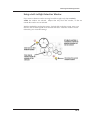
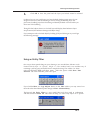
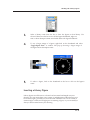
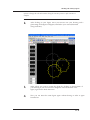
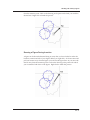
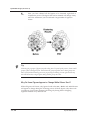
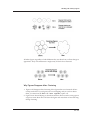
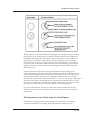
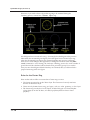
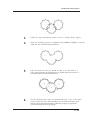
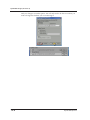
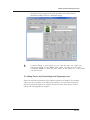
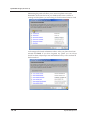
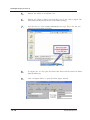
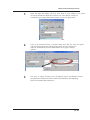
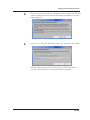
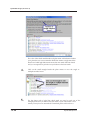
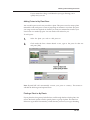
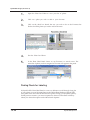
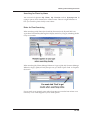
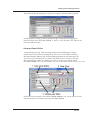
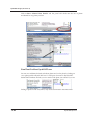
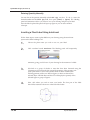
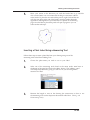
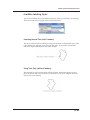
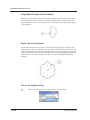
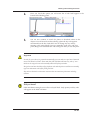
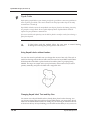
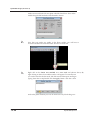
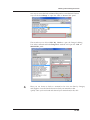
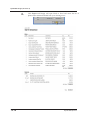
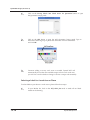
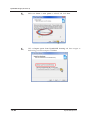
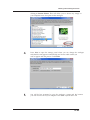
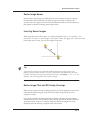
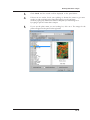
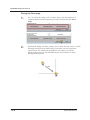
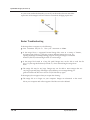
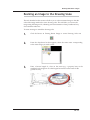
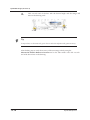
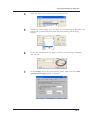
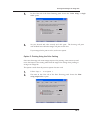
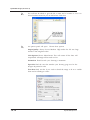
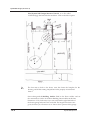
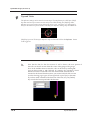
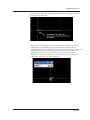
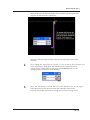
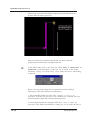
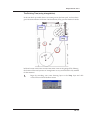
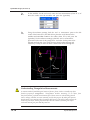
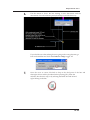
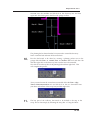
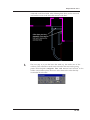
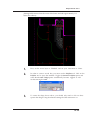
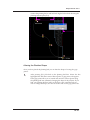
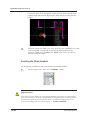
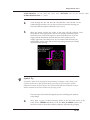
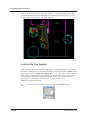
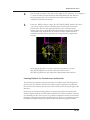
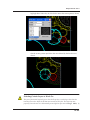
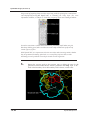
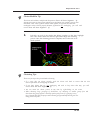
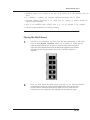
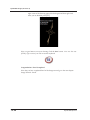
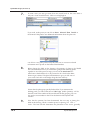
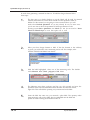
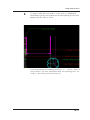
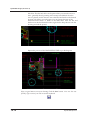
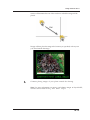
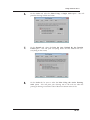
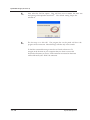
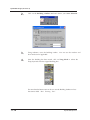
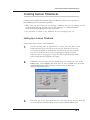
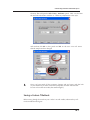
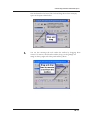
Click on the circle/arc that you want the line to be drawn tangent to. The
circle/arc will highlight blue and a ghost (‘thin’ image of the line) line will
be placed on the drawing.
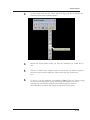
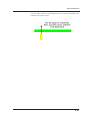
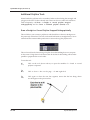
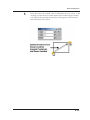
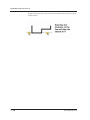
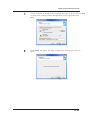
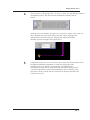
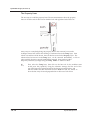
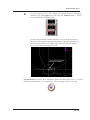
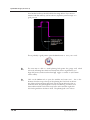
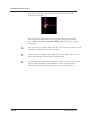
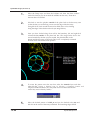
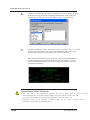
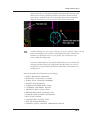
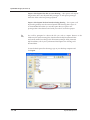
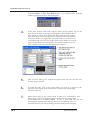
5.
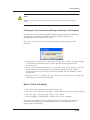
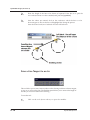
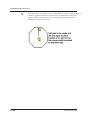
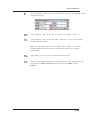
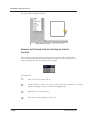
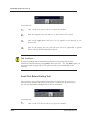
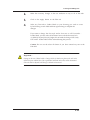
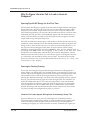
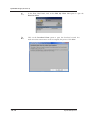
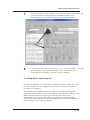
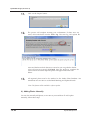
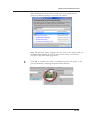
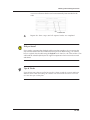
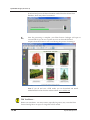
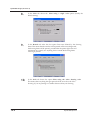
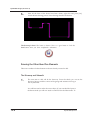
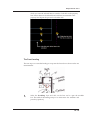
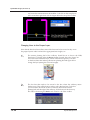
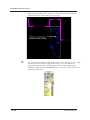
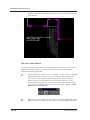
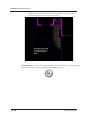
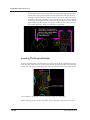
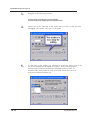
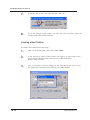
To complete the process Click where you wish the line to end.
6.17