1
Chapter 3: Introduction to Maestro
If the response is a blank line, set the variable by entering the following command:
csh/tcsh:
setenv DISPLAY display-machine-name:0.0
bash/ksh:
export DISPLAY=display-machine-name:0.0
After you set the SCHRODINGER and DISPLAY environment variables, you can start
Maestro using the command
$SCHRODINGER/maestro options
If the $SCHRODINGER directory has been added to your path, you only need to enter the
command maestro. Options for this command are given in the Maestro User Manual.
The directory from which you started Maestro is Maestro’s current working directory, and
all data files are written to and read from this directory unless otherwise specified (see
Section 3.8 on page 23). You can change directories by entering the following command
in the command input area of the main window:
cd directory_name
where directory_name is either a full path or a relative path.
3.3
The Maestro Main Window
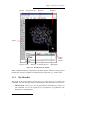
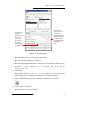
The Maestro main window is shown in Figure 3.1 on page 7. The main window components are as follows:
• Title bar—displays the project name and the current working directory
• Auto-Help—automatically displays context-sensitive help
• Menu bar—provides access to panels
• Workspace—displays molecular structures
• Clipping planes window—displays a small, top view of the Workspace and shows
the clipping planes and viewing volume indicators
• Toolbar—contains buttons for many common tasks, and also provides tools for displaying and manipulating structures and organizing the Workspace
• Status bar—displays the number of atoms, entries, residues, chains, and molecules
in the Workspace
• Sequence viewer—shows the sequences for proteins displayed in the Workspace
• Command input area—provides a place to enter Maestro commands
You can control the display of any of the last five components from the Display menu.
6
FirstDiscovery 3.0 Quick Start Guide