1
REPORTS
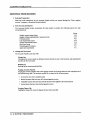
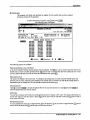
Purchase Journal Analysis Files
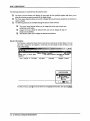
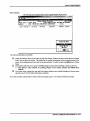
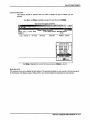
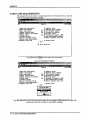
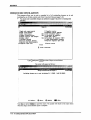
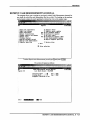
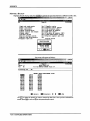
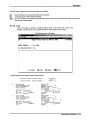
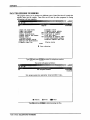
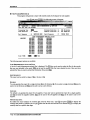
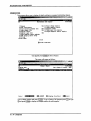
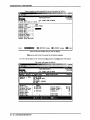
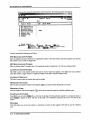
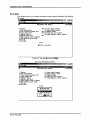
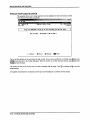
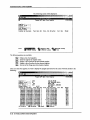
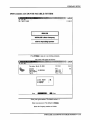
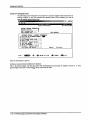
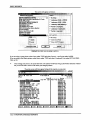
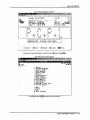
A list of all Purchase Journal analysis files is displayed. The O key can be used to select the files for the months
that you want to report the GST for. fnol can be used to unselect files that were selected in error. Once you have
selected the files you want to extract the information from, press (lie).
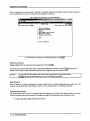
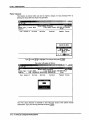
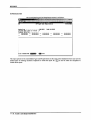
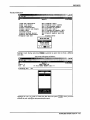
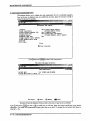
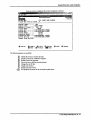
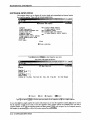
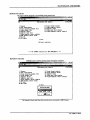
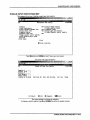
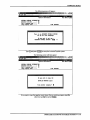
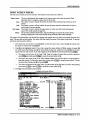
Processing Year
The system will default to the current year. To change the processing year you must select the Modify option and
enter the year you want. Since the system defaults to the current year you will have to wait till the modify option is
listed before you can change this. The year should be entered in the format yyyy.
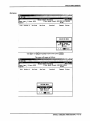
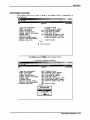
File Selection
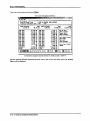
Type (a) and press [<-* Enter) to include all analysis files for the processing year selected above or type (J[) and press
I^Enteri to select the analysis files you want to include.
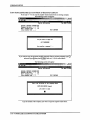
GST Code
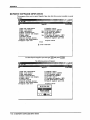
You can have numerous GST codes set up through Maintenance & Inquiry, GST codes. The system will prompt you
for the GST code you want the report to detail. Ifs \ can be used to list all valid GST codes and IF4 ) can be used to
set up a new GST code.
Division Selection
You can generate this report for a single division, (s) or all divisions, (a). If you select a single division Ifs \ can be
used to list all divisions and |F4 | can be used to set up a new division.
Cut off Date
You must enter a cut off date for this report. The system will only include invoices up to the cut off date entered.
You can use the last month end date, fFT"j. or enter your own date in the format ddmmyyyy.
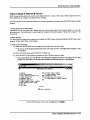
Record Selection
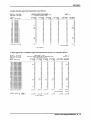
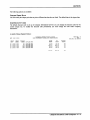
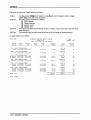
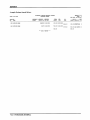
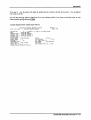
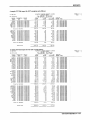
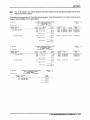
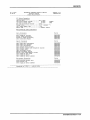
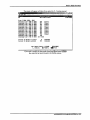
This report is set to display GST Exceptions only. GST exceptions include when no GST was posted for an invoice
or the GST amount posted was not 7% of the net invoice amount. Type (a) and press [<-■ Enter! to include all records.
An asterisk "*" will be printed at the end of the calculated GST field for all GST exceptions when all records is
selected.
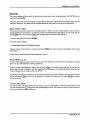
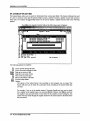
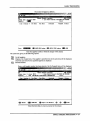
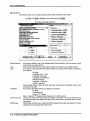
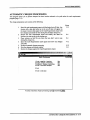
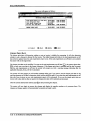
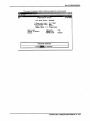
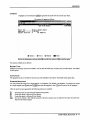
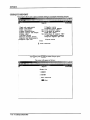
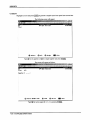
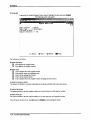
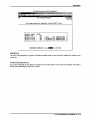
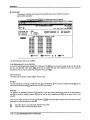
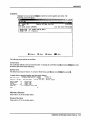
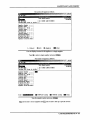
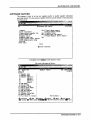
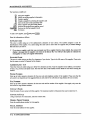
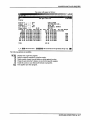
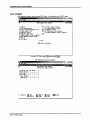
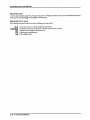
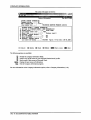
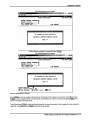
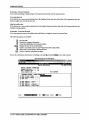
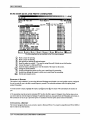
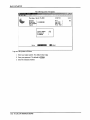
Once all your report options are set type (s) and press I*-1 Enter) to start spooling the report. Once the report has been
generated the following options are available:
CD
®
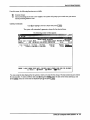
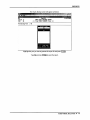
Email this report to your Microsoft Outlook email profile.
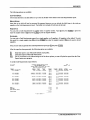
Create this report in Microsoft Word format.
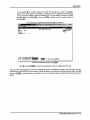
|Esc)
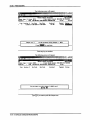
Exit. If you choose to exit without using one of the above options you can still print the report from the Print
Reports main menu program.
7-46 ■ GST EDIT REPORT