1
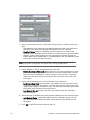
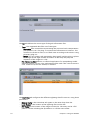
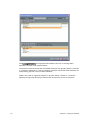
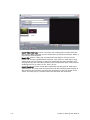
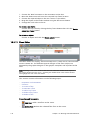
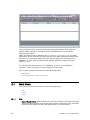
option. The snapshots rendered are of the first frame of every data element,
unless a special tag is defined in the graphic template’s animation called
“pilot1”. If such a tag is defined the snapshot will be rendered at that point of
the animation.
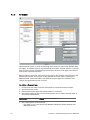
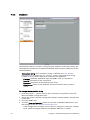
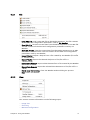
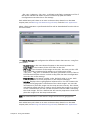
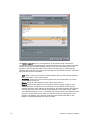
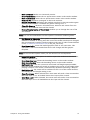
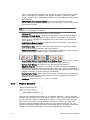
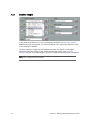
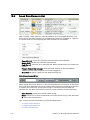
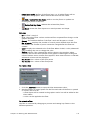
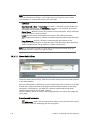
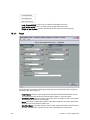
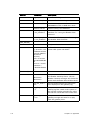
• Make Playlist Snap Images & Clips: Creates post rendered clips of the
initialized playlist and snapshot images of the playlist as explained in the two
menu options above.
Note: A render device must be defined in Viz and the path for storing the rendered
images must be defined in Viz Weather
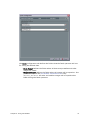
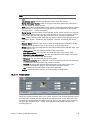
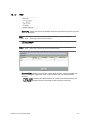
• Initialize All: Loads the Playlist items to the renderer.
• Initialize All: Silent Mode: Loads the Playlist items to the renderer without
displaying user dialogs and messages. After the initialization is done, all
warning/error messages are displayed in the initialization log and the info
icon will blink.
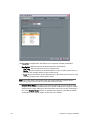
• Fetch Playlist Weather Points: Fetches the data for all weather points used in
the playlist (only point data).
• Fetch Playlist Data: Fetches all the data (including points, grid data, images
etc.) for all the data elements used in the playlist.
• Update Playlist Data: Sends all data to the playlist updating all data elements
using radar images, satellite images and weather points.
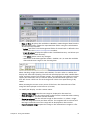
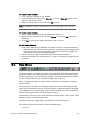
• Show Playlist Buttons Panel/Hide Playlist Buttons Panel: Opens/hides a button
control panel for activating Playlist commands during production.
• Refresh PLAY Device: Refreshes the Viz play device information.
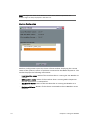
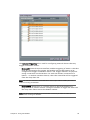
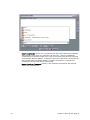
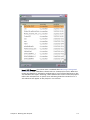
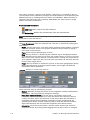
• MSE MOS Playlists: This option is enabled only when the MOS connection is
defined and connected. When selecting this menu item, a window displaying a
list of the available playlists sent by the newsroom automation system. When a
playlist is selected it can be loaded to Viz Weather.
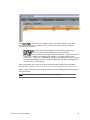
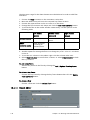
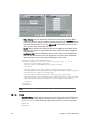
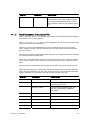
• Resave Playlist Items: Opens each data element in the playlist and saves them.
This allows you to perform data element structure changes that requires resaving of all data elements.
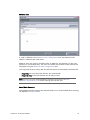
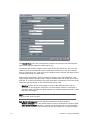
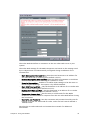
• Properties: Opens the Playlist Properties window.
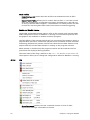
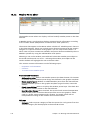
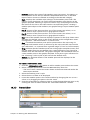
6.2.7
Weather Elements
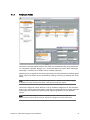
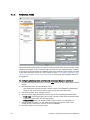
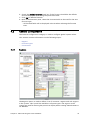
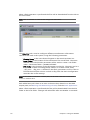
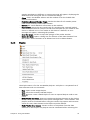
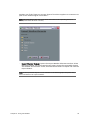
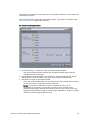
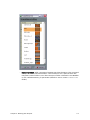
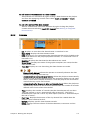
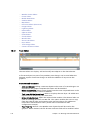
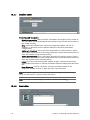
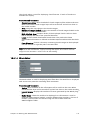
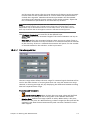
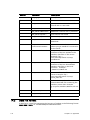
The weather elements menu relates to Viz Weather elements - fronts, pressure
symbols, special objects and flows. When used in a data-element, these elements
are set manually- shape, position and animation - to represent meteorological
data. The export/import option enables using these elements for other data
elements/graphic template without having to repeat the manual process. The
elements are exported with geographic referenced objects, and when imported to
another data-element the objects will keep the geographic orientation.
84
Chapter 6: Using Viz Weather