1
A Walk Through
Step One
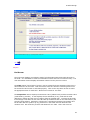
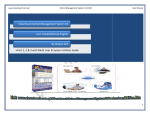
This topic will show you a walk-through of INTELICODE® as we go through an audit, screen
by screen. Once you have opened your Intelicode program and logged in as a user, you will
see a blank patient screen. Please note that the field names followed by an asterisk (*) are
required fields.
Patient Screen
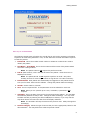
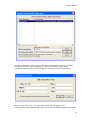
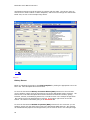
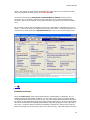
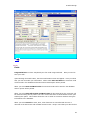
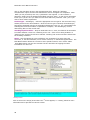
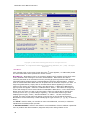
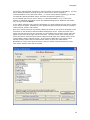
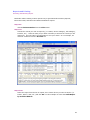
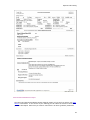
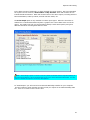
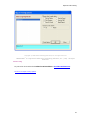
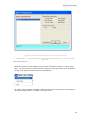
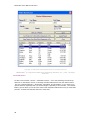
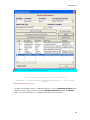
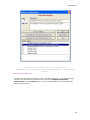
To begin an audit, in the Patient ID* field you must enter a number by which you can
identify the patient (i.e. medical record number, account number, etc.). The Patient ID we
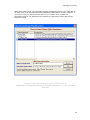
have entered for our audit is 167 as seen in the example image below.
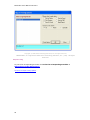
The Last Name and First Name fields should then be completed with the patient's name.
Completion of the Last and First Name fields is not required to complete an audit. Any
names entered in the name fields will appear on reports exactly as they are entered here.
The patient Last Name and First Name we entered for our audit is Bebee, Beth as seen in
the example image below.
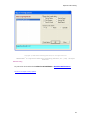
The D.O.B. (Date of Birth) field is only required for those services that are age driven, such
as preventive health services. If date of birth is entered, enter in MM/DD/YYYY format. The
patient D.O.B. we entered for our audit is 07/27/1952 as seen in the example image below.
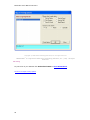
Choose the Patient Status* to indicate if the patient is new or established. The Patient
Status we entered for our audit is established, as seen in the example image below.
Choose the patient's Gender*. The patient Gender we entered for our audit is female, as
seen in the example image below.
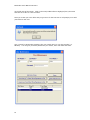
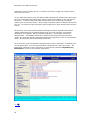
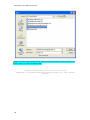
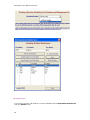
Select the Attending Provider (physician performing the visit) for the encounter being
audited. If the attending provider is not listed, select Add New Provider to add the provider
to the database. The Attending Provider we entered for our audit is Welmore MD, Marcus
#1 as seen in the example image below.
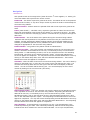
Enter the Visit Date (the date of service) by entering the date in MM/DD/YYYY format, or by
clicking on the drop down arrow and selecting the appropriate date from the calendar
displays. The Visit Date we entered for our audit is 7/10/2007 as seen in the example
image below.
Enter Requesting Provider (physician requesting the service) as necessary in relation to
the services being provided. If the requesting provider is not listed, select Add New
Requester to add the provider to the database. We did not enter a Requesting Provider for
our audit since the service type was Office or Other Outpatient.
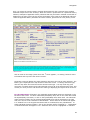
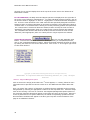
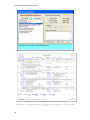
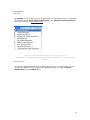
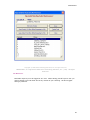
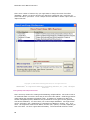
Select the appropriate Service Type* (i.e. office visit, consult, etc.) for the encounter being
audited. Next select the appropriate service Sub Type (i.e. initial visit, office consultations,
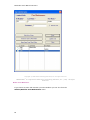
initial hospital care, etc.). Note: if Service Type "Consultations" is selected, the Consult
17