1
A Walk Through
Next
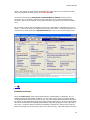
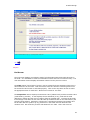
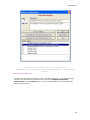
Step Six
Finish
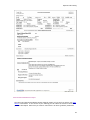
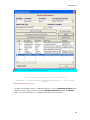
Congratulations! You have completed your first audit using Intelicode.
save your work.
Now you need to
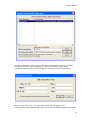
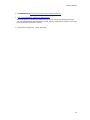
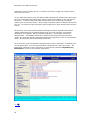
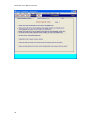
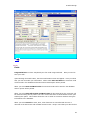
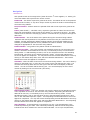
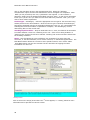
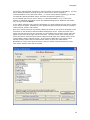
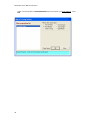
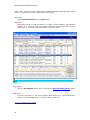
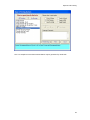
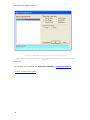
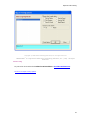
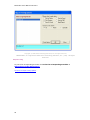
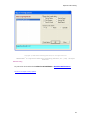
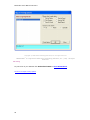
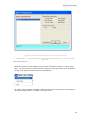
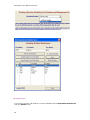
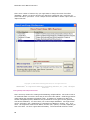
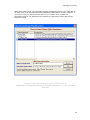
Upon selecting the Finish button, the Save Confirmation screen will appear. Here you select
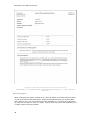
how you wish to handle your information. When select Save and Print the encounter audit
will be saved in the database and an Encounter Detail Report will be printed.
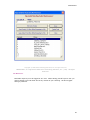
When you select Save and Don't Print the encounter audit will be saved in the database
and no reports will be printed.
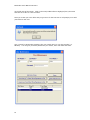
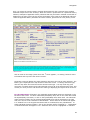
When you select Clear All Screens and Don't Save all data entered for this encounter will
be lost and nothing will be printed. The user will be returned to a blank Patient Screen upon
selecting this option. This feature allows the user to audit an encounter without saving the
information to the database.
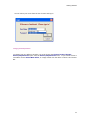
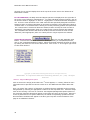
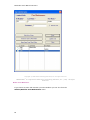
When you select Cancel the Save, Print, Clear functions are cancelled and the user is
returned to the End screen with all data entered in tact. Keep in mind that your data for this
25