1
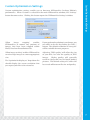
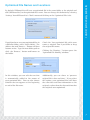
Custom optimization settings enable you to fine-tune NXPowerLite Desktop Edition's
performance. When 'Custom' is selected in the main NXPowerLite window, the 'Settings'
button becomes active. Clicking this button opens the 'NXPowerLite Settings' window:
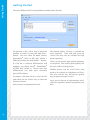
'Allow
image
cropping'
enables
NXPowerLite to remove any portions of
images that have been cropped within
Word, Excel® or PowerPoint® files.
If your preferred resolution is not shown, you
can add it to the list by clicking the 'Edit...'
button. The default resolution of '1024x768'
will be suitable for most purposes.
'Allow image resizing' enables NXPowerLite
to resize large images to a more appropriate
size.
Adjusting 'JPEG quality' will affect the size
of your files, but also the quality of JPEG
images.
Higher quality will generally
result in a larger file size, but better looking
pictures. The default setting of '6' offers the
best trade-off between file size and quality.
The 'Optimize for display at:' drop-down list
should display the screen resolution that
you expect your files to be viewed at.
Custom Optimization Settings
Custom Optimization Settings
5.