1
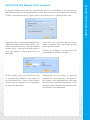
Initially, the NXPowerLite Desktop Edition installer will ask you to choose your setup type.
The options are 'Typical', 'Custom', or 'Complete'.
If you choose 'Typical' or 'Complete',
NXPowerLite will be installed, along with
add-ins that integrate NXPowerLite with
Windows® Explorer, Microsoft® Office and
supported email clients. If you choose
'Custom', you'll be given the option to
choose which add-ins are installed.
Explorer integration will enable you
to optimize a file by right-clicking it in
Windows® Explorer and selecting 'Optimize
with NXPowerLite...' (32-bit Windows® only).
Word, Excel® or PowerPoint® integration
will enable you to optimize a file by
selecting 'Optimize with NXPowerLite...'
from the application's 'File' menu (Office
2000-2003) or 'Add-Ins' tab (Office 2007).
Installation, Registration
Installation
Email client integration will enable you to
automatically optimize email attachments as
they are sent (see 'Email Client Integration').
To uninstall NXPowerLite, select it from the
'Add/Remove programs' list in Windows®
Control Panel.
Registration
When you first start NXPowerLite Desktop Edition, it will open in 'Evaluation Mode'. This
mode is designed for people that want to test NXPowerLite before buying the software. You
can only optimize 20 files in Evaluation Mode. After you've optimized 20 files, you'll need to
enter your 25-character registration code to continue using NXPowerLite.
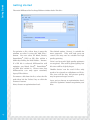
To enter your registration code, either
click on the 'Enter Code...' button that
appears at the bottom of the NXPowerLite
'About' screen, or select 'Enter registration
code...' from NXPowerLite's 'Help' menu.
A window will appear containing boxes for
you to enter your name and code.
You should have received your registration
code when you purchased NXPowerLite
(it's usually sent via email).
If you didn't receive a code, or if you've lost
it, there is a 'Registration Reminder' tool
available at www.neuxpower.com/support.
3.