1
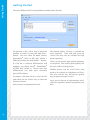
By default, NXPowerLite will save an optimized file in the same folder as the original and
add '(NXPowerLite)' to the optimized file's name. You can change this behavior by selecting
'Settings' from NXPowerLite's 'Tools' menu and clicking on the 'Optimized Files' tab:
If you'd prefer to save your optimized files in
a different folder, select 'Single folder'. The
address bar and 'Browse...' button will then
become active. Type the new folder path or
click the 'Browse..' button and browse to
the folder.
Check the 'Save optimized file with same
name as original' box if you'd like to keep
the original file name.
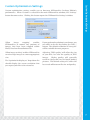
In this window, you can edit the text that
is automatically added to the names of
your optimized files. You can also choose
whether the text appears at the beginning
or end of the file name.
Additionally, you can chose to 'preserve
original file's date and time'. If you select
this option, your optimized files will have
the same date and time information as the
originals, rather than the date and time that
the originals were optimized.
Optimized File Names and Locations
Optimized File Names and Locations
Clicking the 'Naming...' button opens the
'Optimized File Naming' window:
7.