1
ELECTRONIC CLEARING HOUSE BILLING
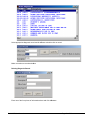
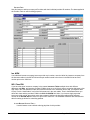
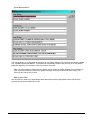
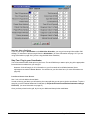
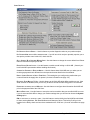
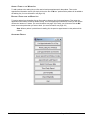
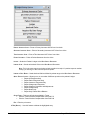
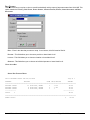
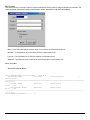
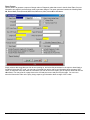
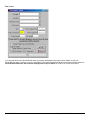
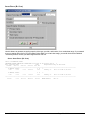
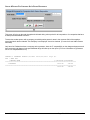
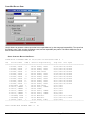
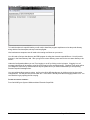
Use this feature to file to the other major payers through the Proxy Med clearing house. The steps are the same as
above. But the initial run is slightly different.
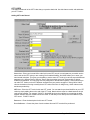
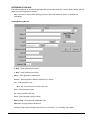
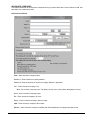
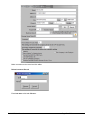
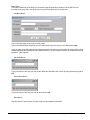
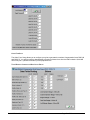
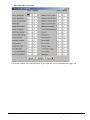
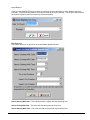
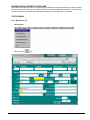
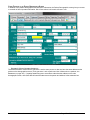
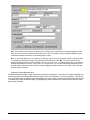
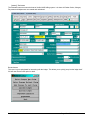
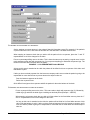
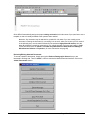
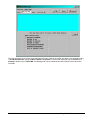
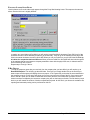
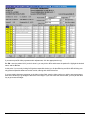
In setting up to send claims to ProxyMed, you will need to insert ProxyMed’s Insurance Payer ID#’s in all of the
insurance records in Quick-MD that you want to go electronically. They will go in the Clearing House payer ID#
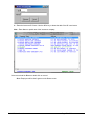
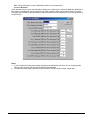
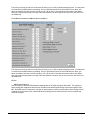
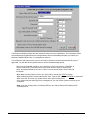
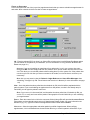
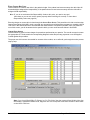
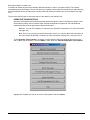
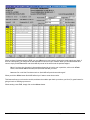
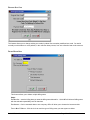
field in the master insurance records in Quick-MD. When you run your initial run, you will check the box Pick up
all claims for companies that have ID#’s set. When you do the Initial Run, Quick-MD will then look through all
of the patients that have an insurance company attached to them with the payer ID#’s set, for claims that don’t
have a red billing note on them.
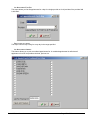
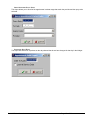
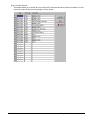
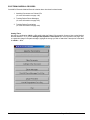
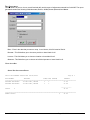
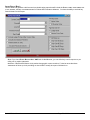
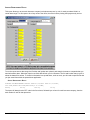
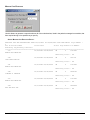
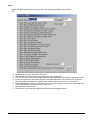
Repeat steps 1 through 5 above.
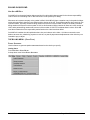
E-BILL REPORTS
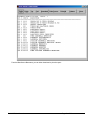
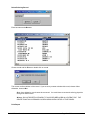
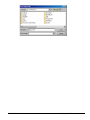
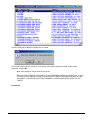
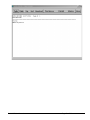
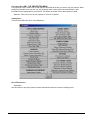
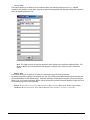
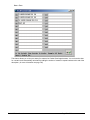
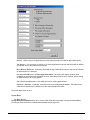
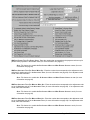
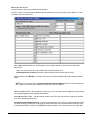
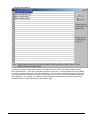
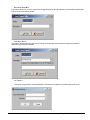
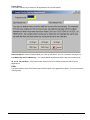
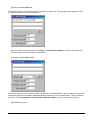
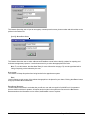
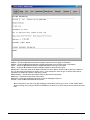
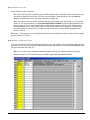
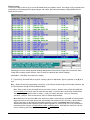
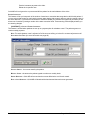
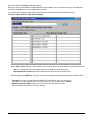
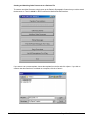
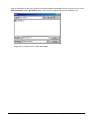
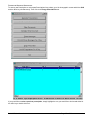
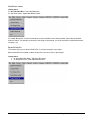
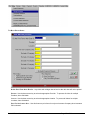
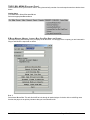
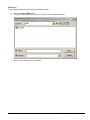
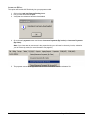
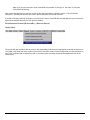
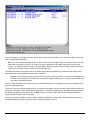
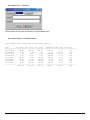
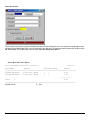
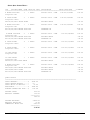
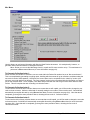
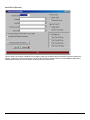
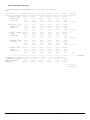
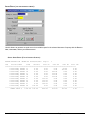
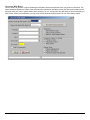
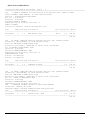
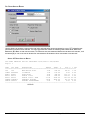
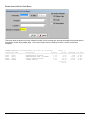
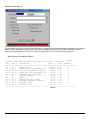
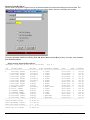
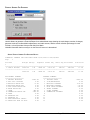
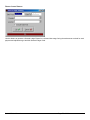
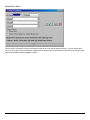
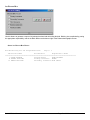
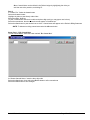
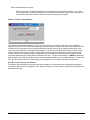
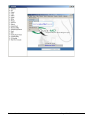
To read the response report that you received, from the company that you have billed, you will need to go to
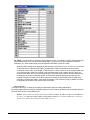
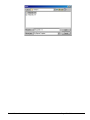
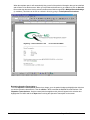
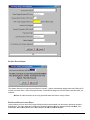
Read E-Bill Reports. This will bring up the ebill folder. From here you simply double click on the file that you
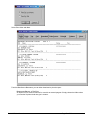
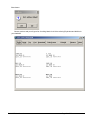
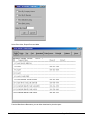
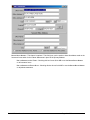
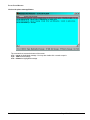
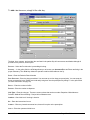
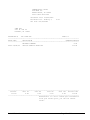
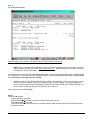
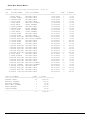
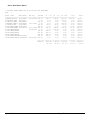
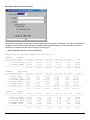
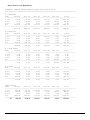
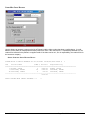
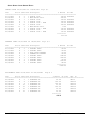
want to open and the system will display the correct report. A TA1 report tells you that the file was transferred to
the company correctly. A 997 report, will show you if errors occurred in the format of the file. If any errors come
back in the 997 report you will need to resend the entire batch, after the errors has been corrected. Once the
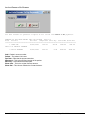
claims have been accepted by the insurance company they will run their own set of edits. The file that they send
back to you will contain the number of claims excepted and rejected. An 835 file is your electronic remittance file,
reporting and automatic posting can be preformed on this file.
Quick-MD User Manual
Page 227 of 308