1
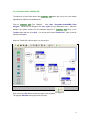
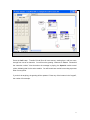
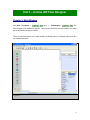
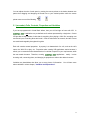
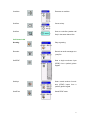
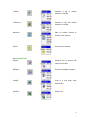
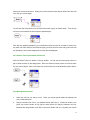
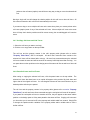
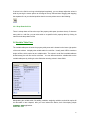
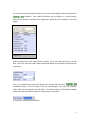
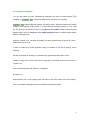
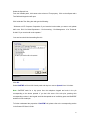
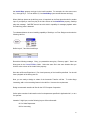
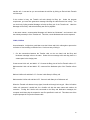
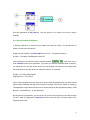
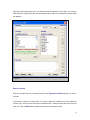
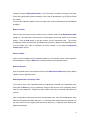
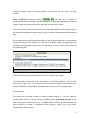
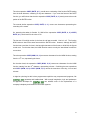
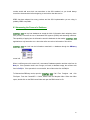
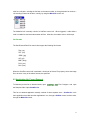
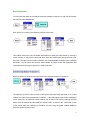
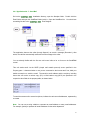
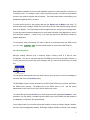
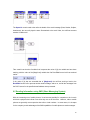
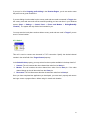
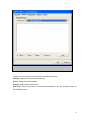
Click the Call Control button to switch to view the Call Control cells.
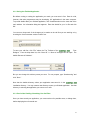
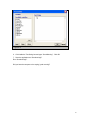
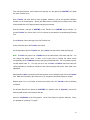
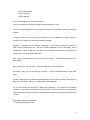
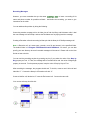
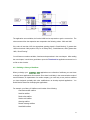
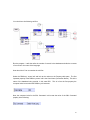
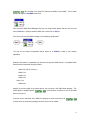
To view more Call
Control cells, just click the down arrow at the bottom right corner of the side toolbar as shown on
the above middle picture.
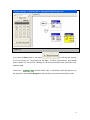
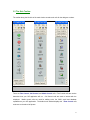
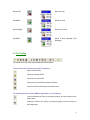
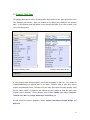
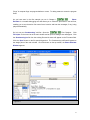
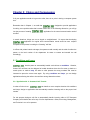
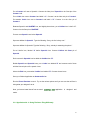
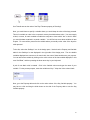
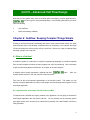
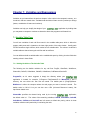
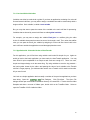
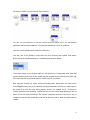
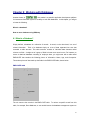
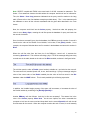
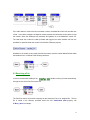
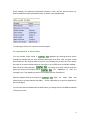
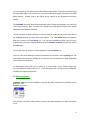
Click the Media Control button to switch to view the Media Control cells as shown on the above
right picture.
Click the Flow Control or Call Control button to switch back to view the Flow Control cells or
the Call Control cells.
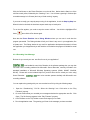
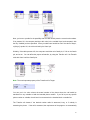
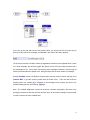
You can select one of the cells by clicking it from the side toolbar, and while holding down the
mouse button, moving the mouse pointer towards the design pane, then releasing the mouse
button to place that cell at any point on the design pane. This operation is often called drag-anddrop. Then, an icon for that cell appears on the design pane with the cell icon’s upper left corner
positioned at the insertion point.
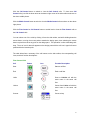
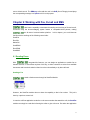
The table below lists a summary of the cell buttons on the side toolbar, the corresponding cell
icons, and their function descriptions:
Flow Control Cells
Cell
Button
Icon
Function Description
Start
Starts a call flow.
End
Ends a call flow.
Linkin
Goes to LinkOut cell with the
same name in the same call
flow.
Linkout
Comes from LinkIn cell with the
same name in the same call
flow.
Counter
Counts a loop
16