1
Chapter 21 Backup and Restore Utility (BRU)
493
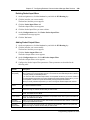
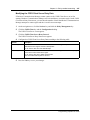
Saving a backup job
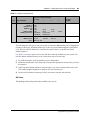
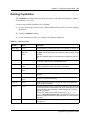
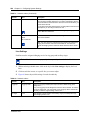
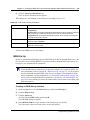
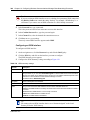
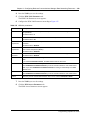
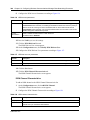
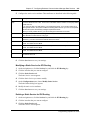
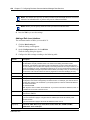
When you are creating a backup job or a scheduled backup job, you can save the settings for that
job. You can then load this job any time you want to run the job. This feature is particularly useful
for jobs that you run several times, but do not run on a regular schedule.
1
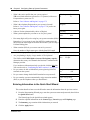
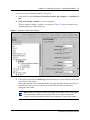
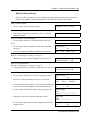
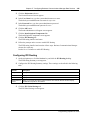
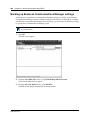
Start BRU.
The BRU screen appears
2
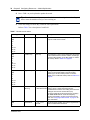
From the Load XML File list box, select BCM Backup and Restore.xml.
The Select the Mode list box appears.
3
From the Select the Mode list box, select BACKUP.
The BRU screen changes and displays the backup options.
4
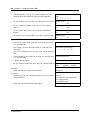
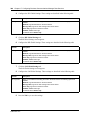
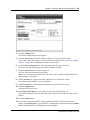
Click the Volume button.
The Volume Administration screen appears.
5
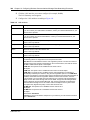
Click the Select button beside the volume in which you want to store the backup.
If you want to store the backup in a volume that does not appear on the list, refer to “Adding
volumes” on page 491 for information on how to add volumes.
6
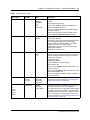
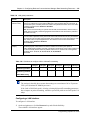
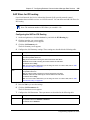
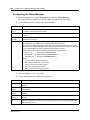
If this is a scheduled job, enter the scheduled backup settings.
7
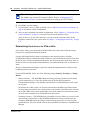
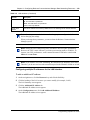
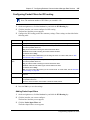
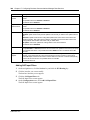
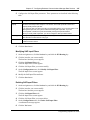
Click the Save Job button.
8
In the File Name box, type the name for this saved job.
9
Click the Save Job button.
A confirmation dialog box appears.
10 Click the Close button.
The backup job settings are saved.
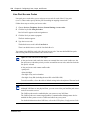
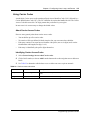
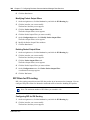
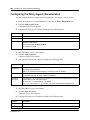
Loading a saved backup job
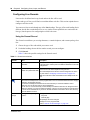
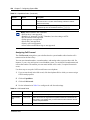
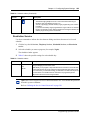
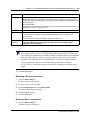
When you want to run a saved backup job, you must first load that job.
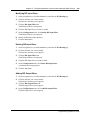
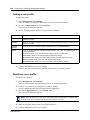
1
Start BRU.
The BRU screen appears
2
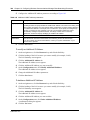
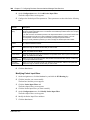
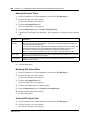
Click the Saved Jobs link.
The Saved Job Files screen appears.
3
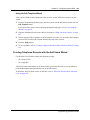
Click the Load link beside the job you want to load.
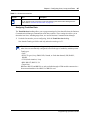
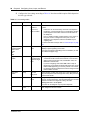
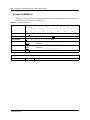
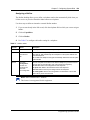
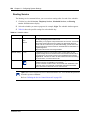
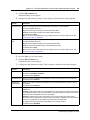
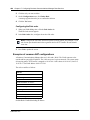
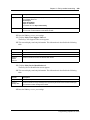
Deleting a saved backup job
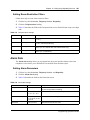
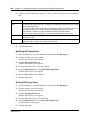
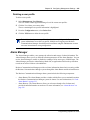
1
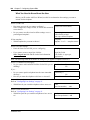
Start BRU.
The BRU screen appears
2
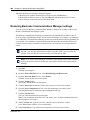
Click the Saved Jobs link.
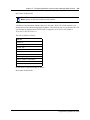
The Saved Job Files screen appears.
Programming Operations Guide