1
3
Tutorial
The four lessons in this chapter will introduce you to the structure, tools and options found in Easy Grade Pro. The word to
remember is explore; these lessons are meant to be springboards for your own exploration. Be sure to utilize the help tools
and Quick Reference charts found in Chapter 2 as you work through the lessons.
Lesson 1: Moving around a Gradebook
1 Open the gradebook named Demo Gradebook.
Macintosh: Double-click on the icon titled Demo Gradebook found inside the Easy Grade Pro Folder.
Windows: Click on Start in the corner of your screen, point to Programs, point to Easy Grade Pro and click Demo
Gradebook.
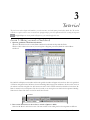
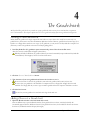
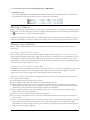
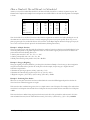
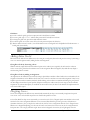
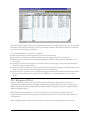
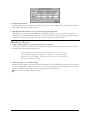
Easy Grade Pro will display its title window and then the gradebook window will appear as shown above. This is the gradebook
of a fictitious sixth grade teacher, Ms. Demo, who teaches Reading, Math, Language Arts and Science. She also teaches science to
the students in another sixth grade class. The homeroom teacher of those students teaches Social Studies to both classes. Ms.
Demo is currently in the second quarter of the school year and you are viewing the score chart for the class Quarter 2: Reading.
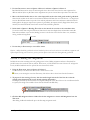
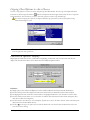
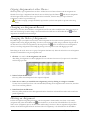
Notice that the name of this class is on the Class menu below the tabs.
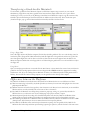
Class Menu
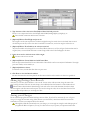
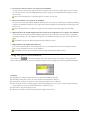
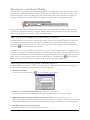
2 Press on the Class menu on the tool bar to switch to Quarter 2: Math.
Notice that Ms. Demo's math class has most of the same students as her reading class but the assignments are different.
Chapter 3: Tutorial
13