1
Changing a Student Record
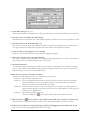
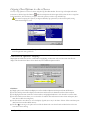
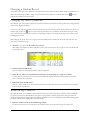
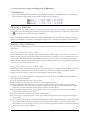
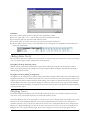
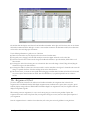
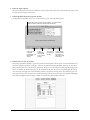
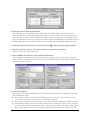
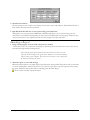
At any time, you can view, edit or add data to a student record. You may wish to modify the name, change the student status or
make some other changes. To make changes, choose Records from the Chart menu or click the Records tool . Click the
Students tab and make the desired changes.
Changing the Order of Students
Easy Grade Pro gives you complete control over the order of students in a class. There are three general ways to change student
order: sorting, dragging and editing.
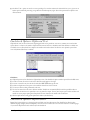
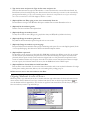
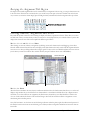
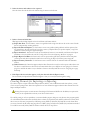
You can sort your students by last name, first name and several other ways using the items in the View menu. You can also sort
students using the Sort tool . This tool sorts student by name in the score, attendance and student charts. In the seating
chart, it sorts students randomly. In most charts you can change student location simply by pressing on the student’s name
and dragging up or down.
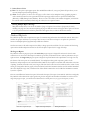
Basic editing can be used to move one or a group of students simultaneously. Students can be moved in the same class or to
other classes. Follow these steps:
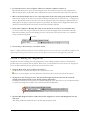
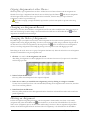
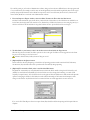
1 Click the row number of the student to be moved.
After clicking, the student's row will be highlighted. You can select more than one row if you press on the row number and
then drag up or down.
2 Select Cut from the Edit menu.
The row(s) will be removed and placed on the computer's clipboard.
3 Select the row where you would like the student(s) to be by clicking on a single row number.
You may select any currently used row or the row immediately following the last student in the current class, in another
class, or even in another gradebook.
4 Select Paste from the Edit menu.
The row(s) will be pasted into the list. All students already in the list from the selected row on down will be moved to make
room for the pasted student(s).
Withdrawing a Student
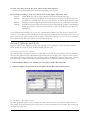
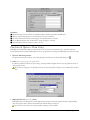
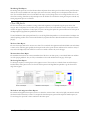
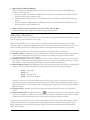
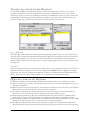
Easy Grade Pro allows you to withdraw a student without removing the student from the class. When a student is withdrawn,
you can elect to have the student hidden from the charts or just grayed. If a student is grayed in the charts, cells cannot be
selected and data cannot be changed. The letters WD are appended to the name of a withdrawn student. When printing reports,
withdrawn students will be skipped unless specifically chosen.
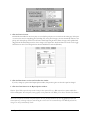
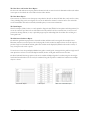
1 Open the student record for the withdrawing student.
The easiest way to do this is to double-click on the student's name in any of the charts (except the seating chart).
Chapter 6: Students
37