1
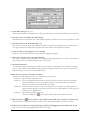
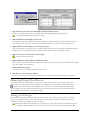
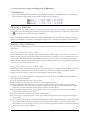
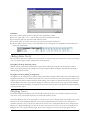
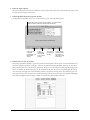
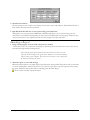
4 Click the Preview button.
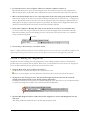
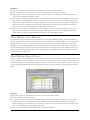
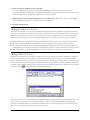
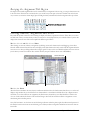
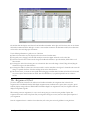
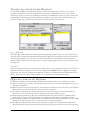
The Print Preview window has two views: fit-in-screen and full-size. The fit-in-screen view shows the entire page. In the fit-inscreen view, the cursor is a magnifying glass. By clicking once on any part of the page, the view automatically switches to the
full-size view. In the full-size view the cursor becomes a hand. By pressing the mouse button, the page can be grabbed and
dragged about. Double-clicking causes the view to change to the original view. The Zoom button can also be used to toggle
between the two views. Your can right-click to choose from different zoom levels (Windows).
5 Click the Done button to close the Print Preview window.
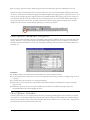
If you like, change any options in the Report Options window, then preview again to see how the report has changed.
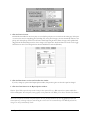
6 Click the Cancel button in the Report Options window.
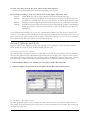
Explore: If you'd like, repeat the steps in this lesson for other reports. It's easy. All the reports have options which allow
much customization. Several reports (charts, graphs) can be printed in color. When you are done, click the Cancel button.
This is the end of Lesson 4 and the end of this chapter. You can quit Easy Grade Pro by choosing Quit/Exit from the File
menu. By the way, all changes that you made during these lessons have been automatically saved. With Easy Grade Pro,
changes are always automatically saved!
20 Chapter 3: Tutorial