1
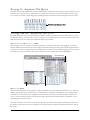
Resizing the Assignment Title Region
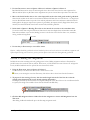
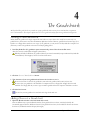
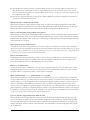
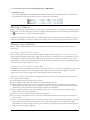
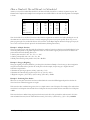
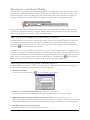
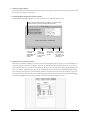
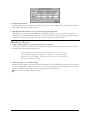
The height of the rotated assignment titles can be customized. If your assignments’ titles are long, you can give them more room
in the score chart. If the titles are consistently short, you can take away some space so that more student rows can be shown
on your screen. To resize the column height, press and drag the thick, horizontal line below the assignment titles up or down.
Filtering Students, Assignments and Scores
Easy Grade Pro provides extensive tools for filtering the display of students, assignments and scores. Filters allow you to show
and hide items so that your chart shows just what you want to see. Several reports allow you to include all data or just the data
displayed in a chart. The rest of this section explains the different types of filters.
The Show Selected and Hide Selected Filters
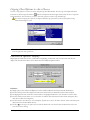
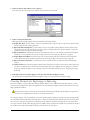
After selecting one or more students or assignments (by clicking on row and column numbers and dragging), choose Show
Selected or Hide Selected from the View menu to display just the desired items. This can be used to hide all assignments but the
current ones or to show just failing students after sorting by grade. You may need to use Hide Selected more than once to show
just the items you want. Choose Show All to “unhide” all items (except for students whose status is WD Hidden).
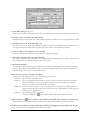
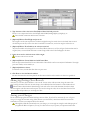
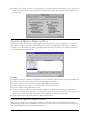
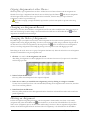
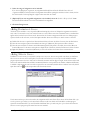
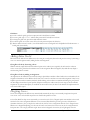
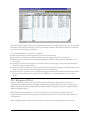
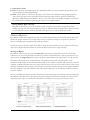
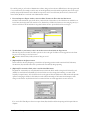
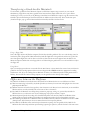
Custom Filters menu
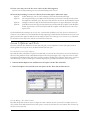
Show One Student menu
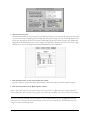
Show One Assignment menu
The Show One Filters
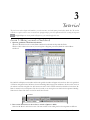
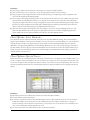
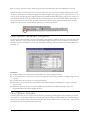
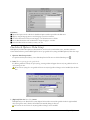
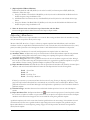
Above the first row number in the score chart is a small menu called the Show One Student menu that allows you to select and
display a single student only. To the left of the first column number is a second menu called the Show One Assignment menu
that allows you to select and show one assignment only. Both menus (shown above) cause Easy Grade Pro to switch to the
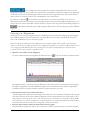
show one mode in which the function of the scroll bars changes. The scroll bars scroll the students or assignments one at a
time drawing each in the first position.
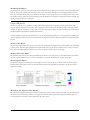
One of the best times to use the show one mode is during conferences when the privacy rights of students must be protected.
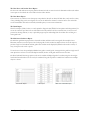
The Find tool works in the show one mode allowing you to find any student or assignment and still never have more than one
item visible.
Chapter 8: The Score Chart
51