1
OWNER INTERACTION MANUAL
SW I FT F U T U R A ™
[oi_man.doc]
1.0
ACCESSING OWNER INTERACTION
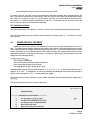
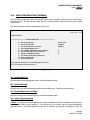
To enter owner interaction, press the ‘F1’ key from the single group dispatch screen. For more
information on the single group dispatch screen, please consult your Remote Monitor User’s Guide or
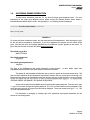
Extended Remote Monitor User’s Guide. After pressing ‘F1’, the following screen is displayed:
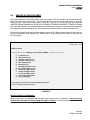
_ _ _ _ _ _ _ _ _ __ _ _ _ _ _ _ _ _ _ _ _ _ _ _ _ _ _ _ _ _ _ _ _ _ _ _ _ _ _ _ _ _ _ _ _ _ _ _ _ _ _ _ _ _ _ _ _ _ _ _ _ _ _ _ _ _ _ _ _ _ _ _ _ _ _ _ _ _ _ _ _ _ _ _ _ _ _ _ _ _ _ _ _ _ _
********** TRAFFIC MONITORING **********
Enter your Log-in ID:
________________________________________________________________________________________________
FIGURE 1.0
To access the Owner Interaction system, the user must enter an ID and password. After entering the Log-in
ID, the user will be prompted for a password. If your ID or password is inaccurate, an error notice will be
given. After the sixth time, the message "### Error No. 25 Invalid User Log On" appears on the screen. To
log in after this, the user must enter the default system password.
The default Log-in ID is:
SWIFT-FUTURA
The default password is:
swift-futura
The default system password is:
.aSysTem
The input of the ID/Password and system password is case sensitive.
(capitalized) letters and lower case letters must be used where indicated.
In other words, upper case
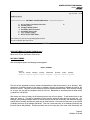
The default ID and Password will allow the user to enter the system at the lowest access level. The
user can add 5 additional ID and Passwords in permanent memory with any access level of 0 through 127.
Each menu item also has an associated access level and the only way to view the menu is to log on with an
access level higher than the menu level or to enter the system password after logging in. For access levels
of all menu options, see Appendix - D in the back of this manual.
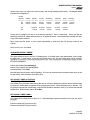
Access can be gained to all available menus by entering the system password. From any menu, type
".", type "a" for access, and type the system password. The "a" is not case sensitive but the password is. Any
menu that was previously at a higher level will now be displayed. To exit this access level; type ".", "e". The
"e" is not case sensitive either.
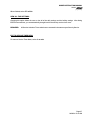
For information on changing or creating Log-in ID’s, passwords, and system passwords, see the
section on User Configuration.
Page 4
04/29/04 10:16 AM