1
INTREPID User Manual
Library | Help | Top
Multi-scale edge detection wizard (T44a)
5
| Back |
Using the Multi-scale edge detection wizard—overview (interactive only)
Parent topic:
Multi-scale edge
detection wizard
(T44a)
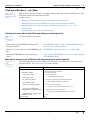
This section is an overview of the tool in interactive mode. The first part
demonstrates a standard scalar geophysical grid from the Intrepid\Examples datsets
and jobs distributed with every installation of Intrepid. A second tensor gravity
gradient example is then also described, also using data from the COOKBOOK/tensor
section of the distribution.
For information about batch mode operation, see Creating and using task
specification files.
Interactive
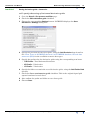
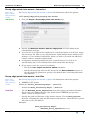
>> To use Multi-scale edge detection wizard with the INTREPID graphic user
interface
1
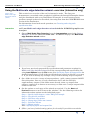
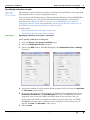
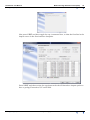
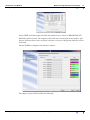
Choose Multi Scale Edge Detection from the Interpretation menu in the Project
Manager, or use the command worme.exe. INTREPID displays the Multi-scale
edge detection wizard window.
2
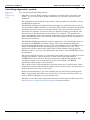
If you have previously prepared file specifications and parameter settings for
Multi-scale edge detection wizard, load the corresponding task specification file
using Load Options from the File menu. (See Specifying input and output files for
detailed instructions.) If all of the specifications are correct in this file, go to step
6. If you wish to modify any settings, carry out the following steps as required.
3
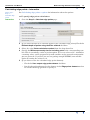
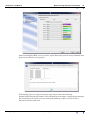
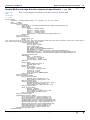
Set a folder to receive a range of output products - grids, comma seperated ASCII
files with points, lines etc at each continuation level, and the GIS style
supplementary outputs. If the folder name already exists, eg output, then
output1, output2 etc is choosen as necessary, to make sure a unique output folder
exists for each run.
4
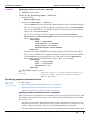
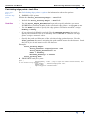
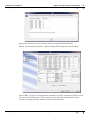
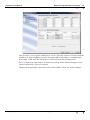
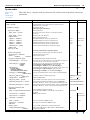
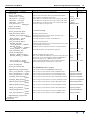
Set the options on each page of the wizard as required. Use the Next and
Previous buttons to move between the windows. See the following sections for
information about options on the individual pages:
Step 1—Specify input dataset, scalar TMI grid example
Step 2—Pre-process and filter
Step 3—Calculate edge points
Step 4—Group edge points into 'worms'
Step 5 - Calculate linears
Step 7—Export results
Also—Specifying input and output files.
5
Library | Help | Top
(When you have finished setting options for the task) If you wish to record the
© 2012 Intrepid Geophysics
| Back |