1
Chapter 6: Replication and Deduplication
Setting Up Deduplication
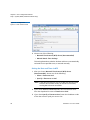
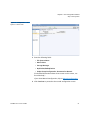
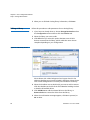
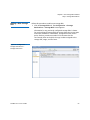
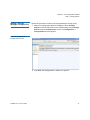
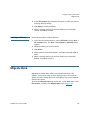
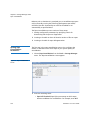
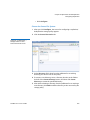
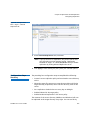
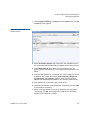
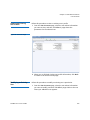
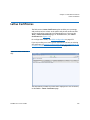
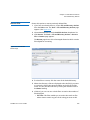
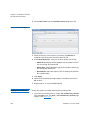
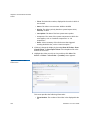
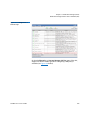
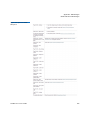
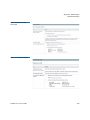
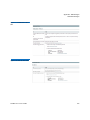
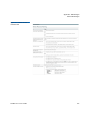
1 In the Configuration Wizard, choose the File Systems task.
(Alternatively, choose File Systems from the Configuration menu.)
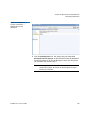
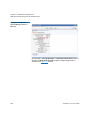
2 On the Options tab, enable replication by selecting Replication/
Deduplication.
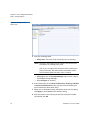
3 Continue creating the file system as your normally would. (If you are
editing an existing file system, click Apply to save your changes.) For
more information about creating a file system, see Step 5: File
Systems on page 49.
Step 2: Specifying the
Blockpool
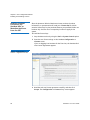
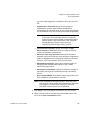
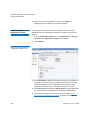
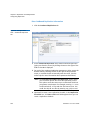
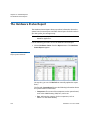
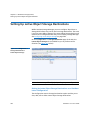
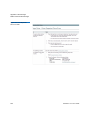
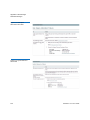
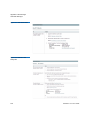
To use deduplication you must specify the file system on which the
blockpool resides. If you have already enabled replication and a
blockpool already exists, you can skip this step.
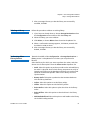
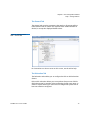
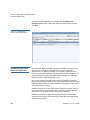
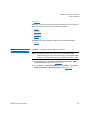
The process for specifying a blockpool for deduplication is identical to
specifying a blockpool for replication. For more information, see Step 2:
Setting up the Blockpool on page 198 in the Configuring Replication
section.
Step 3: Creating a
Deduplication-Enabled
Storage Policy
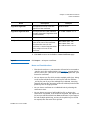
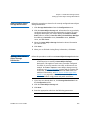
To enable deduplication you must either create a new replication/
deduplication storage policy or edit an existing policy.
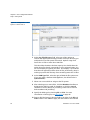
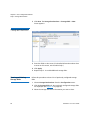
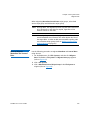
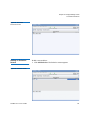
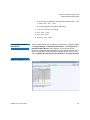
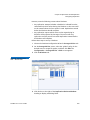
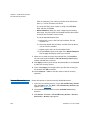
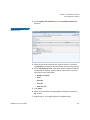
1 Choose the StorNext Configuration Wizard’s Storage Policies task.
(The Configuration > Storage Policies Screen appears.
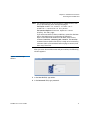
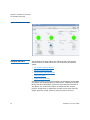
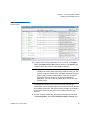
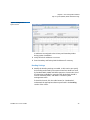
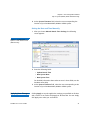
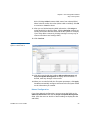
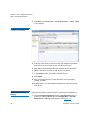
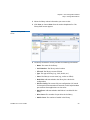
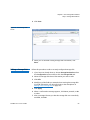
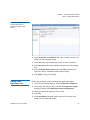
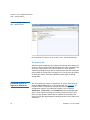
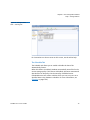
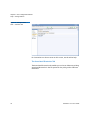
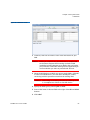
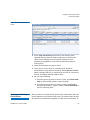
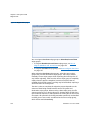
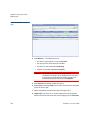
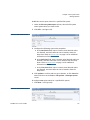
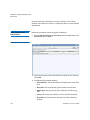
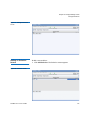
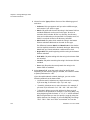
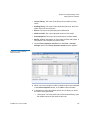
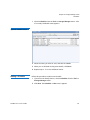
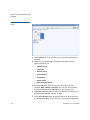
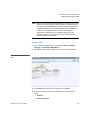
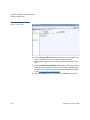
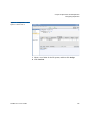
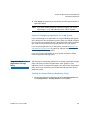
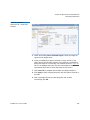
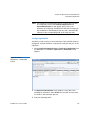
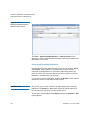
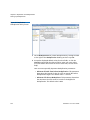
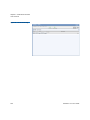
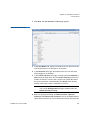
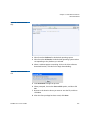
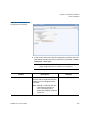
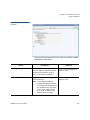
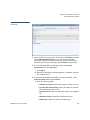
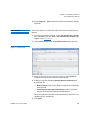
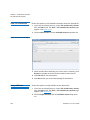
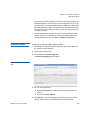
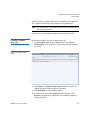
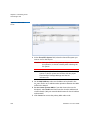
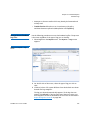
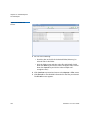
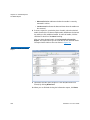
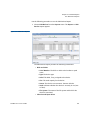
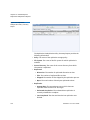
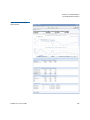
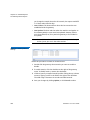
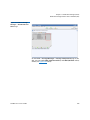
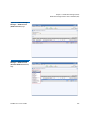
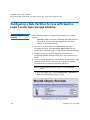
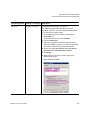
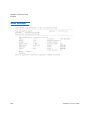
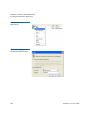
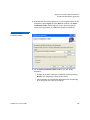
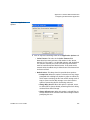
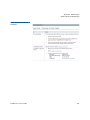
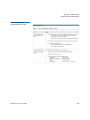
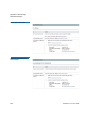
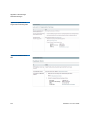
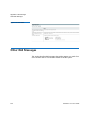
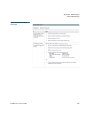
2 If you are creating a new policy, click New. The Storage Policies >
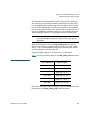
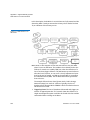
New Screen appears. (See Figure 81.)
If you are editing an existing replication policy, select the policy you
want to edit and then click Edit. Skip to Step 5.
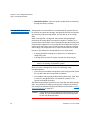
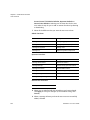
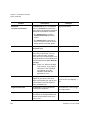
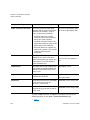
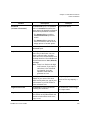
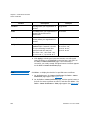
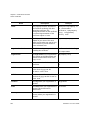
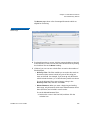
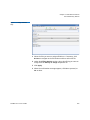
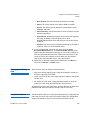
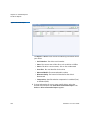
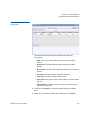
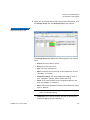
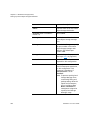
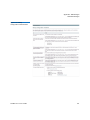
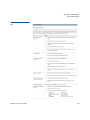
3 Enter the following fields:
• Policy Class: The name of the new policy you are creating
• Policy Type: choose Replication /Deduplication to create a
deduplication storage policy.
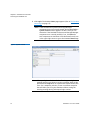
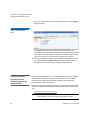
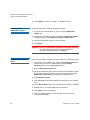
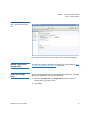
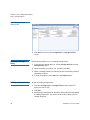
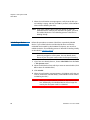
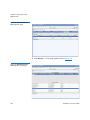
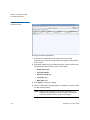
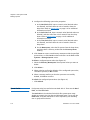
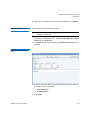
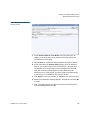
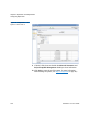
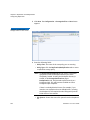
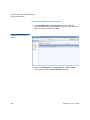
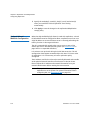
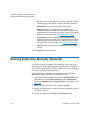
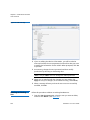
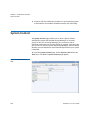
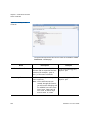
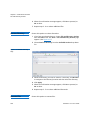
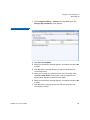
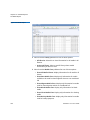
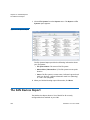
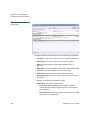
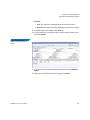
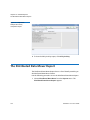
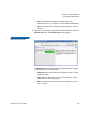
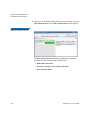
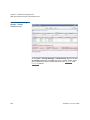
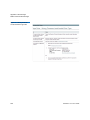
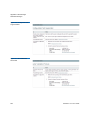
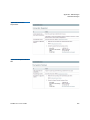
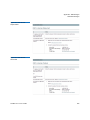
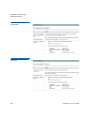
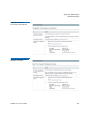
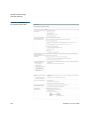
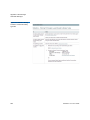
4 Click Configure. The Replication /Deduplication Policy screen
appears.
StorNext 4.7.x User’s Guide
231