1
Chapter 8: Service Menu Functions
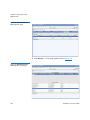
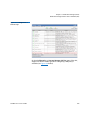
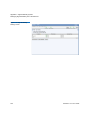
Tickets
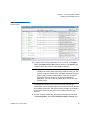
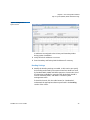
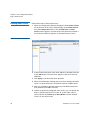
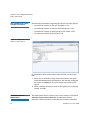
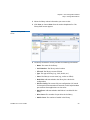
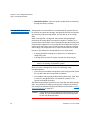
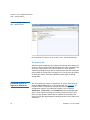
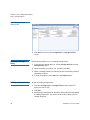
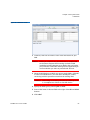
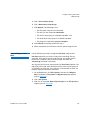
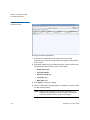
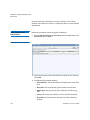
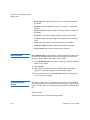
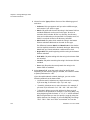
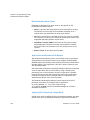
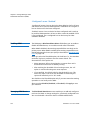
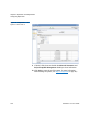
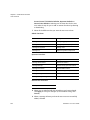
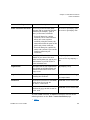
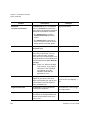
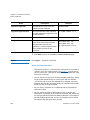
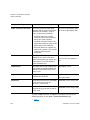
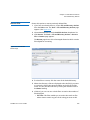
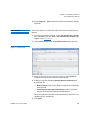
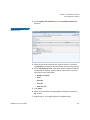
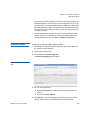
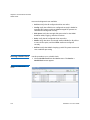
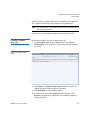
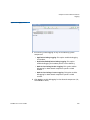
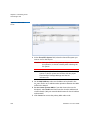
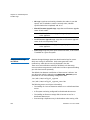
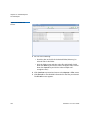
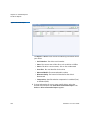
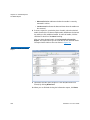
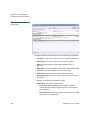
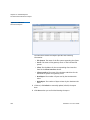
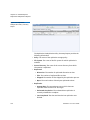
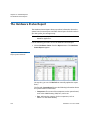
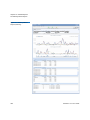
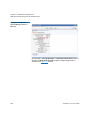
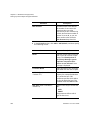
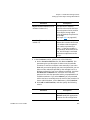
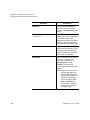
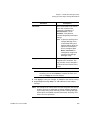
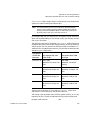
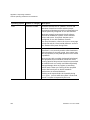
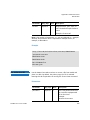
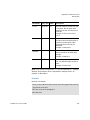
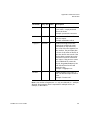
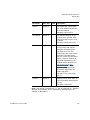
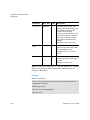
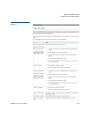
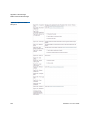
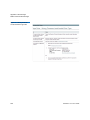
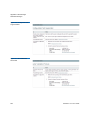
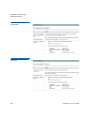
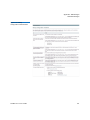
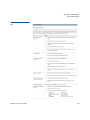
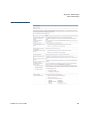
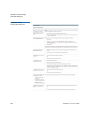
• Date Opened: The date and time the ticket was created
• Status: The current status of the ticket: OPEN or CLOSED
• Priority: The ticket’s priority based on system impact: HIGH,
MEDIUM, and LOW
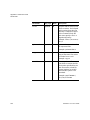
• Event Summary: A brief description of event condition and the
affected component.
• Event Details: Detailed information about event that triggered
the ticket, including a link that allows you to View
Recommended Actions which will help you correct the fault or
condition
• Analysis: Any user-entered comments pertaining to the fault or
condition, such as a recommended action
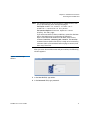
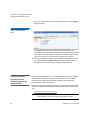
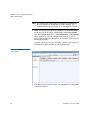
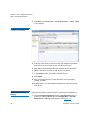
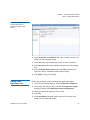
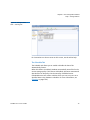
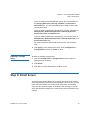
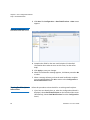
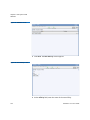
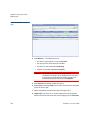
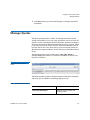
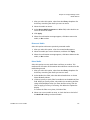
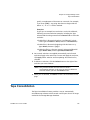
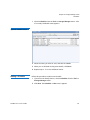
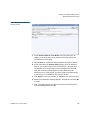
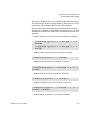
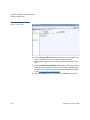
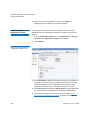
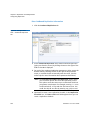
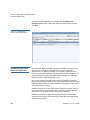
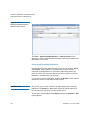
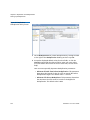
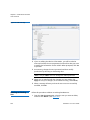
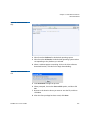
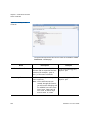
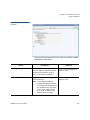
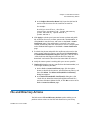
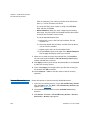
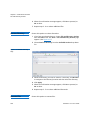
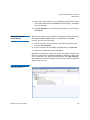
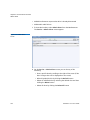
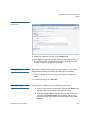
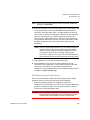
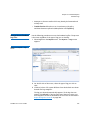
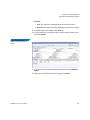
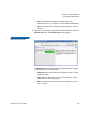
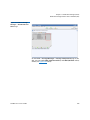
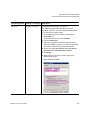
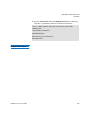
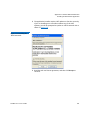
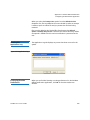
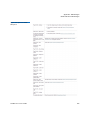
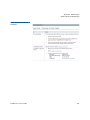
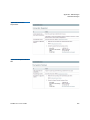
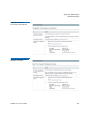
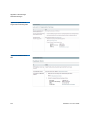
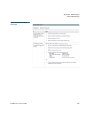
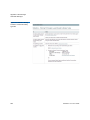
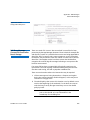
4 To see recommended actions for the ticket, click the View
Recommended Actions link. The Recommended Actions screen
appears provides information and steps to correct the condition or
fault that generated the RAS ticket. Follow the instructions on the
screen to correct the condition or fault. When you are finished
viewing the recommended actions, close the window.
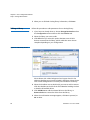
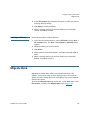
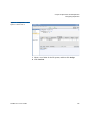
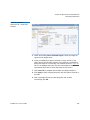
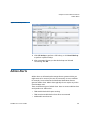
5 When you are finished viewing ticket information, click Done to
return to the Service > Tickets screen.
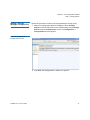
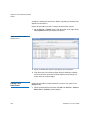
Changing the Display
View
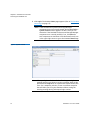
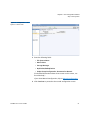
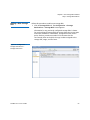
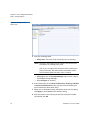
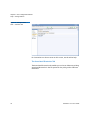
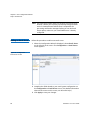
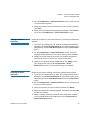
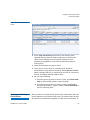
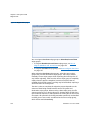
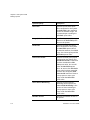
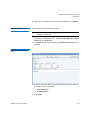
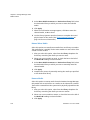
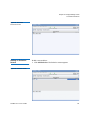
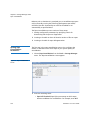
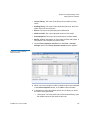
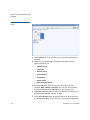
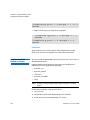
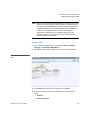
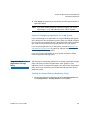
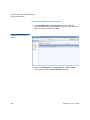
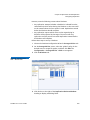
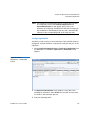
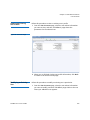
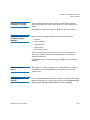
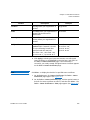
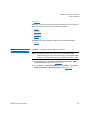
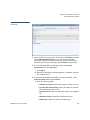
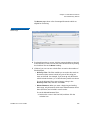
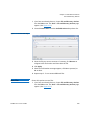
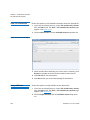
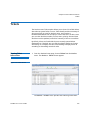
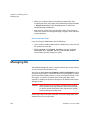
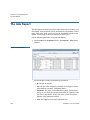
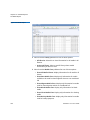
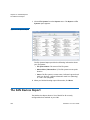
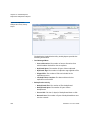
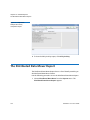
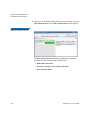
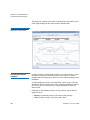
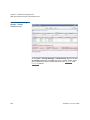
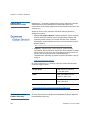
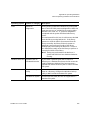
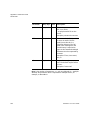
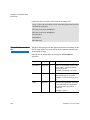
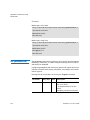
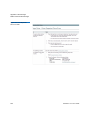
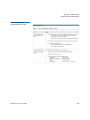
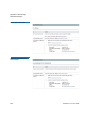
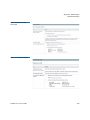
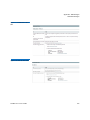
There are three ways to display ticket information:
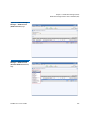
• Page: View tickets page by page, using the navigation controls at
the lower right side of the table.
• Scroll: Use the scroll bar at the right side of the table to change the
current view.
• All: Similar to Scroll mode, except the table expands to show all
tickets. (In Scroll mode the table remains the same size.)
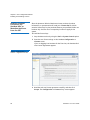
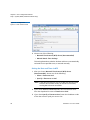
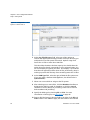
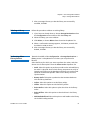
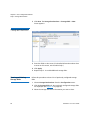
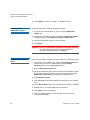
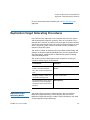
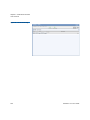
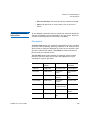
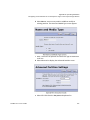
To change the current view, select Page, Scroll or All from the Table View
pulldown field above the table on the right side of the screen.
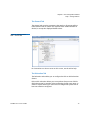
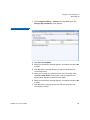
Using Filter Options
StorNext 4.7.x User’s Guide
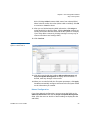
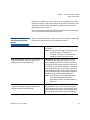
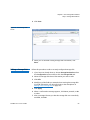
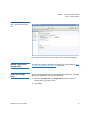
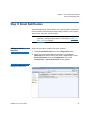
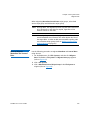
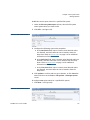
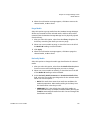
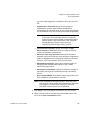
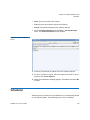
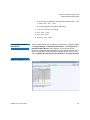
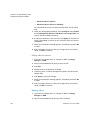
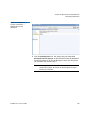
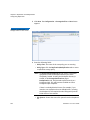
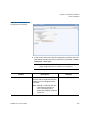
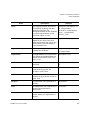
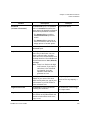
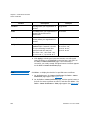
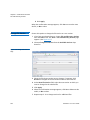
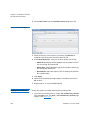
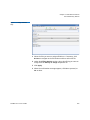
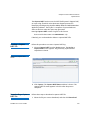
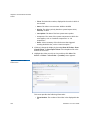
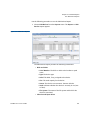
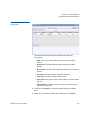
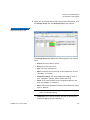
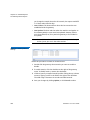
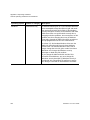
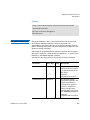
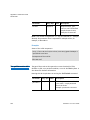
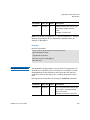
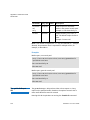
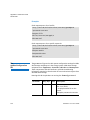
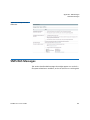
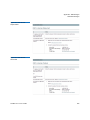
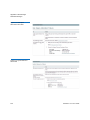
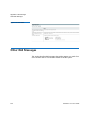
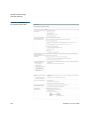
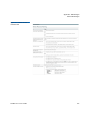
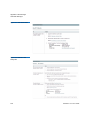
The filter options allow you to specify the ticket priority, component and
event type for which you want to be notified. Unless you change filter
options, the default is that you will received notifications for all
325