1
CONSUMER DIRECTION MODULE: MASTER USER MANUAL
Printing a Participant’s File
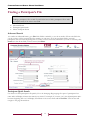
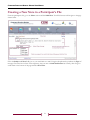
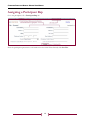
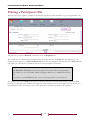
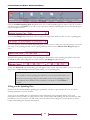
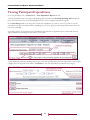
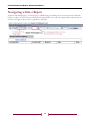
There are three ways to print a participant’s file. The first step in all of these methods is to go to the participant’s file.
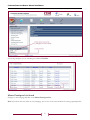
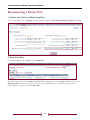
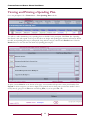
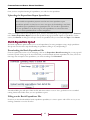
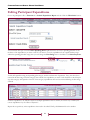
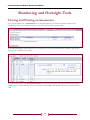
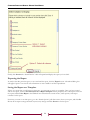
The first way is to click on Print File, located just below the Employee tab.
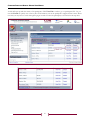
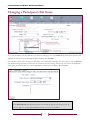
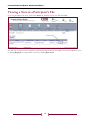
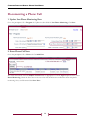
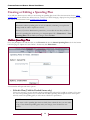
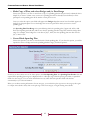
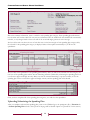
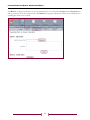
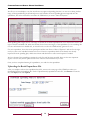
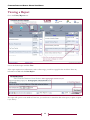
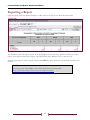
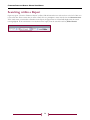
The second way is to download the Participant Form. To do this, click on the Forms link. This will bring you the
Participant Form page. In the Get Participant Form box, enter the participant’s last name then click Get Form. This
will enable you to download a spreadsheet with most of the participant’s information.
NOTE
The Print File and Forms links will always appear in the same location in the participant
file, whether you are in the FMSA Admin tab, Support Broker tab, or Medical Provider tab,
etc.
If you do not see the Forms link, then you do not have permission to use this feature.
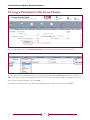
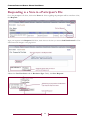
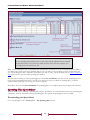
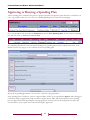
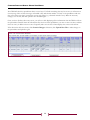
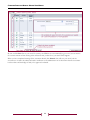
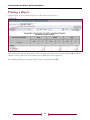
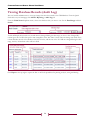
The third way is to click on Print at the bottom of the page. This link is available from anywhere within the CDM.
Clicking on it will open a new window. This window is a print-friendly version of the CDM. From this window, you
can print directly from your browser, but you must print each tab within the participant file separately.
22