1
CONSUMER DIRECTION MODULE: MASTER USER MANUAL
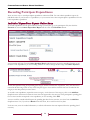
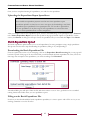
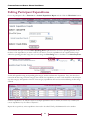
Repeat these steps with all of the expenditures. Be sure to click Save often. When you are done, click Save a final time
and close the window.
Individual Expenditure Report: Spreadsheet Entry
There are three steps to recording expenditures using the spreadsheet. You will download and save the expenditure
report spreadsheet, enter the information into the expenditure report, then upload the spreadsheet into the CDM.
Downloading the Spreadsheet
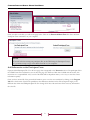
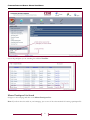
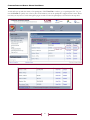
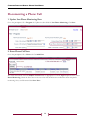
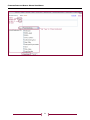
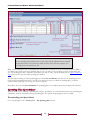
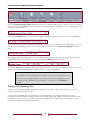
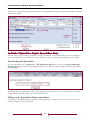
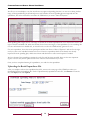
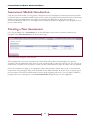
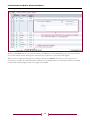
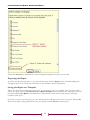
Go to the participant’s file > Financial tab > Get Expenditure Reports sub-tab. From the Approved Spending
Plans dropdown menu, choose the spending plan that covers the dates for which you will be recording expenditures.
Click Download.
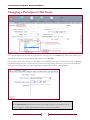
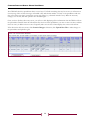
A download dialog box will appear. Name the file, and choose where to save it. It is a good idea to have a standard
naming format and a folder where you save expenditure reports.
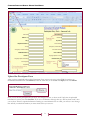
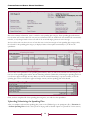
Filling out the Expenditure Report Spreadsheet
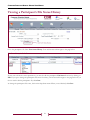
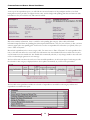
Now that you have downloaded the expenditure report spreadsheet, it is time to open it and to fill it out. As you are
working, remember to save the file often.
35