1
Configuring Workgroups
Editing Workgroup Membership
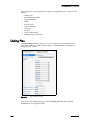
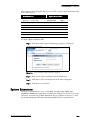
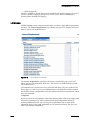
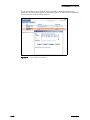
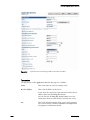
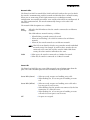
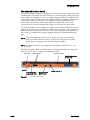
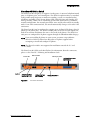
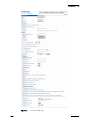
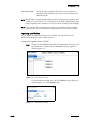
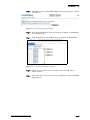
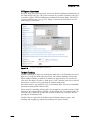
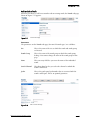
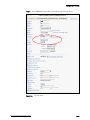
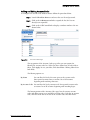
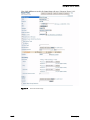
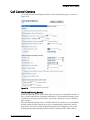
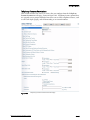
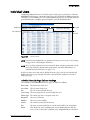
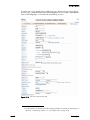
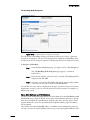
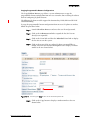
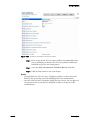
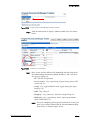
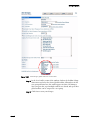
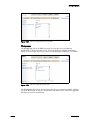
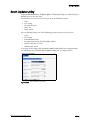
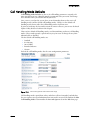
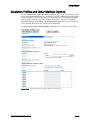
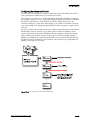
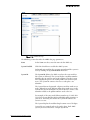
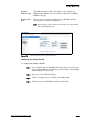
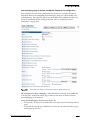
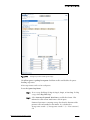
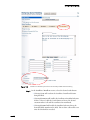
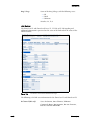
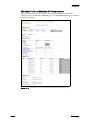
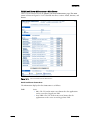
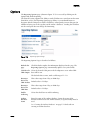
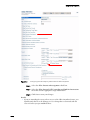
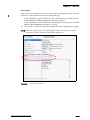
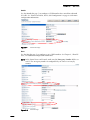
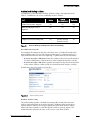
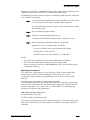
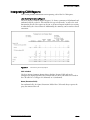
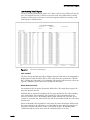
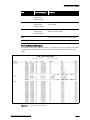
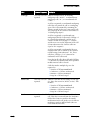
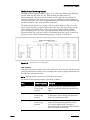
To build a list of workgroup members, click Edit Agents found on the Workgroups
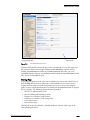
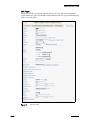
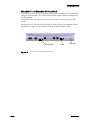
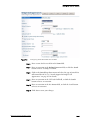
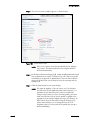
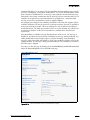
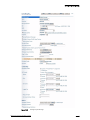
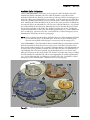
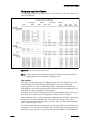
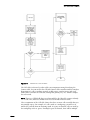
edit page. The Workgroup Membership edit page (Figure 14-5) lets you add and
remove agents to and from the workgroup.
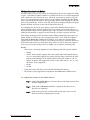
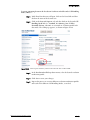
Figure 14-5
Workgroup Membership Edit Page
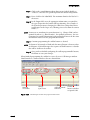
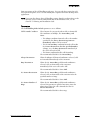
This page lets you add and remove agents to and from the workgroup, and also change
the order of agents. Note that if more members exist than can be displayed on one page,
you can use the forward and back buttons to scroll through the members or enter filter
criteria in the Filter Users By box. Also note that you can sort members by Extension,
First Name, or Last Name by using the Sort By drop-down list.
To add members to a workgroup, select a member’s name from list on the left side of
the page and click Add. The member’s name appears in the list on the right. When you
add a new workgroup member, that member is in a logged out state by default.
To remove a member from the workgroup, select that member’s name from the list at
the right side of the page and click Remove. The member’s name is returned to the list
on the left side of the page.
To change the order of a member’s hunt order in the workgroup, select the member’s
name in the right-most list and click Move Up or Move Down until the member
appears in the order you want.
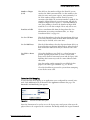
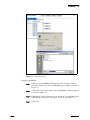
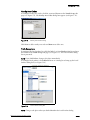
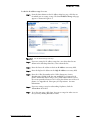
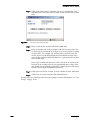
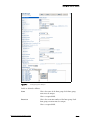
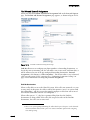
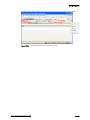
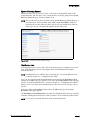
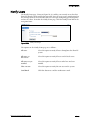
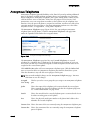
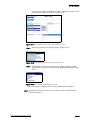
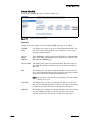
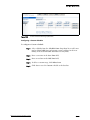
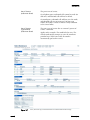
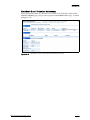
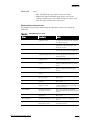
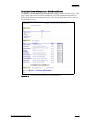
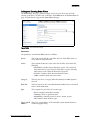
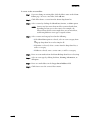
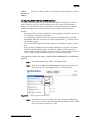
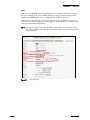
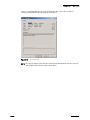
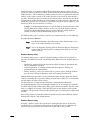
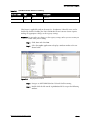
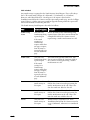
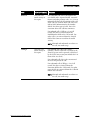
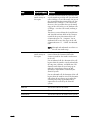
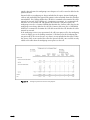
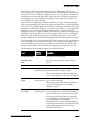
To change the member’s login status, double-click the name from the right-most list
and the Edit Workgroup Member dialog box (Figure 14-6) appears.
ShoreTel 7.5 Administration Guide
14 – 15