1
Page 56
Note: Annotations may be used in combination with other marked lines (see Section 14.1,
Data Tracking in the Text Editor). For example, one or more source lines may be marked in,
bright red to indicate a problem area. The user may then choose to annotate these same
lines describing the issue.
♦
♦
♦
♦
♦
♦
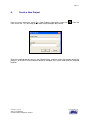
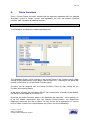
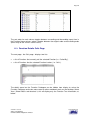
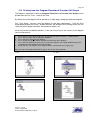
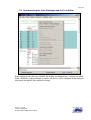
Select one or more code lines in the Text Editor that you wish to annotate.
Right-click in the selection and choose Create User Annotation.
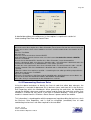
Type a suitable message in the dialog box.
Click on SAVE.
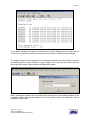
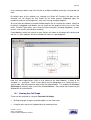
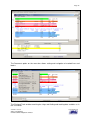
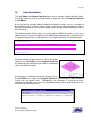
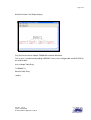
Right-click one of the annotated lines (shown highlighted as purple by default) and select Show
Line in Flowchart to highlight the corresponding node in the Program Flowchart.
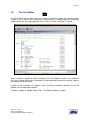
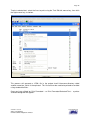
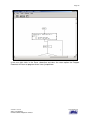
Right-click the current node in the Program Flowchart and select View Annotation. The text you
typed in will be displayed from the Program Flowchart. Double-click the node to show the related
code in the Text Editor.
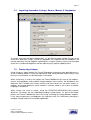
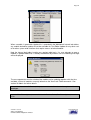
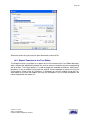
A User Annotation Report file can be produced. This will contain details of all the User
annotations contained in a module. The report is selected from the Reports | Annotation
Report menu. The report file is called Annotation_modulename.txt and is output to the
project\level1\inventory directory.
Version: Issued
Status: Confidential
© 2008 Software Migrations Limited
User Guide 138