1
Basic Drawing Tools
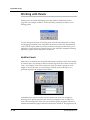
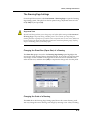
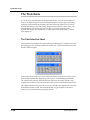
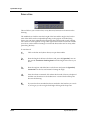
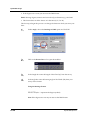
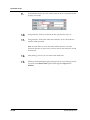
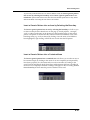
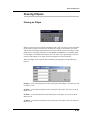
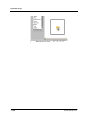
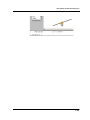
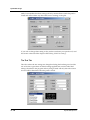
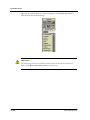
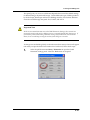
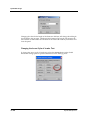
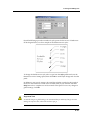
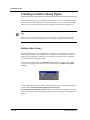
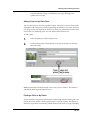
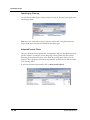
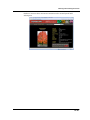
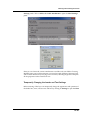
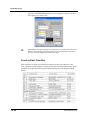
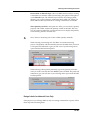
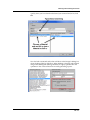
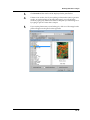
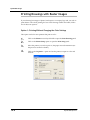
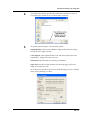
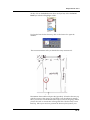
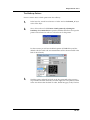
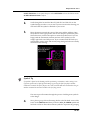
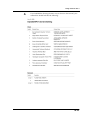
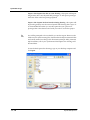
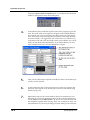
patterns are added to DynaSCAPE, they would be listed here. To access them, click on
the down arrow beside the library name. The DynaSCAPE Patterns library is always
the default library.
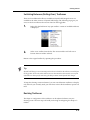
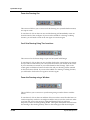
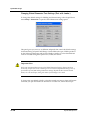
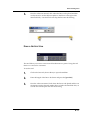
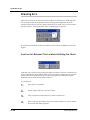
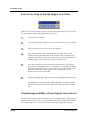
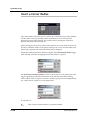
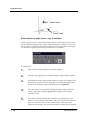
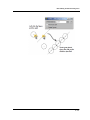
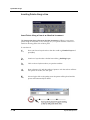
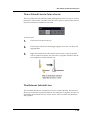
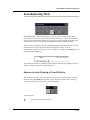
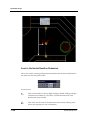
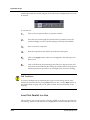
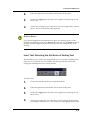
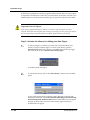
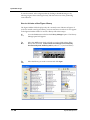
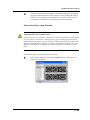
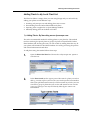
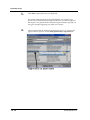
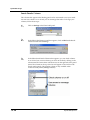
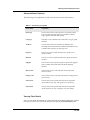
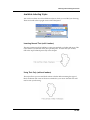
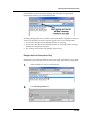
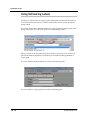
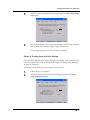
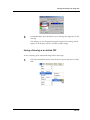
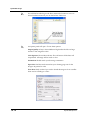
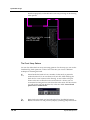
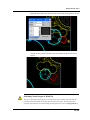
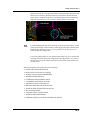
Insert a Hatch Pattern by Selecting the Boundary
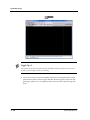
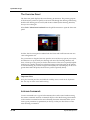
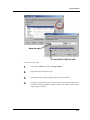
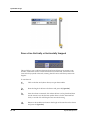
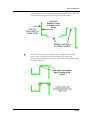
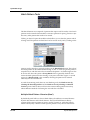
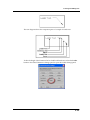
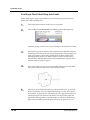
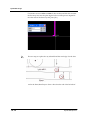
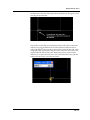
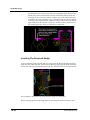
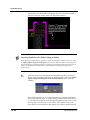
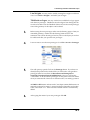
The Insert a Hatch Pattern by Selecting the Boundary tool allows you to select an
entity that has been drawn on the page (a ‘closed polyline’, ‘rectangle’, ‘circle’ or other
closed entity on the drawing) as the bounding edge for the section pattern. The
bounding entity must be one contiguous line or each line segment must be connected
end to end. Boundary lines must not be crossing. The pattern is selected and the scale
and rotation set and then a line of the bounding entity (e.g. circle) is selected by
clicking. Once the entity to be filled has been highlighted, right-clicking will fill the
area in with the selected pattern.
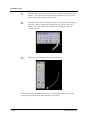
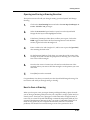
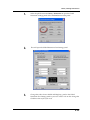
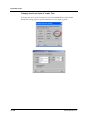
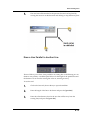
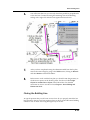
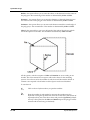
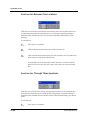
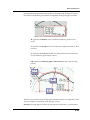
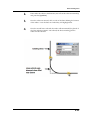
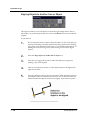
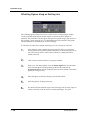
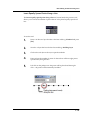
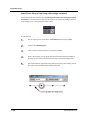
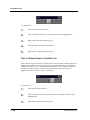
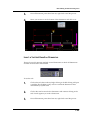
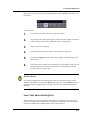
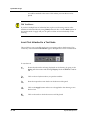
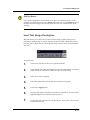
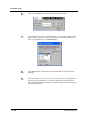
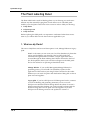
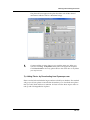
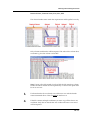
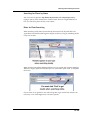
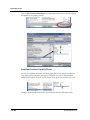
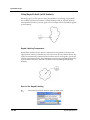
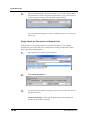
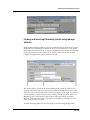
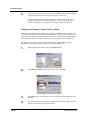
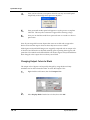
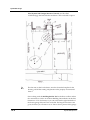
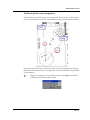
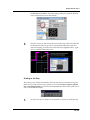
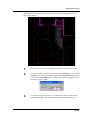
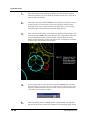
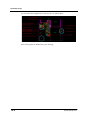
Insert a Hatch Pattern into a Contained Area
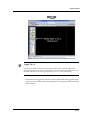
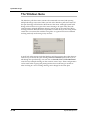
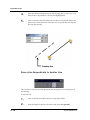
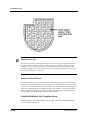
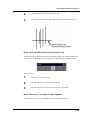
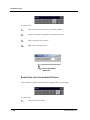
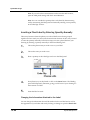
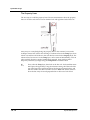
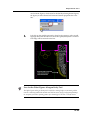
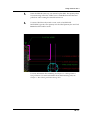
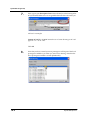
The Insert a Hatch Patter into a contained area tool allows you to select an area to be
sectioned simply by clicking in the center of an area that is completely encompassed
by lines (lines, polylines, etc.) that join and/or cross one another. By clicking in the
center, DynaSCAPE Design finds these edges and determines the area to be filled. If
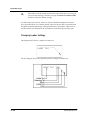
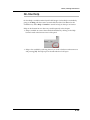
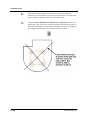
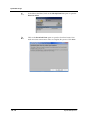
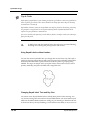
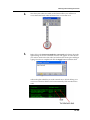
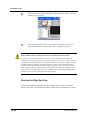
the area is not completely contained a message will appear in the CLI stating Hatch
has no boundary. Locate the problem area, correct it and try again.
6.53