1
Chapter 5: Forcefield commands
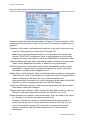
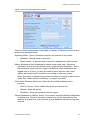
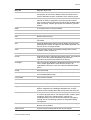
Trace. When checked, all alarm and access functions performed by the user at
doors 17 to 64 (Intelligent Access Controller doors) will cause a trace
message to be sent to Forcefield.
Card Only. When checked, the user will not be able to use a PIN code. This
allows the PIN code field to be used to program cards on formats not normally
compatible with the Challenger system when a special reader is used.
Long Access. When checked, the user will be allowed extended door access
times at doors 17 to 64 (Intelligent Access Controller doors).
Privileged. When checked, the user’s code or card will override any antipassback
restrictions or reader disabled functions in place on doors 17 to 64 (privileged
does not override a door disabled function).
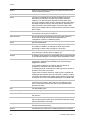
Last Access for this user. Displays the event type (such as door access granted),
time and date that a card assigned to the user was last badged at a reader,
the reader ID, and the region (if applicable). Click the Map button to view the
reader’s location on a map (if the reader is assigned to a map).
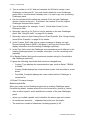
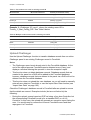
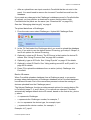
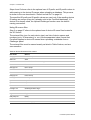
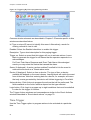
Card Data button. Click to program IUM card data for this user. See “User card
data” below for details.
Note: For IUM Challenger panels, this associates an access card with the
user. Card data must be entered for all the card types for all Challenger
panels for that user. Failure to enter the card data will result in the user not
being downloaded to Challenger panels using that card type. For non-IUM
Challenger panels, the card number is the user number and this data is not
required.
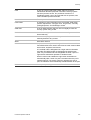
Capture button (available only on Forcefield clients). Click to run the User Image
Capture process on the Forcefield client. Refer to the “Using Capture” section
in the Forcefield External Interfaces Manual for details.
Ch. List (Challenger Number List) button. Click to display what user number this
user is in the Challenger panels to which they have been downloaded. The
Forcefield user number is not necessarily the user number in the Challenger.,
e.g. user 5 in Forcefield may be user 1 in Challenger 5 and user 5437 in
Challenger 17.
Print Card button (available only on Forcefield clients). Click to print the user card
on the default printer.
Notes button. Allows for entry of free format text notes relating to the user. A
separate text file is kept for every user.
Import button (available only on Forcefield clients). Click to run the User Image
Import process on the Forcefield client. Refer to the “Using Import” section in
the Forcefield External Interfaces Manual for details.
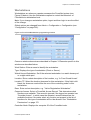
User card data
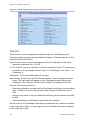
Click the Card Data button to program unique IUM card data for this user.
Forcefield Operators Manual
135