1
Chapter 3: Operator interface
Follow-up alarms
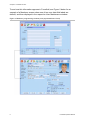
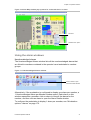
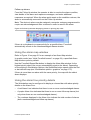
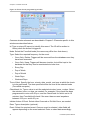
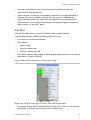
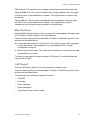
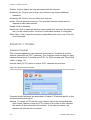
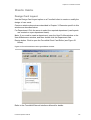
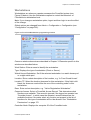
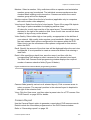
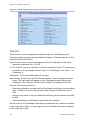
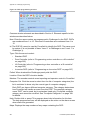
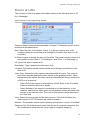
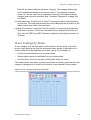
From the Follow Up window the operator is able to monitor the alarm condition,
view details of the alarm and response messages, and enter additional
responses as required. When the alarm point resets or the condition restores, the
alarm is automatically removed from the Follow Up window.
Note: The device in alarm may be assigned a computer category programmed to
require an acknowledgement after a restoral in order to remove the alarm.
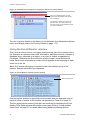
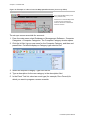
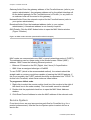
Figure 20: Follow Up window displaying alarms in priority (Pr) order
If there is no keyboard or mouse activity for a specified time, Forcefield
automatically reverts to the Unacknowledged Alarms window.
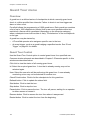
Using the alarm map window
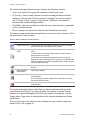
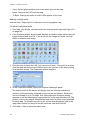
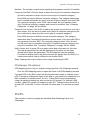
Refer to Figure 16 on page 31 for an example of an Alarm Map window.
In graphic mode (see “Initial Forcefield screen” on page 24), a specified Alarm
Map window opens by default.
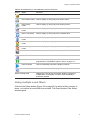
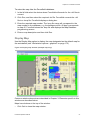
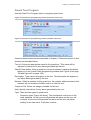
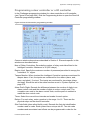
Use the Forcefield Speed Bar button to display the Alarm Map window for the
highest-priority alarm (the cursor automatically points to the alarm). Depending
on the setting in Workstation Options, the Speed Bar button opens either the first
or last defined map (see “Workstation options—graphics” on page 175).
If there is more than one alarm with the same priority, the map with the oldest
alarm displays.
Using the alarm line priority details
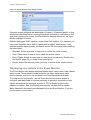
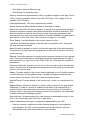
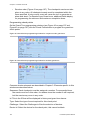
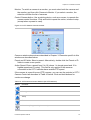
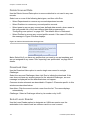
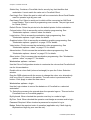
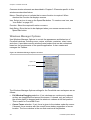
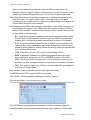
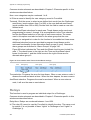
The Workstation may be configured to display a coloured bar with alarm priority
details on the Alarm Line:
•
A red Alarm Line indicates that there is one or more unacknowledged alarms.
•
A purple Alarm Line indicates that there is one or more follow-up alarms (but
only when there are no unacknowledged alarms).
•
The numbers displayed in the Alarm Line indicate the total number of alarms
(both unacknowledged and follow-up alarms).
Forcefield Operators Manual
35