1
7.2.3. Add PAP View
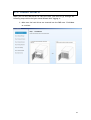
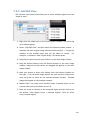
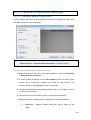
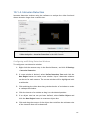
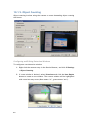
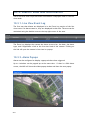
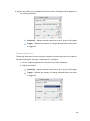
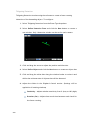
PAP (Picture and Picture) View allows you to select multiple regions from one
image to zoom.
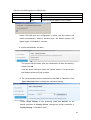
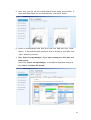
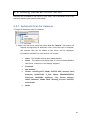
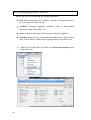
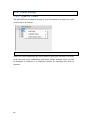
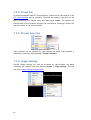
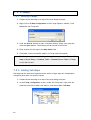
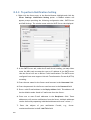
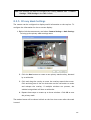
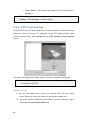
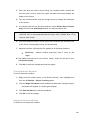
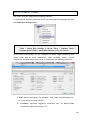
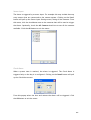
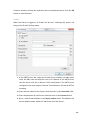
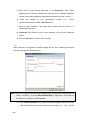
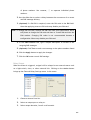
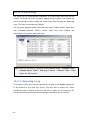
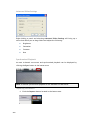
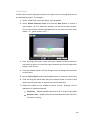
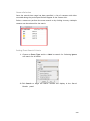
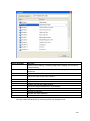
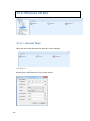
1. Right-click the View entry in the View Explorer window. This will bring
up an options popup.
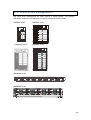
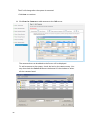
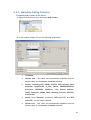
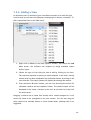
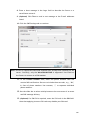
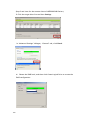
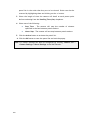
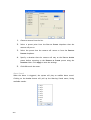
2. Select “Add PAP View” and then select the desired window number. 1
indicates the main original image and the number behind “+” means the
numbers of the zoomed areas that you are about to create.
For
example, 1+8 means 1 main original image + 8 zoomed areas.
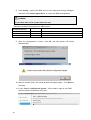
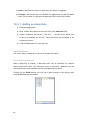
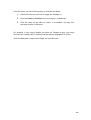
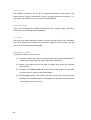
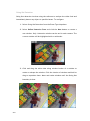
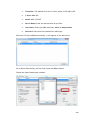
3. Drag the set value from the View Explorer to the main image window.
4. Drag the desired camera from the Device Browser to the main image
window. Images from the camera you dragged will appear on the main
image window.
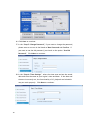
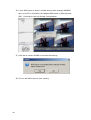
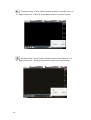
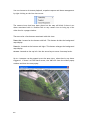
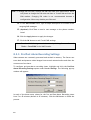
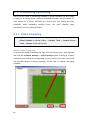
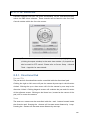
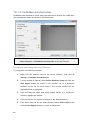
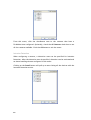
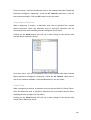
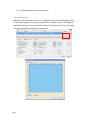
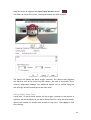
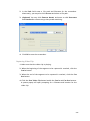
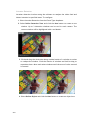
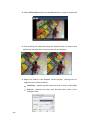
5. Move your mouse to select one window from the zoomed windows on
the right. From the main image window use your mouse to drag out an
area you’d like to zoom for the selected zoomed window.
Zoomed
images will appear on the zoomed windows.
6. Repeat Step 5 to create more zoomed areas; 8 zoomed areas can be
created when you set the PAP view to 1+8.
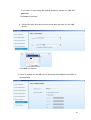
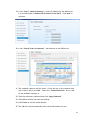
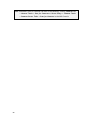
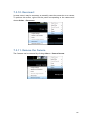
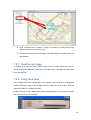
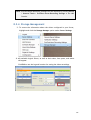
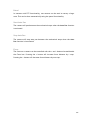
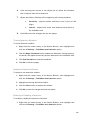
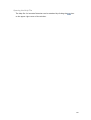
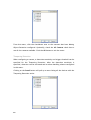
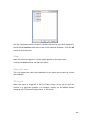
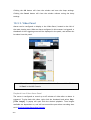
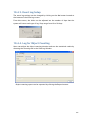
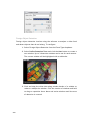
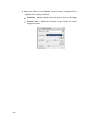
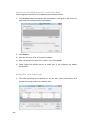
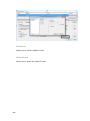
7. Move the cursor to the box of the unwanted region and left click to see
the options, Clear Region (clear 1 selected region)/ Clear All (clear
every created region).
103