1
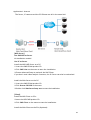
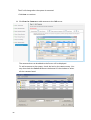
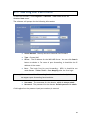
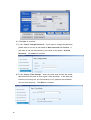
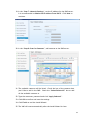
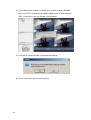
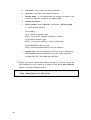
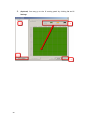
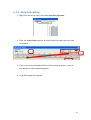
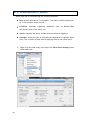
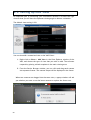
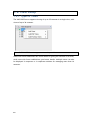
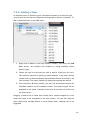
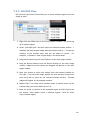
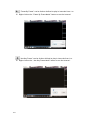
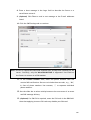
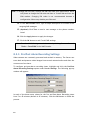
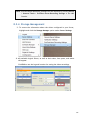
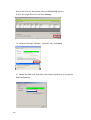
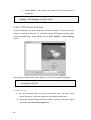
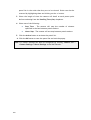
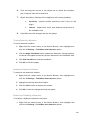
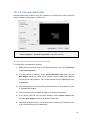
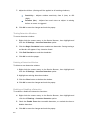
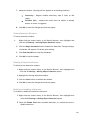
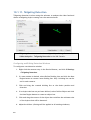
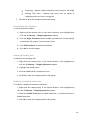
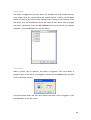
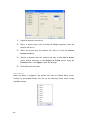
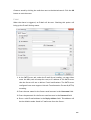
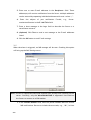
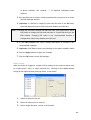
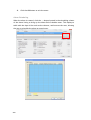
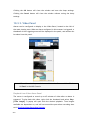
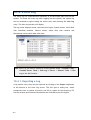
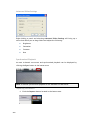
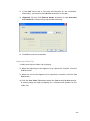
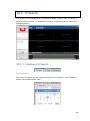
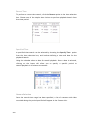
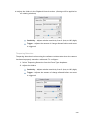
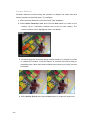
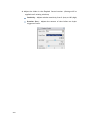
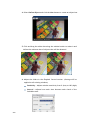
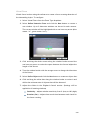
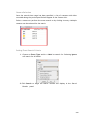
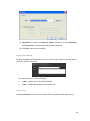
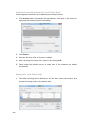
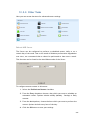
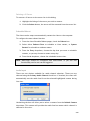
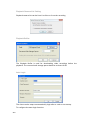
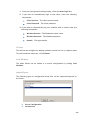
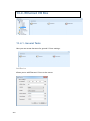
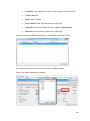
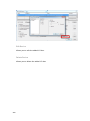
7. Adjust the sliders: (Settings will be applied to all existing windows) Sensitivity – Adjusts window sensitivity from 0 (low) to 100 (high). Duration (Sec) - Adjusts how much time an object is missing before an event is triggered. 8. Click OK to save the changes and exit the popup. Testing Detection Windows To test a detection window: 1. Right-click the camera entry in the Device Browser, then highlight and click the VI Settings > Intrusion Detection option. 2. Click the Begin Simulation button enable test detection. During testing a red border will appear if any intrusion found. 3. Click End Simulation to end the simulation. 4. Click OK to exit the popup. Deleting a Detection Window To delete a new detection window: 1. Right-click the camera entry in the Device Browser, then highlight and click the VI Settings > Intrusion Detection option. 2. Highlight an existing detection window. 3. Click the Clear button to delete the window. 4. Click OK to save the changes and exit the popup. Enabling or Disabling a Detection To enable or disable the detection functions: 4. Right-click the camera entry in the Device Browser, then highlight and click the VI Settings > Intrusion Detection option. 5. Check the Enable Event box to enable detection, or uncheck the box to disable detection. 6. Click OK to save the changes and exit the popup. 172