1
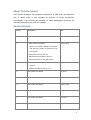
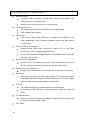
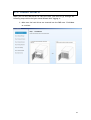
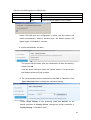
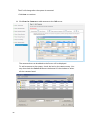
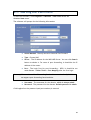
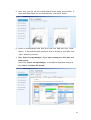
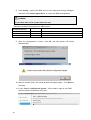
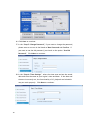
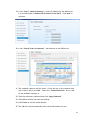
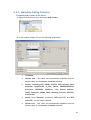
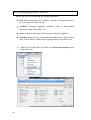
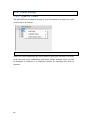
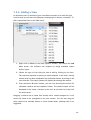
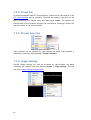
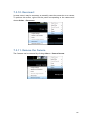
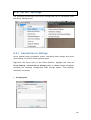
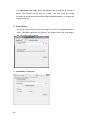
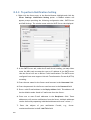
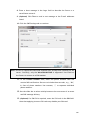
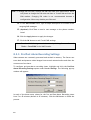
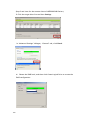
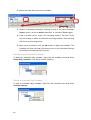
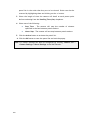
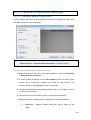
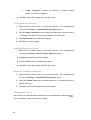
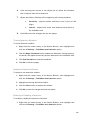
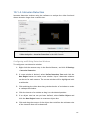
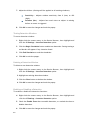
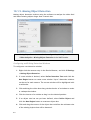
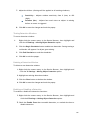
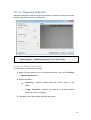
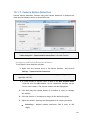
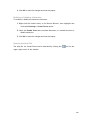
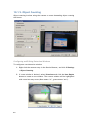
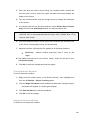
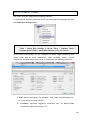
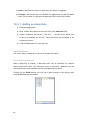
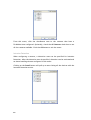
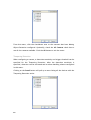
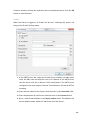
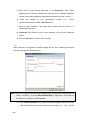
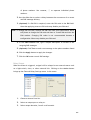
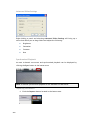
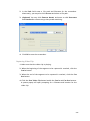
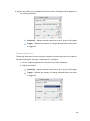
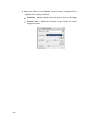
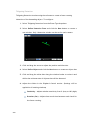
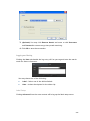
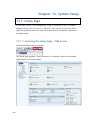
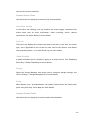
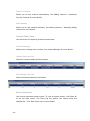
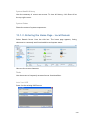
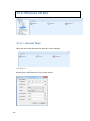
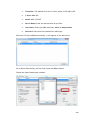
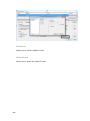
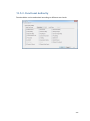
8.3.2. Advanced Video Settings 1. Right-click the camera entry in the Device Browser, then click Image Adjustments > Advanced Video Settings. Note: You must be logged into the camera before changing settings or else the operation will fail. 2. Select a video encoding method from the Encoding Method drop-down. Encoding methods will vary by camera type, but common ones include: MJPEG MPEG-4 H264 3. Select a video resolution from the Resolution drop-down. Supported resolutions will vary by camera. Select the maximum video frame rate from the Maximum Frame Rate drop-down. 4. From the Quality section, choose one of the following: Fixed Bitrate – The camera image quality will be adjusted within a fixed bitrate selected in the dropdown. Dropdown values will vary by camera. Fixed Quality – The camera bitrate will be adjusted to meet the quality selected in the dropdown. Dropdown values will vary by camera. Note: Video Quality Settings can also be configured by clicking Camera List > Camera Settings > Advanced Video Settings in the VMS Console. 154