Download Defining Maintenance Object Options

Transcript
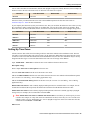
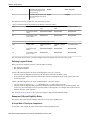
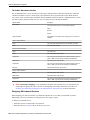
Defining Script Options
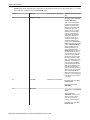
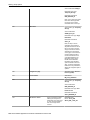
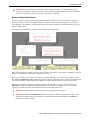
Display Step is only enabled on BPA scripts for step types that typically don't cause information to be displayed
in the script area (i.e., step types like Conditional Branch, Go to a step, Height, etc). If you turn on this switch,
information about the step is displayed in the script area to help you debug the script.
Caution Remember to turn this switch off when you're ready to let users use this script.
Note If Display Step is turned on and the step has Text, this information will be displayed in the script area.
If Display Step is turned on and the step does NOT have Text, a system-generated messages describing what
the step does is displayed in the script area.
Display Icon controls the icon that prefixes the Text that's displayed in the script area. Using an icon on a step is
optional. This field is only applicable to BPA scripts.
Text is the information that displays in the script area when the step executes. You need only define text for steps
that cause something to display in the script area.
Fastpath Refer to How To Substitute Variables In Text for a discussion about how to substitute variables in
a text string.
Fastpath Refer to How To Use HTML Tags And Spans In Text for a discussion about how to format (with
colors and fonts) the text that appears in the script area.
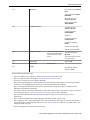
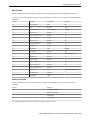
The other fields on this page are dependent on the Step Type. The topics that follow briefly describe each step type's
fields and provide additional information about steps.
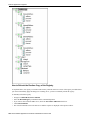
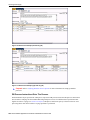
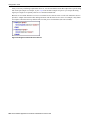
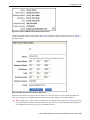
Click on the View Script Schema hyperlink to view the script's data areas. Doing this opens the schema viewer
window.
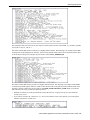
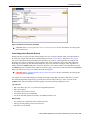
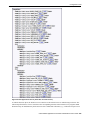
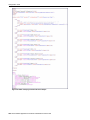
The View Script As Text hyperlink appears for server-based scripts only. Click on this link to view on a separate
window the internal scripting commands underlying your script steps. The presented script syntax is completely valid
within edit data steps.
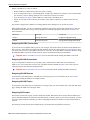
How To Set Up Each Step Type
The contents of this section describe how to set up each type of step.
Common Step Types To All Script Types
The contents of this section describe common step types applicable to all script types.
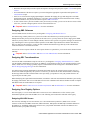
How To Set Up Conditional Branch Steps
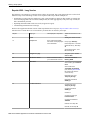
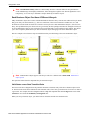
Conditional branch steps allow you to conditionally jump to a different step based on logical criteria. For example,
you could jump to a different step in a script if the customer is residential as opposed to commercial. In addition,
several fields are required for Conditional Branch steps:
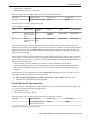
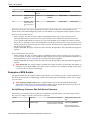
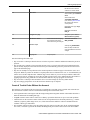
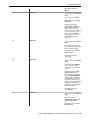
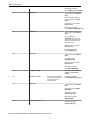
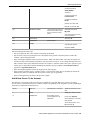
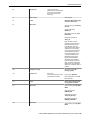
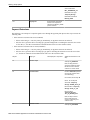
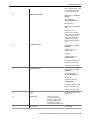
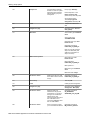
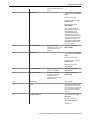
Compare Field Type and Compare Field Name define the first operand in the comparison. The Field Type defines
where the field is located. The Field Name defines the name of the field. The following points describe each field
type:
•
•
Current To Do Information. Use this field type when the field being compared resides on the current To Do
entry. Refer to How To Use To Do Fields for instructions on how to define the appropriate Field Name.
Data Area. Use this field type when the field being compared is one that you put into one of the scripts data areas
in an earlier step. Field Name must reference both a data area structure name as well as the field, for example
"parm/charType". Refer to How To Reference Fields In Data Areas for instructions on how to construct the
appropriate Field Name.
166 • Oracle Utilities Application Framework Administration User's Guide