1
Configuration Lab (ConfigLab)
•
•
•
•
•
•
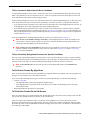
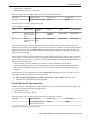
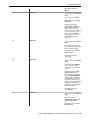
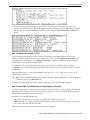
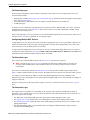
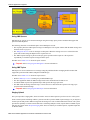
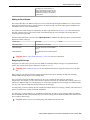
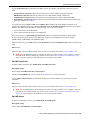
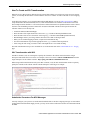
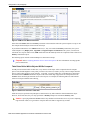
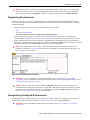
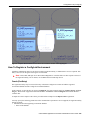
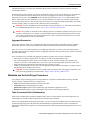
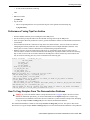
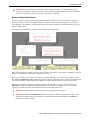
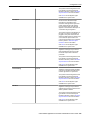
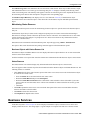
Click the adjacent go to button to transfer to the Differences Query tab where the associated root objects can be
viewed.
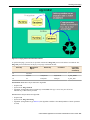
The Maintenance Object column defines the type of maintenance object.
The Description column describes the maintenance object.
The Action column indicates if the maintenance objects are to be Added, Changed or Deleted (note, these actions
are only performed if the execute the apply changes background process CL-APPCH).
The Status column indicates the status of the maintenance objects.
The Total Root Objects column displays the number of maintenance objects with this Action and Status for the
Batch Control and Batch Number .
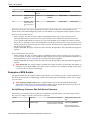
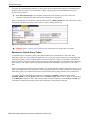
Click Approve All to set the status of all root objects associated with the Batch Control and Batch Number to
Approved.
Click Reject All to set the status of all root objects associated with the Batch Control and Batch Number to Rejected.
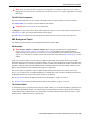
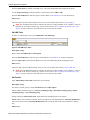
Difference Query - Difference Query
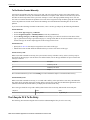
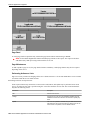
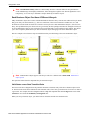
The Main tab provides a summary of the differences in the maintenance objects. This tab shows the details of every
maintenance object. Use Admin Menu > Difference Query and navigate to the 2 nd tab to view this information.
Note Drill-over from the main tab. The easiest way to populate information on this page is to drill over on a
row in the summary grid on the Main tab.
Description of Page
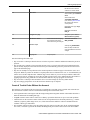
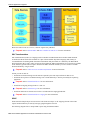
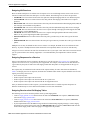
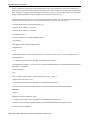
Please see the Main tab for a description of the fields in the first section. The following points describe the remaining
fields:
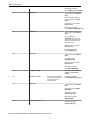
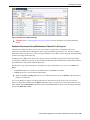
• Use Maintenance Object to restrict the root objects in the grid to those related to a specific maintenance object.
• Use Action to restrict the root objects that appear in the grid to those marked with the specified action ( Add ,
Change , Delete ).
• Use Status to restrict the root objects that appear in the grid to those in a specific state.
• You may also specify unique identifier of the maintenance object to further filter the root objects that appear in the
grid. The prompts for the unique identifier differ depending on the selected Maintenance Object .
Don't forget to click the search button after changing the filters.
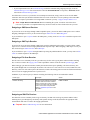
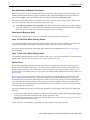
Click Select All to select all root objects currently displayed in the grid.
Click Clear All to unselect all root objects currently displayed in the grid.
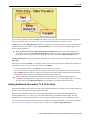
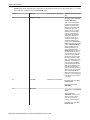
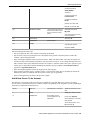
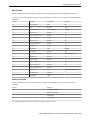
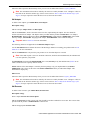
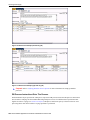
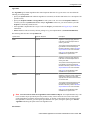
The grid displays the root objects that correspond to the criteria specified in the filter. The following points describe
each column:
• Click the Select checkbox to select or unselect a specific root object.
• Click the adjacent go to button to transfer to the Root Object - Root Object Tree page where the root object can be
viewed.
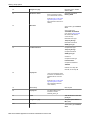
• The Maintenance Object column displays the maintenance object associated with the root object.
• The Description column describes the maintenance object associated with the root object.
• The PK Info column displays primary key of the maintenance object.
• The Action column shows the action associated with the root object.
• The Status column shows the status associated with the root object.
• The Primary Root column displays information about the root object's Primary root object.
• The Other Roots column displays whether the root object is associated with more than one maintenance object.
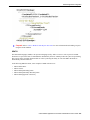
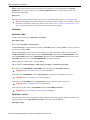
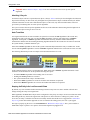
Click Approve to set the status of selected root objects to Approved.
Click Reject to set the status of selected root objects to Rejected.
Oracle Utilities Application Framework Administration User's Guide • 331