1
CHAPTER 5. USER PREFERENCES AND SETTINGS
131
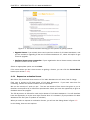
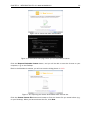
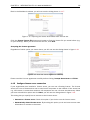
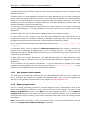
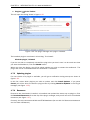
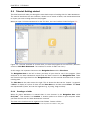
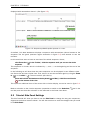
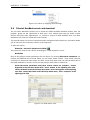
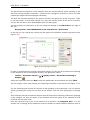
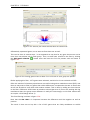
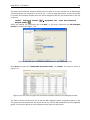
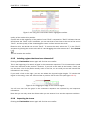
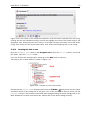
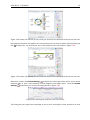
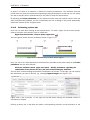
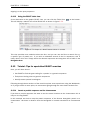
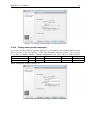
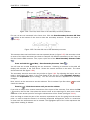
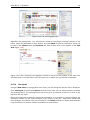
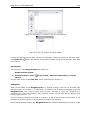
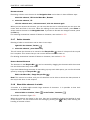
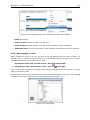
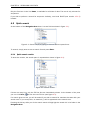
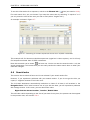
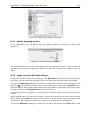
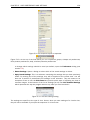
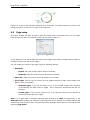
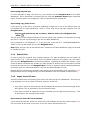
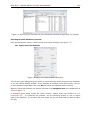
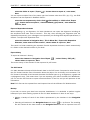
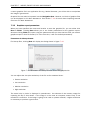
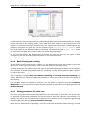
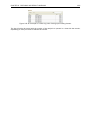
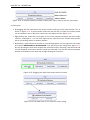
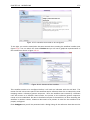
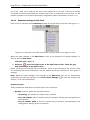
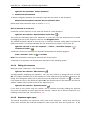
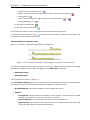
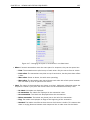
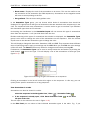
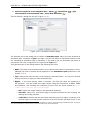
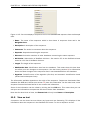
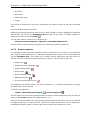
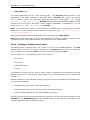
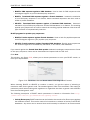
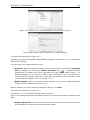
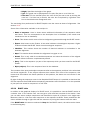
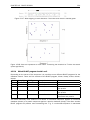
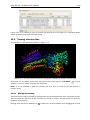
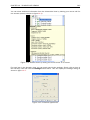
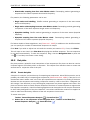
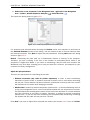
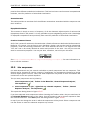
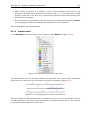
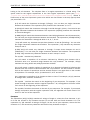
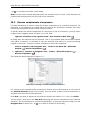
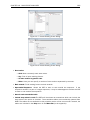
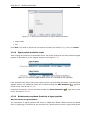
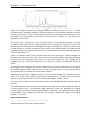
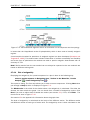
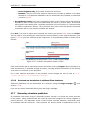
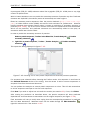
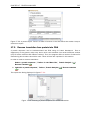
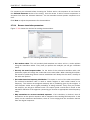
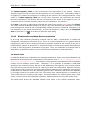
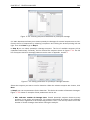
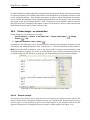
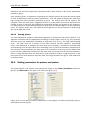
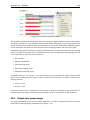
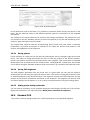
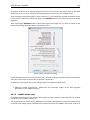
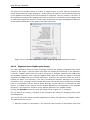
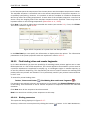
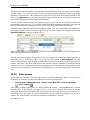
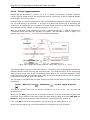
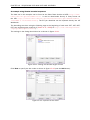
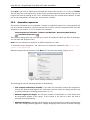
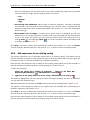
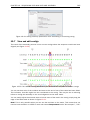
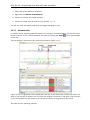
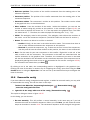
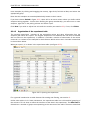
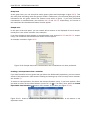
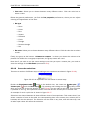
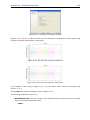
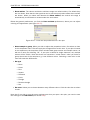
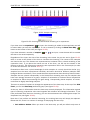
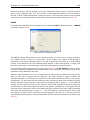
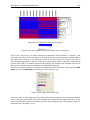
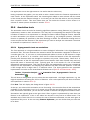
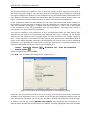
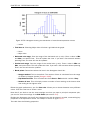
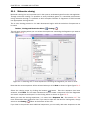
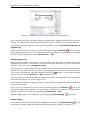
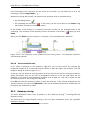
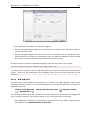
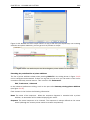
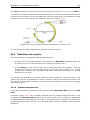
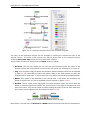
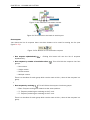
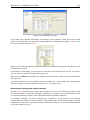
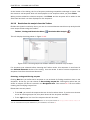
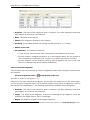
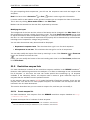
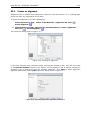
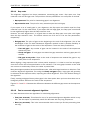
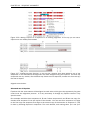
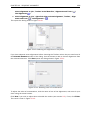
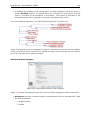
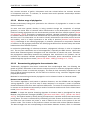
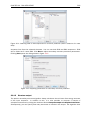
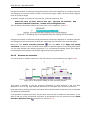
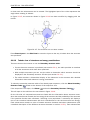
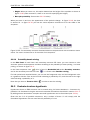
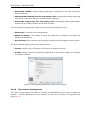
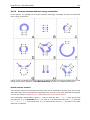
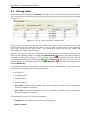
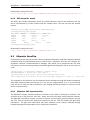
Figure 5.6: Exporting all settings for circular views.
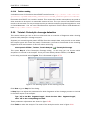
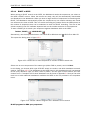
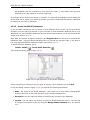
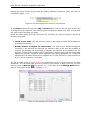
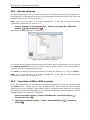
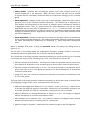
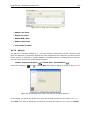
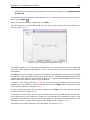
Preferences dialog, and click the Import... button. Note that there is also another import button
at the very bottom of the dialog, but this will import the other settings of the Preferences dialog
(see section 5.5).
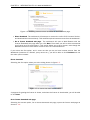
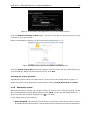
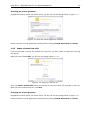
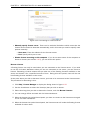
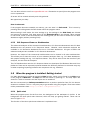
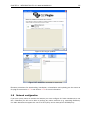
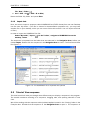
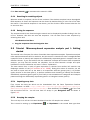
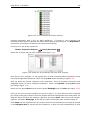
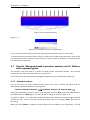
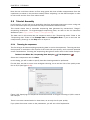
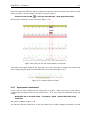
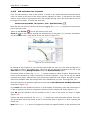
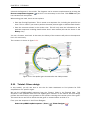
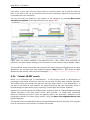
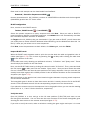
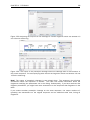
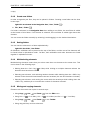
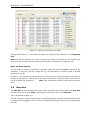
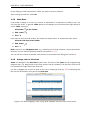
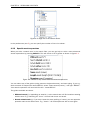
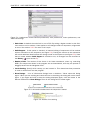
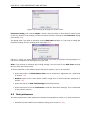
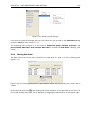
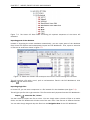
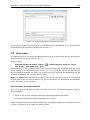
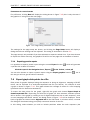
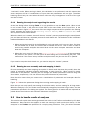
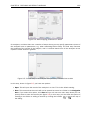
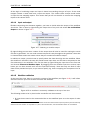
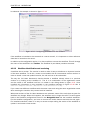
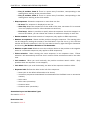
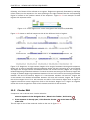
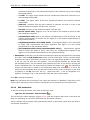
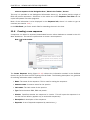
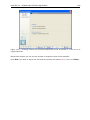
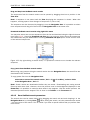
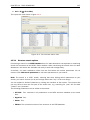
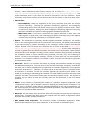
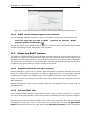
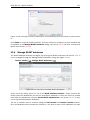
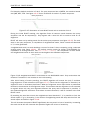
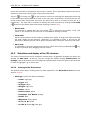
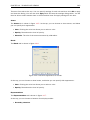
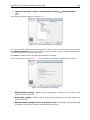
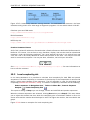
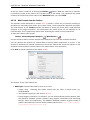
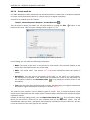
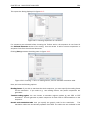
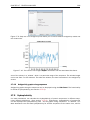
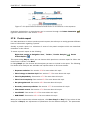
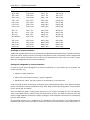
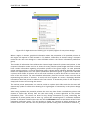
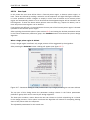
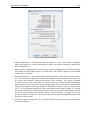
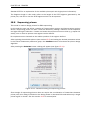
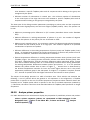
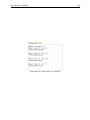
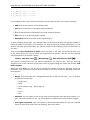
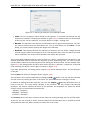
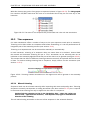
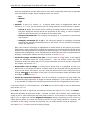
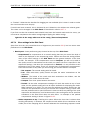
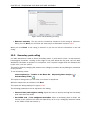
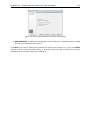
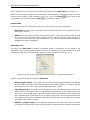
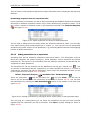
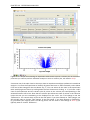
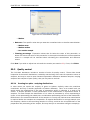
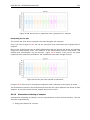
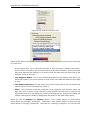
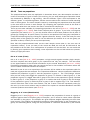
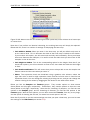
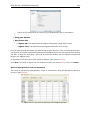
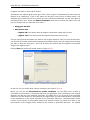
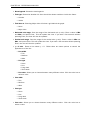
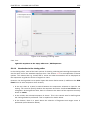
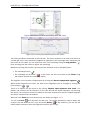
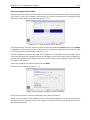
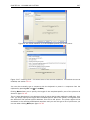
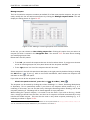
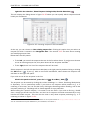
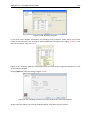
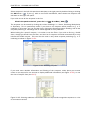
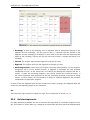
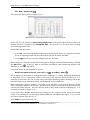
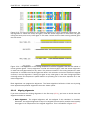
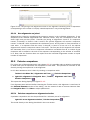
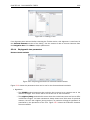
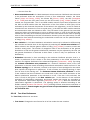
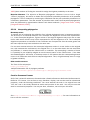
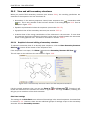
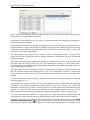
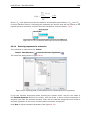
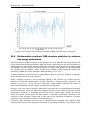
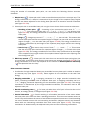
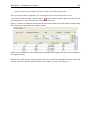
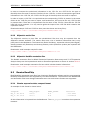
The dialog asks if you wish to overwrite existing Side Panel settings, or if you wish to merge the
imported settings into the existing ones (see figure 5.7).
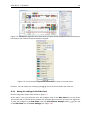
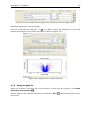
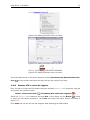
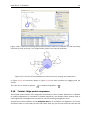
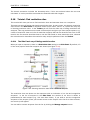
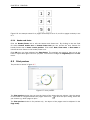
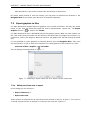
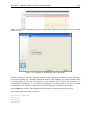
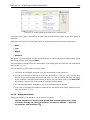
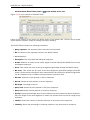
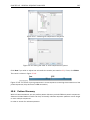
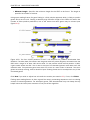
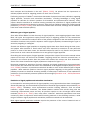
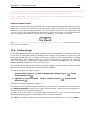
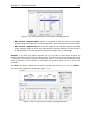
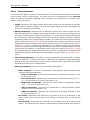
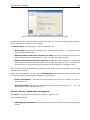
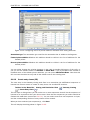
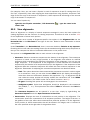
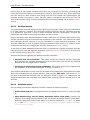
Figure 5.7: When you import settings, you are asked if you wish to overwrite existing settings or if
you wish to merge the new settings into the old ones.
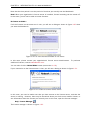
Note! If you choose to overwrite the existing settings, you will loose all the Side Panel settings
that you have previously saved.
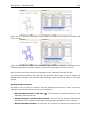
To avoid confusion of the different import and export options, here is an overview:
• Import and export of bioinformatics data such as sequences, alignments etc. (described
in section 7.1).
• Graphics export of the views which creates image files in various formats (described in
section 7.3).
• Import and export of Side Panel Settings as described above.
• Import and export of all the Preferences except the Side Panel settings. This is described
in the previous section.
5.3
Data preferences
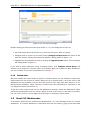
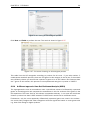
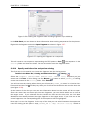
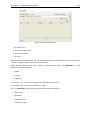
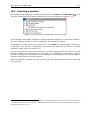
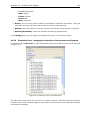
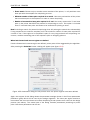
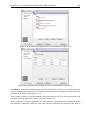
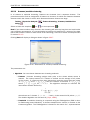
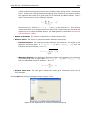
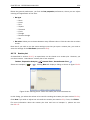
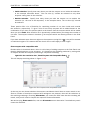
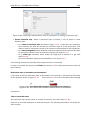
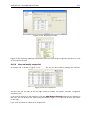
The data preferences contain preferences related to interpretation of data, e.g. linker sequences:
• Predefined primer additions for Gateway cloning (see section 21.2.1).