1
CHAPTER 9:
Acadia: EQ Window
EDITING EQ SETTINGS
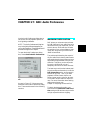
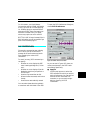
This chapter discusses the components
found in the EQ Window, where you can
disable and enable individual EQ bands,
specify the EQ type for each band, and
view the EQ curve.
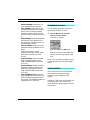
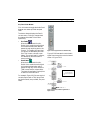
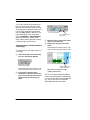
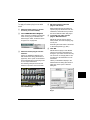
To open an audio channel’s EQ Window
from the Console Window:
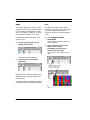
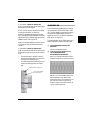
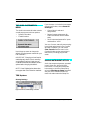
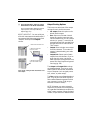
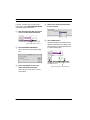
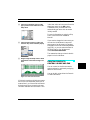
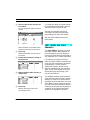
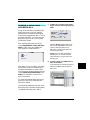
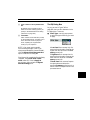
햲 Click the small EQ Edit button
for the desired console channel.
For details on displaying EQs for audio
channels in the Console Window, please
see Assigning EQ (pg. 53).
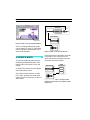
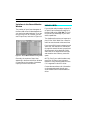
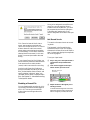
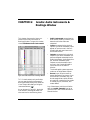
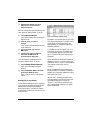
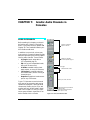
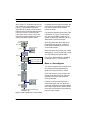
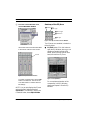
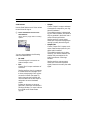
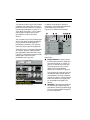
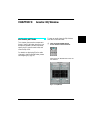
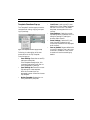
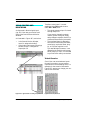
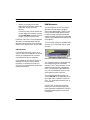
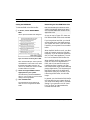
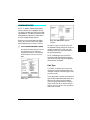
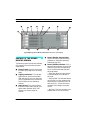
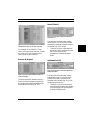
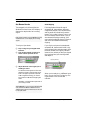
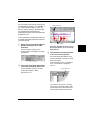
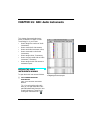
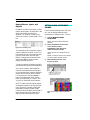
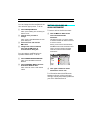
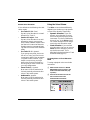
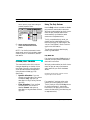
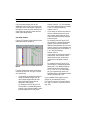
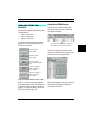
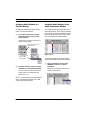
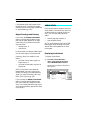
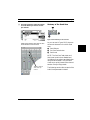
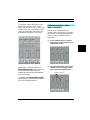
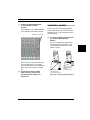
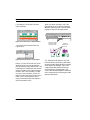
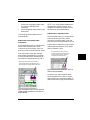
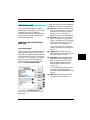
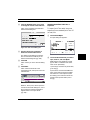
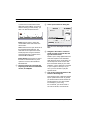
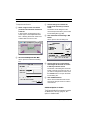
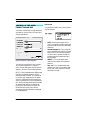
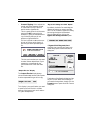
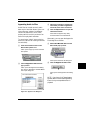
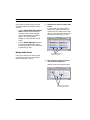
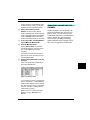
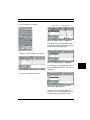
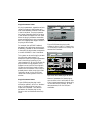
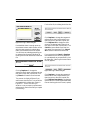
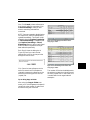
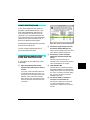
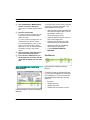
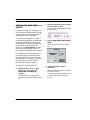
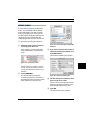
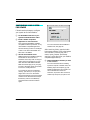
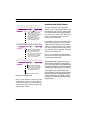
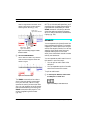
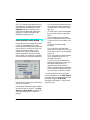
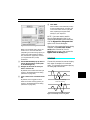
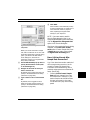
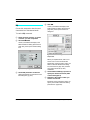
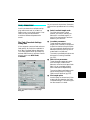
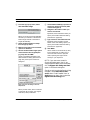
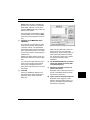
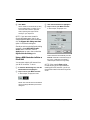
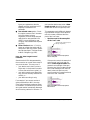
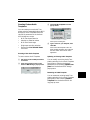
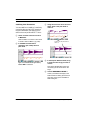
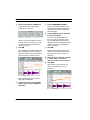
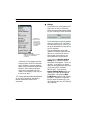
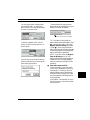
Vision opens an EQ Window for the console channel.
Figure 9.1: EQ Window
Vision & Studio Vision Pro — Audio Reference Manual
69