Download Audio Reference Manual

Transcript
CHAPTER 10: Acadia: Bussing, Routing, & Bouncing to Disk
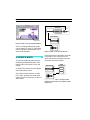
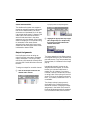
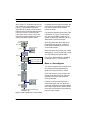
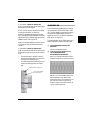
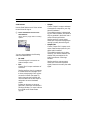
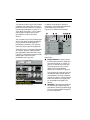
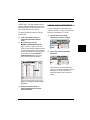
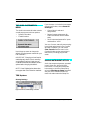
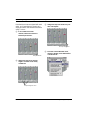
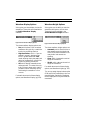
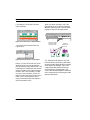
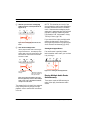
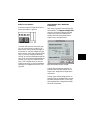
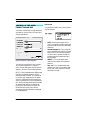
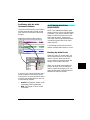
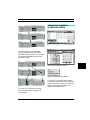
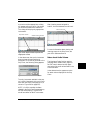
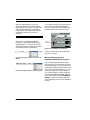
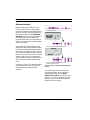
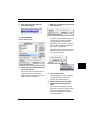
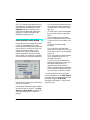
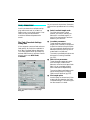
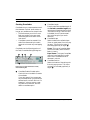
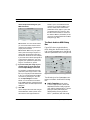
Based on what you learned earlier, you
know that when Input 1 is record-enabled
and the Thru mode is set to either On or
Auto, then:
•
•
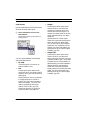
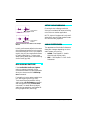
The monitored signal from Input 1 is
sent to Output 5-6.
The monitored signal from Input 1 is
also sent to Bus 1 where reverb is
added. Bus 1’s volume fader controls
the amount of reverb that’s mixed
with the signal.
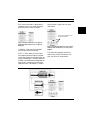
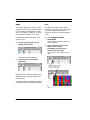
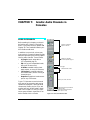
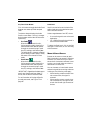
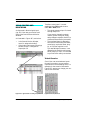
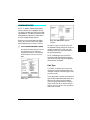
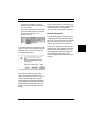
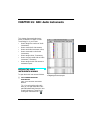
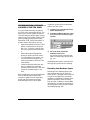
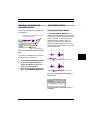
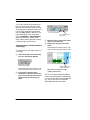
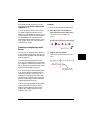
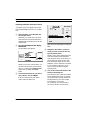
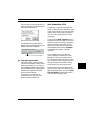
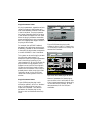
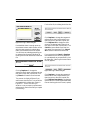
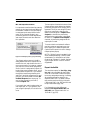
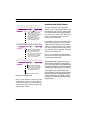
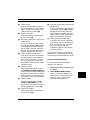
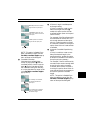
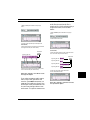
Here’s where things get interesting.
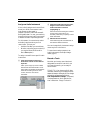
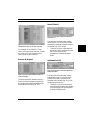
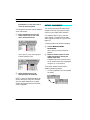
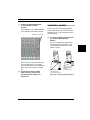
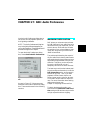
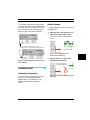
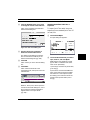
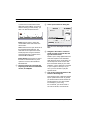
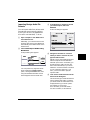
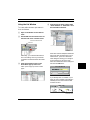
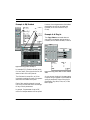
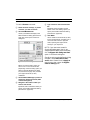
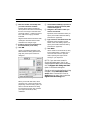
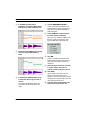
Notice that console channel 3 sends the
signal present at Input 1 to Output 8. This
means that the signal present at Input 1
always appears at Output 8, even when...
•
•
•
•
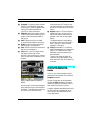
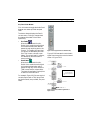
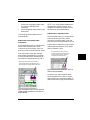
...Input 1 is not record-enabled.
...the Thru selector pop-up menu is
set to Off.
...you change the Audio Instrument
assigned to Input 1 in the Record
Monitor Window.
...Vision is playing, recording, or
simply idle.
Also, if you use any Audio Sends or plugins, they too operate on the input signal.
This gives you a way to create a “virtual
mixing board” within Vision.
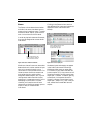
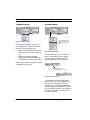
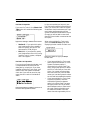
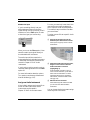
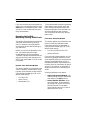
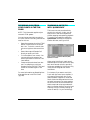
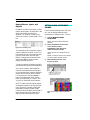
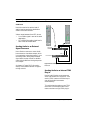
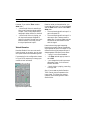
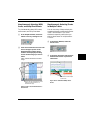
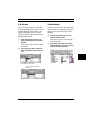
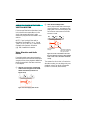
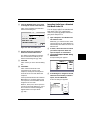
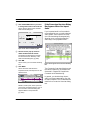
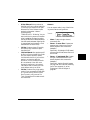
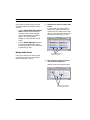
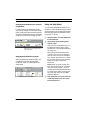
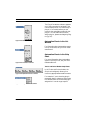
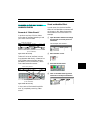
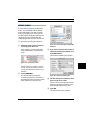
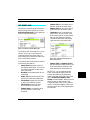
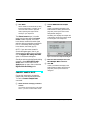
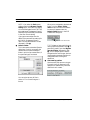
As discussed in Output Assignments
(pg. 42), you can assign outputs to audio
channels from either the Audio Instruments & Routings Window or a Console
Window.
NOTE: Some ASIO drivers may exhibit a
noticeable latency in thruing audio. In
these cases, if at all possible, disable Thru
and monitor record sources externally.
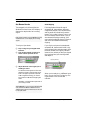
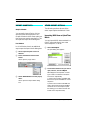
RECORDING FROM AUDIO
INSTRUMENTS, BUSSES, AND
OUTPUTS
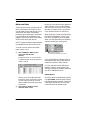
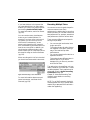
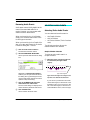
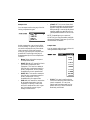
You can choose practically any place in
the audio signal path as a recording
source. This allows you to record digitally
and “bounce to disk” without having to
patch a single cable. With the Acadia
audio system, Vision allows recording
from hardware inputs and outputs, Audio
Instruments, and busses. For instance,
you can:
•
•
•
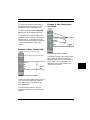
Record a master mix of all your tracks
with effects and EQ. To do this, route
all channels to a single stereo bus and
record from it.
Bounce groups of tracks, with or
without effects, to a bus for recording
a submix.
“Print the effects” from a track.
Record from the output of an Audio
Instrument to record its audio events
along with any assigned plug-ins and
EQ.
Before reading this section you should be
familiar with all recording techniques as
discussed in Chapter 5: Acadia: Recording Audio, and all the bussing concepts
described previously in this chapter.
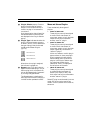
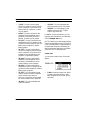
In general to record from any place in the
signal path:
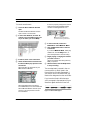
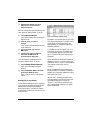
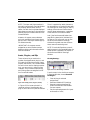
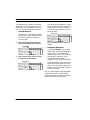
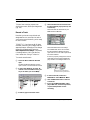
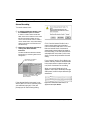
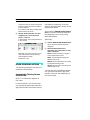
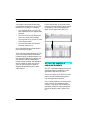
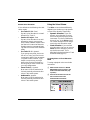
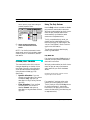
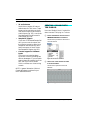
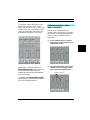
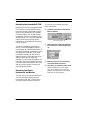
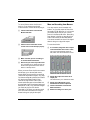
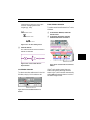
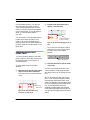
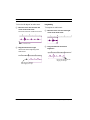
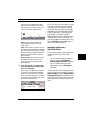
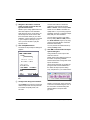
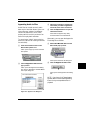
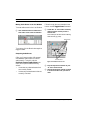
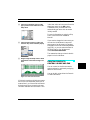
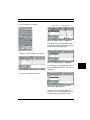
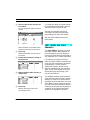
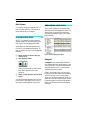
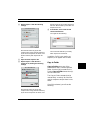
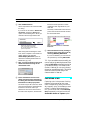
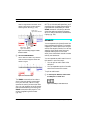
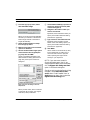
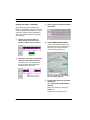
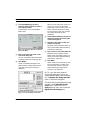
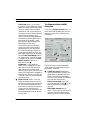
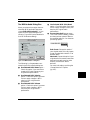
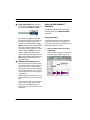
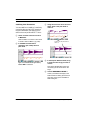
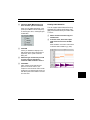
햲 Configure your console with
plug-ins, sends, EQs, and
busses.
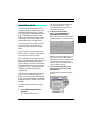
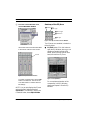
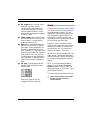
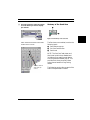
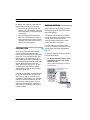
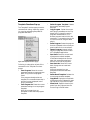
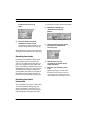
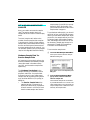
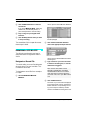
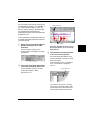
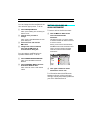
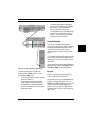
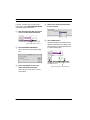
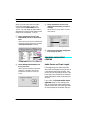
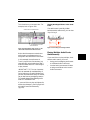
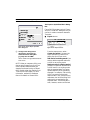
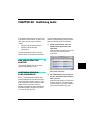
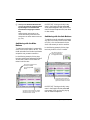
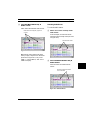
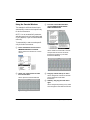
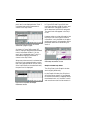
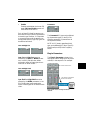
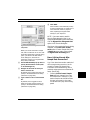
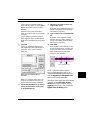
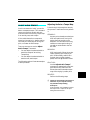
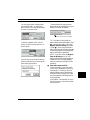
햳 In the Record Monitor Window,
specify the record source from
Vision & Studio Vision Pro — Audio Reference Manual
79