1
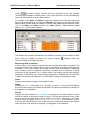
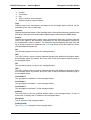
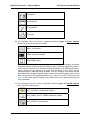
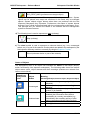
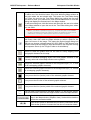
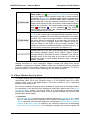
MG-SOFT Net Inspector — Reference Manual Net Inspector Client Main Window Duplicate Duplicates the selected managed and action object(s). This command actually adds new objects to the configuration. New object(s) that are created with this command have the same properties as the source object(s) they have been created from, except the object ID value and the name of the object. The latter is composed of the name of the source (original) object and the “_Copy“ suffix. If an object with such name already exists, an index number is added to the suffix (e.g.: _Copy1, _Copy2,…). This command is available only to users with Administrator user privileges. Delete (Del) Deletes selected objects from the map. This command is available only when the map is in the edit mode. Remove from Configuration Removes selected objects from the system (configuration). This command is available only to users with Administrator user privileges. Add (cascading menu) New Submap Creates a new submap in the current map. This command is available only when the map is in the edit mode. New Object Opens the New Object dialog box that lets you add a new object of a certain type to the selected map in two steps. This method actually enables adding new objects to the system. New objects appear also in the Device Panel dialog box. This command is available only when the map is in the edit mode. Import from CSV File Lets you select the CSV file from disk and opens the Import from CSV File dialog box that allows you to view and edit the list of managed objects (devices) to be imported, and finally, import new objects and add them to the currently active map in the Maps window. Importing devices is one of the methods of adding new objects to the system. Imported objects appear also in the Device Panel dialog box. Export Opens the Export Submap dialog box, which lets you export the table displayed in the currently active tab of the Maps window (Details view) to an HTML or a CSV (comma-separated value) file format. The Export Submap dialog box closely resembles the operating system’s standard “Save As” dialog box. Note that only information in columns that are currently displayed in the given tab of the Maps window will be exported. This command is available only in the Details view. Save as Default Layout Users with administrator access rights are authorized to use this command to save the current layout of the Maps window - Details view as a default layout. Default layout stores the information about the display status (displayed/hidden), order and width of the columns displayed in the currently active tab of the Maps window, Details view. Once the default layout is defined (saved), it automatically applies to all maps (tabs) you open in the Maps window (Details view). The default layout is also automatically applied to all users when they connect to Net Inspector Server for the first time (until they modify their layout). Therefore, this command is typically 28