1
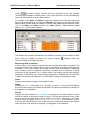
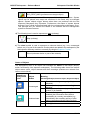
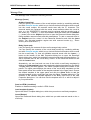
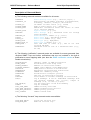
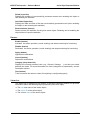
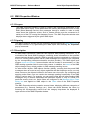
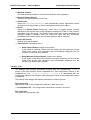
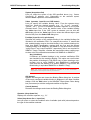
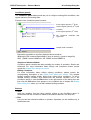
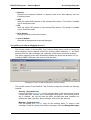
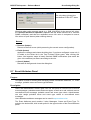
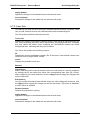
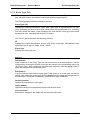
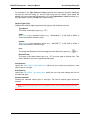
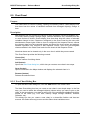
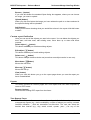
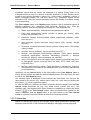
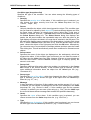
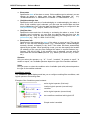
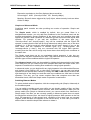
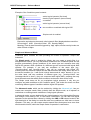
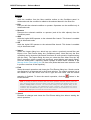
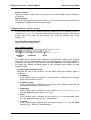
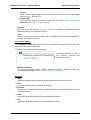
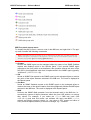
MG-SOFT Net Inspector — Reference Manual Create Filter Dialog Box Expression equivalent to the filter displayed above would be: Source=hpjd1 AND (Severity=Critical OR Severity=Major) Meaning: Show all alarms triggered by ‘hpdj’ object, whose severity levels are either Critical or Major Simple and Advanced Mode Conditions panel contains two tabs providing two modes of operation: Simple and Advanced. The Simple mode, which is enabled by default, lets you create filters in a straightforward manner: you only add filter conditions to the Conditions panel and the program automatically groups conditions of the same type and connects them with logical OR operator, while conditions of a different type are connected with logical AND operator. For example, if you add two conditions of the same type (e.g., “severity=critical” and “severity=major”), they will be combined with the logical OR operator, meaning that the filter will let trough alarms that satisfy either one or the other condition (i.e., it will let trough all ‘critical’ alarms and all ‘major’ alarms). If you, on the other hand, add two conditions of different types (e.g., “severity=critical” and “message=device is down”), they are connected with the logical AND operator, meaning that the filter will let trough only those alarms that satisfy both conditions at the same time. The Simple mode does not let you manipulate logical operators, it only lets you configure and add filter conditions to the filter. This mode also does not allow combining different types of filter conditions with the logical OR operator. The Advanced mode, which can be enabled by clicking the Advanced tab in the Create Filter dialog box, lets you create much more complex filters than the Simple mode, as it imposes no restrictions on combing filter conditions or using logical operators. In advanced mode, you can double-click any logical operator in the hierarchical filter tree and change it from AND to OR, or vice-versa. Furthermore, you can add new logical operators to the selected filter subtree by clicking the AND or OR buttons located in the right hand-side of the dialog box and then add new conditions as child items to those operators. This way, you can create complex filters that comprise more than two hierarchical levels, which the Simple mode of operation is restricted to. Switching Between Modes To select desired mode of operation, click the corresponding tab (Simple, Advanced) in the Conditions panel. You can switch to another mode even while you are already creating a filter, and then continue creating it in another mode; however, with some restrictions. While you can always switch from Simple to Advanced mode, you cannot switch from Advanced to Simple mode if the filter you are currently creating in Advanced mode does not match the simple filter scheme (max. two levels of logical operators: AND operator on the first level, OR operator(s) on the second level, conditions of the same type are grouped together under the same OR operator on the second level). In such case, you need to edit the filter to match the simple filter scheme or delete it. 173