1
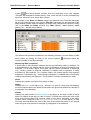
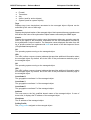
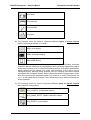
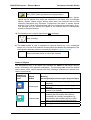
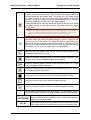
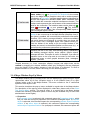
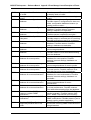
MG-SOFT Net Inspector — Reference Manual Action Object Properties Windows The Mail action object triggers the following events and alarms: MessageID Severity Message 10004 10040 10041 10044 14001 Critical Critical Critical Major Major Invalid address or DNS error Invalid filter Extension process is not running Sending messages is temporarily disabled due to full buffer Failed to send message All alarms listed above except the last one change the status of the Mail object (the status will match the alarm severity level). Pop-Up Menu To display the pop menu, right-click one or more alarms in the list of active alarms. The pop-up menu contains the following commands: Details Opens the Event Details window, which displays details of the selected alarm. This window display the same information as the Event Details sub-window. Add Comment Opens the Add Comment dialog box that lets you enter or edit comment for the selected alarms. Comments are displayed in the Comment column. Akcnowledge Acknowledges the selected alarms. By acknowledging alarms, users declare that they are aware of the alarms. Acknowledged alarms are not shown in the alarm balloons. Unacknowledge Unacknowledges the selected alarms (reverses the Acknowledge operation). Manually Clear Manually clears the selected alarms. Note that Net Inspector system alarms (i.e., alarms that have the Message ID value in the range of 10000-15000) cannot be manually cleared. Manually Unclear Unclears the selected alarms (reverses the Manually Clear operation). Remove Cleared Alarms Removes all cleared alarms from the list. Find Events Opens the Find Events dialog box and automatically inserts appropriate search conditions for finding events or alarms associated with the given object. Export Opens the Export Events dialog box, which lets you export alarms currently displayed in the General view of the Mail Properties window to a HTML or CSV (comma-separated value) file format. The Export Events dialog box closely resembles the operating system’s standard “Save As” dialog box. Note that only information provided by the columns which are currently displayed will be exported. Select All (Ctrl+A) Selects all displayed alarms. 69