1
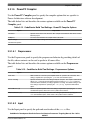
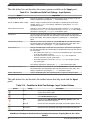
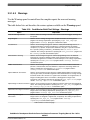
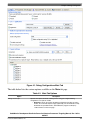
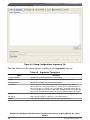
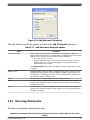
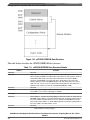
Using Debug Configurations Dialog Box
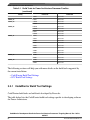
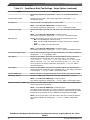
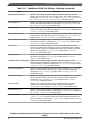
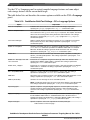
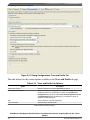
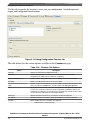
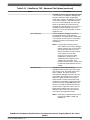
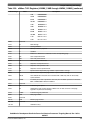
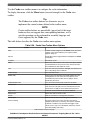
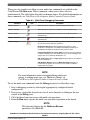
Table 4-2. Main Tab Options (continued)
Option
Description
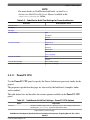
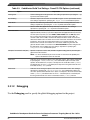
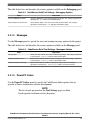
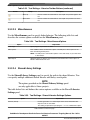
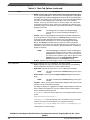
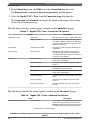
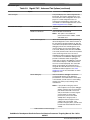
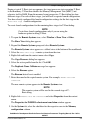
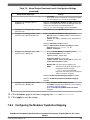
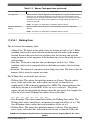
• Attach - Assumes that code is already running on the board and therefore does
not run a target initialization file. The state of the running program is undisturbed.
The debugger loads symbolic debugging information for the current build target's
executable. The result is that you have the same source-level debugging facilities
you have in a normal debug session (the ability to view source code and
variables, and so on). The function does not reset the target, even if the launch
configuration specifies this action. Further, the command loads symbolics, does
not stop the target, run an initialization script, download an ELF file, or modify the
program counter (PC).
NOTE:
The debugger does not support restarting debugging
sessions that you start by attaching the debugger to a
process.
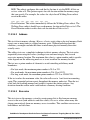
• Connect - Runs the target initialization file specified in the RSE configuration to
set up the board before connecting to it. The Connect debug session type does
not load any symbolic debugging information for the current build target's
executable thereby, denying access to source-level debugging and variable
display. The Connect command resets the target if the launch configuration
specifies this action. Further, the command stops the target, (optionally) runs an
initialization script, does not load symbolics, download an ELF file, or modify the
program counter(PC).
NOTE:
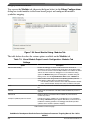
The default debugger configuration causes the debugger to
cache symbolics between sessions. However, selecting the
Connect option invalidates this cache. If you must preserve
the contents of the symbolics cache, and you plan to use the
Connect option, clear the Cache Symbolics Between
Sessions checkbox in the Symbolics tab page.
• Custom - Provides user an advantage to create a custom debug configuration.
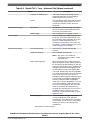
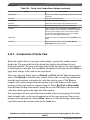
C/C++ application
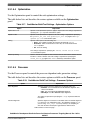
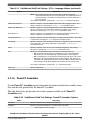
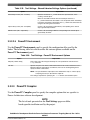
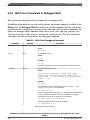
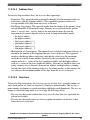
Specifies the settings for the C/C++ application. The options include:
• Project - Specifies the name of the project associated with the selected debug
launch configuration. Click Browse to select a different project.
• Application - Specifies the name of the C or C++ application executable.
NOTE:
This option is disabled when Connect debug session type is
selected.
• Search Project - Click to open the Program Selection dialog box and select a
binary.
NOTE:
This option is disabled when Connect debug session type is
selected.
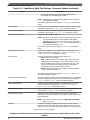
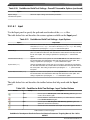
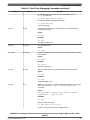
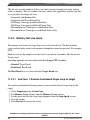
• Variables - Click to open the Select build variable dialog box and select the build
variables to be associated with the program.
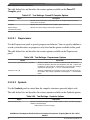
The dialog box displays an aggregation of multiple variable databases and not all
these variables are suitable to be used from a build environment. Given below
are the variables that should be used:
ProjDirPath - returns the absolute path of the current project location in the file
system
${ProjDirPath}/Source/main.c"
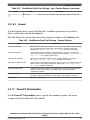
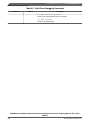
workspace_loc - returns the absolute path of a workspace resource in the file
system, or the location of the workspace if no argument is specified
${workspace_loc:/ProjectName/Source main.c"${workspace_loc}
Table continues on the next page...
CodeWarrior Development Studio for Power Architecture Processors Targeting Manual, Rev. 10.5.0,
06/2015
104
Freescale Semiconductor, Inc.