1
Spectrum CIRC/CAT
Getting Started
A guide for getting started with
Winnebago Spectrum CIRC/CAT 5.0
© 1995-2001 Sagebrush Corporation, All Rights Reserved.
© 1995-2001 Sagebrush Corporation, Minneapolis, Minnesota. All Rights Reserved.
This documentation and the software described in it are copyrighted with all rights reserved. Under
copyright laws, this documentation or the software may not be copied, reproduced, transmitted,
transcribed, stored in a retrieval system, or translated into any language or computer language, in any
form or by any means, in whole or in part, without the prior written permission of Sagebrush
Corporation, except as set forth in your License Agreement with Sagebrush Corporation. The same
proprietary and copyright notices must be affixed to any permitted copies as were affixed to the original.
The use of actual names of persons or businesses in this material is fictitious and is for purely educational
purposes and is not meant as an endorsement of our product by these persons or companies.
Various trademarks and registered trademarks are referred to in this document. Such references do not
imply any endorsement of, or other affiliations with, this documentation. Where trademarks or registered
trademarks are referred to, every effort has been made to adhere to the holder’s preferred style of spelling
and capitalization.
All products mentioned are the property of their respective copyright holders and are used purely for
educational purposes without intent to infringe on the rights of the mark holder.
These copyright holders make no warranties, either expressed or implied, regarding the enclosed
computer software package, its merchantability, or its fitness for any particular purpose. The exclusion of
implied warranties is not permitted by some states. The above exclusion may not apply to you. This
warranty provides you with specific legal rights. There may be other rights that you have which vary from
state to state.
Portions copyright 1984-1999 FairCom Corporation. All rights reserved.
The information in this documentation is believed to be correct as of the date of publication. However, it
is subject to change without notice, and does not represent a commitment on the part of Sagebrush
Corporation.
Contents
Introduction ................................................................................ 1
Using the Spectrum Help system ................................................... 1
Printing a Help topic ..................................................................... 2
Using the Contents tab.................................................................. 3
Using the Index tab....................................................................... 3
Using the Find tab......................................................................... 4
The Winnebago menu................................................................... 6
Setting up passwords, location, and the calendar ..................... 7
Password Setup features ................................................................ 7
Passwords level worksheet ............................................................. 8
System Location Setup features ....................................................11
Calendar Setup features................................................................13
Frequently asked questions...........................................................15
Setting up and managing material records.............................. 16
Setup features for material types...................................................16
Managing material records...........................................................18
Managing your holding records....................................................22
Importing material records ...........................................................24
Importing scenarios......................................................................26
Frequently asked questions...........................................................28
Setting up and managing patron types ................................... 29
Setup features for patron types.....................................................29
Managing patron records .............................................................31
Importing patron records .............................................................32
Frequently asked questions...........................................................33
Setting up and using the catalog ............................................. 34
Catalog Setup features .................................................................34
Catalog use features .....................................................................39
Frequently asked questions...........................................................42
Contents
SCC5gs1200kn
i
Setting up and using circulation............................................... 43
Circulation Setup features ............................................................ 43
Circulation use features ................................................................ 47
Frequently asked questions .......................................................... 49
Printing reports, notices, and labels ......................................... 50
Available reports .......................................................................... 50
Frequently asked questions .......................................................... 59
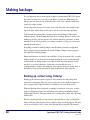
Making backups ........................................................................ 60
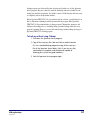
Backing up without using Ctdump................................................ 60
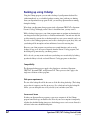
Backing up using Ctdump............................................................ 62
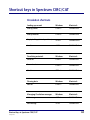
Shortcut keys in Spectrum CIRC/CAT ....................................... 63
Circulation shortcuts .................................................................... 63
Catalog shortcuts......................................................................... 65
Material Edit shortcuts ................................................................. 67
Patron Edit shortcuts.................................................................... 68
Computer basics........................................................................ 70
Managing your desktop ............................................................... 70
Window conventions ................................................................... 73
Software conventions................................................................... 76
Managing your windows ............................................................. 79
Navigating without a mouse ........................................................ 80
Frequently asked questions .......................................................... 81
ii
Spectrum CIRC/CAT Getting Started Guide
SCC5gs1200kn
Where to go for more information........................................... 83
Glossary..................................................................................... 84
About Sagebrush Corporation.................................................. 99
About Sagebrush's Technical Support .................................... 100
Customer Support Agreement Plan (CSAP) ........................... 101
Comments or suggestions?..................................................... 103
Contents
SCC5gs1200kn
iii
iv
Spectrum CIRC/CAT Getting Started Guide
SCC5gs1200kn
Introduction
Winnebago Spectrum CIRC/CAT provides fast program operation, flexibility to meet the
needs of your library, and dependability! Spectrum’s advanced 32-bit programming
architecture and data-efficient client/server technology guarantee all three. There is no
faster, more dependable library automation program than Spectrum!
Spectrum also lets you work faster. Multi-windowing lets you keep more than one
window open on your screen, and Spectrum’s multitasking capabilities let you work with
one part of the program while other parts are running.
TCP/IP makes Spectrum a partner with the Internet—making your library ready to take
part in the information opportunities of the 21st century.
This guide introduces you to the main features of Spectrum CIRC/CAT. (You will want
to consult your user and reference manuals for detailed steps and descriptions.) Use it to
give you ideas and inspire questions. Also, use it as a place to make reference notes as
you make your library an efficient place for community learning.
Some parts of Spectrum Setup are included in this guide. Setup is crucial because the
more precisely you tailor your library automation system to meet your individual needs,
the better it performs for you. Spectrum provides a variety of options for you to make
your library automation program a precise fit.
Get ready to let Spectrum give your library an automation system that is efficient,
dependable, and ready to take on any information challenge.
Using the Spectrum Help system
Spectrum comes with a complete Help system. The Help includes step-by-step directions
that you follow as you work, examples that show you how to complete a process, and
reference information. It’s designed to solve problems you encounter while working with
Spectrum as well as instruct you on how to finish a specific task. Note: You don't need a
connection to the Internet to use the online Help system.
You access the Help system in several ways. Context sensitive help is opened from the
program window by clicking the Help button or by pressing the F1 key (Windows) or
Help key (Macintosh). You can search for any topic from the Help Topics window by
choosing Help Topics from the Help menu. From the Help Topics window, you can
search for a specific topic using any of the three tabs: Contents, Index, or Find.
Introduction
SCC5gs1200kn
1
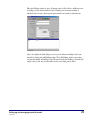
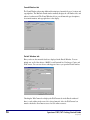
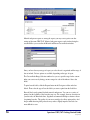
Green text indicates that additional information is available. When you place the screen
cursor over these hotspots or links it changes to a pointing hand . Links that are green
and underlined are links to another Help topic or popup topics. Popup windows contain
definitions and graphics, and do not remain open while you’re working with the program
because they close as soon as they are clicked for a second time.
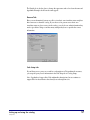
You access additional Help topics from the current Help topic by clicking the available
links in the current Help window.
There’s also a Glossary button in every Help window. When you click it, you get an
online glossary to use as a reference tool for Spectrum terms, library terms, and technical
terms.
About context-sensitive Help
If you need help while working with the program, click the Help button (if available) or
press the F1 key (Windows) or Help key (Macintosh) to bring up context-sensitive help.
Context-sensitive Help opens a Help window with information about the part of the
program that is currently active.
For example, if you’re printing a list of the materials you found during your catalog
search and want to know what information prints, you can press the F1 or Help key while
in the Print Bibliographies window and the Help topic that explains printing a
bibliography opens.
Using the Help button, F1 key, or Help key is the quickest method of getting help on the
part of the program you have currently open.
Printing a Help topic
If you are completing a long process, you may want to print the Help topic for reference.
To print a help topic
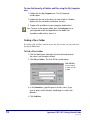
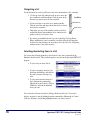
1 Choose Print Topic from the Options menu, or click the Print
button in any topic window.
2 Select your Print options and click OK at the Print window.
Note: In Windows, you can print popup window information by placing the pointer on
the open popup topic, clicking the right-mouse button, and choosing Print Topic.
2
Spectrum CIRC/CAT Getting Started Guide
SCC5gs1200kn
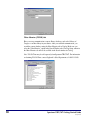
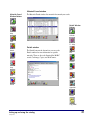
Using the Contents tab
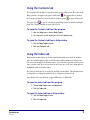
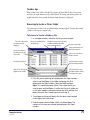
The Contents tab is the table of contents for the program’s Help system. The topics in the
Help system are arranged by categories called books
. The main books are listed in
the Contents tab when you open it. Inside the books are pages
or topics listed by title.
You open a book
or topic by selecting it and clicking Open or by double-clicking the
book (Note: Double-clicking an open book closes it).
To open the Contents tab from the program
1 From the Help menu, choose Help Topics.
2 If the contents are not displayed, click the Contents tab.
To open the Contents tab from a Help window
1 Click the Help Topics button.
2 Click the Contents tab.
Using the Index tab
Help includes an index that you can use to find the information you need. In the Index
tab, you search through key words to find the topics with information you want to read.
You can scroll through all of the index entries or you can enter a specific word. If you do
enter a specific word, the word you enter (or the closest one to it if it isn’t in the index) is
highlighted in the list of index entries.
The entries in the Index tab are created by the Help system authors. The information here
is comparable to an index found in the back of a manual or reference book.
Note: Help features may function or appear differently on a Macintosh.
To open the Index tab from the program
1 Choose Help Topics from the Help menu.
2 Click the Index tab.
To open the Index tab from a Help window
1 Click the Help Topics button.
2 Click the Index tab.
Introduction
SCC5gs1200kn
3
To open a topic from the Index tab
1 In the box at the top of the Index tab, enter the first few letters
of the word you’re looking for. The group box at the bottom of
the window scrolls to the first matching word.
2 In the bottom group box, double-click the index entry you
want to view the topics for. If more than one topic contains the
selected index entry, the Topics Found window opens. (If only
one topic is associated with the selected index entry, the Help
topic opens.)
3 In the Topics Found window, double-click the topic you want to
view.
Using the Find tab
If you want to find all of the information available about a topic, the Find tab should be
your first choice for searching the Help system. The Find tab lets you search on a specific
word or phrase and locate all Help topics containing that word or phrase.
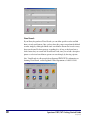
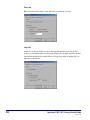
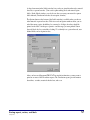
To open topics from the Find tab, follow the steps listed in the Find Setup Wizard
window, which opens the first time you click the Find tab.
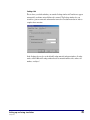
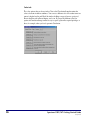
After going through the Find Setup wizard, follow the three steps listed on the Find tab.
First, enter the word you’re searching for. The program then displays related words in the
matching words list. You reduce the number of topics displayed in the Topics Found list
by selecting matching words to narrow your search, or you can scroll through all of the
listed topics and display the topic that interests you.
4
Spectrum CIRC/CAT Getting Started Guide
SCC5gs1200kn
Searching with the Find tab gives you the most information because it uses a full-text
search generated by the program to find topics. This method doesn’t limit your
information to those topics that the Help system authors found appropriate for a certain
topic. Any topic that contains the word or phrase you enter in the “Type word(s) you
want to find” box is displayed in the Topics Found list.
Note: Help features may function or appear differently on a Macintosh.
To open the Find tab from the program
1 Choose Help Topics from the Help menu.
2 Click the Find tab. If this is the first time you have used the Find
feature, the Find Setup wizard opens. Follow the instructions in
the wizard. You can select the default option, Minimize
database size.
To open the Find tab from a Help window
1 Click the Help Topics button.
2 Click the Find tab. If this is the first time you have used the Find
feature, the Find Setup wizard opens. Follow the instructions in
the wizard. You can select the default option, Minimize
database size.
To search for topics using the Find tab
1 In the first box, enter the word or phrase you’re searching for.
The window displays related words in the matching words list
and the topics that contain the specified word or phrase.
2 In the second box, select matching words to narrow your
search.
3 In the third box, double-click the topic you want to view.
You can set options using the Options button in the Find tab to further define your search
criteria.
Introduction
SCC5gs1200kn
5
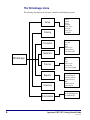
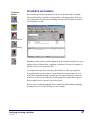
The Winnebago menu
The following chart displays the selections available from the Winnebago menu.
Setup
Catalog
Circulation
Location
Calendar
Catalog
Circulation
Material Types
Passwords
Patron Types
SLIP Printer
Edit
Quick Add
Import
Export
Batch Process
Custom Indexes
Global Subject Edit
Materials
Winnebago
Patrons
Reports
Inventory
Maintenance
6
Edit
Import
Export
Batch Process
Custom Index
Import Patron Images
Material Reports
Circulation Reports
Circulation Statistics
Circulation Notices
Labels
Inventory Reports
System Reports
File Management
Key Word Management
Auto MARC Merge
Spectrum CIRC/CAT Getting Started Guide
SCC5gs1200kn
Setting up passwords, location, and the
calendar
Password Setup features
Manual alert!
Your Spectrum
CIRC/CAT User
Manual and
Reference Manual are
the places to go
before you start any
Setup procedures! It
walks you through
all the steps. And it
helps you make
choices that
customize Spectrum
CIRC/CAT exactly for
your library.
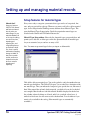
Spectrum CIRC/CAT gives you the option of nine password levels for optimum security.
The password system is designed so that the highest level (level 9) gives access to any of
the lower levels. Also, any intermediate level password accesses any lower level. A level
5 password, for example, opens level 3.
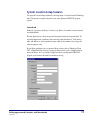
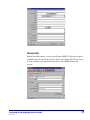
You open the Password Setup window by choosing Setup > Passwords from the
Winnebago menu. Using the tabs at the top of the Password Setup window, you can
match password levels to a wide variety of commands, functions, and areas in the
program. You can also choose not to limit access by passwords by setting a command to
0 (zero).
A checkbox at the top right of the Password Setup window lets you choose whether or
not to make your passwords case-sensitive. Case-sensitive passwords must be typed with
the correct lower-case or upper-case letters, as they are entered in Password Setup.
The pre-set password for level nine is CIRC. Sagebrush recommends you change this to a
password of your own. Passwords can contain up to 20 characters. They can be made up
of numbers, symbols, and spaces. Make sure you keep your password record in a safe
place.
Setting up passwords, location, and the calendar
SCC5gs1200kn
7
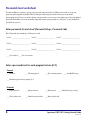
Passwords level worksheet
Use this worksheet as a master copy for your passwords and password levels. When you're ready to set up your
passwords, photocopy this worksheet. Then, list the passwords and password levels that you set up on the
photocopied version. If you ever need to change your passwords, you can create a new photocopy to list your updated
passwords. Remember to store the worksheet copy that contains your passwords in a safe place, so only authorized
personnel can access it.
Enter passwords for each level (Password Setup—Passwords tab)
Note: Passwords can contain up to 20 characters each.
Level 1 ________________________
Level 4 ________________________
Level 7 ________________________
Level 2 ________________________
Level 5 ________________________
Level 8 ________________________
Level 3 ________________________
Level 6 ________________________
Level 9 ________________________
___ Case-sensitive ___ Not case-sensitive
Enter a password level for each program feature (0–9)
General
___ Inventory
___ File management
___ Key word management
___ Auto MARC merge
___ Maximum password entry attempts (1-5)
Materials
___ Import materials
___ Export materials
___ Edit materials
___ Global subject edit
___ Material custom indexes
___ Material quick add
8
___ Material batch processing
Spectrum CIRC/CAT Getting Started Guide
SCC5gs1200kn
Setup
___ Location setup
___ Calendar setup
___ Catalog setup
___ Circulation setup
___ Material type setup
___ Patron type setup
___ SLIP printer setup
___ Circulation reports
___ Circulation statistics
___ Circulation notices
___ Material reports
___ Inventory reports
___ Labels
___ Print bibliographies
___ Exit catalog
___ Enter circulation
___ Check in
___ Check out
___ Check out/set date
___ Circulation override
___ Mark materials lost
___ Renew patron
___ Add fine
___ Negotiate fine
___ Collect fine
___ Renew materials
___ Reserve title
___ Reserve holding
___ Special reserve
___ Advance booking
___ Patron general
___ Patron reserves
___ Patron advance bookings
___ Patron messages
___ Patron fines
___ Patron circ log
___ Patron fine log
___ Material general
___ Material reserves
___ Material advance
bookings
___ Material messages
___ Material circ log
Reports
___ System reports
Catalog
___ Enter catalog
Circulation
Circulation Inquiry
Setting up passwords, location, and the calendar
SCC5gs1200kn
9
Patrons
___ Import patrons
___ Export patrons
___ Patron custom index
___ Import patron images
___ Edit patrons
___ Patron batch processing
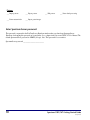
Enter Spectrum Server password
This password is requested in the FairCom Server Shutdown window when you shut down Spectrum Server.
Directions for changing this password are located in the Server chapter in the Spectrum CIRC/CAT User Manual. The
default Spectrum Server password is ADMIN (all caps). Note: This password is case-sensitive.
Spectrum Server password __________________________
10
Spectrum CIRC/CAT Getting Started Guide
SCC5gs1200kn
System Location Setup features
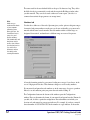
You open the Location Setup window by choosing Setup > Location from the Winnebago
menu. The options set up here affect how your entire Spectrum CIRC/CAT program
operates.
General tab
In this tab, you enter your library’s location code, address, fax number, and two material
user-defined fields.
The four-digit location code is incorporated into printed material and patron labels. It’s
especially important if your library shares materials with other libraries. Your library’s
name and address are used on printed receipts, while the fax number is for storage and
reference purposes only.
If your library participates in a cooperative library system (such as Winnebago Union
CAT or Spectrum Union Catalog) you may need the location code to identify materials
from your library. Also, if you print 14-digit barcodes in your Spectrum CIRC/CAT
program, your location code must be four characters long.
Setting up passwords, location, and the calendar
SCC5gs1200kn
11
The names used for the user-defined fields can be up to 16 characters long. They add to
the fields already in your material records and show up in the Holdings window when
you edit materials. They can also be used as indexes in some reports. (An index is a
common characteristic the program uses to arrange items.)
Hint:
Make sure you
understand the basics
of your computer
operating system
before you start. You
should know how to
open, close, and
position windows;
click, double-click, and
drag items using a
mouse; select a menu
item and an item in a
list; scroll a list or
document; and use
the tab key when
entering information.
Numbers tab
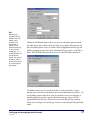
Use this tab to define use of barcodes. Spectrum gives you the option to designate ranges
for material and patron numbers to make sure you do not accidentally get a patron and a
material with the same barcode number. Barcode numbers within a certain range are
designated for materials, and numbers in a different range are reserved for patrons.
A barcode formatting option lets you remove leading zeros except, if you choose, in the
case of 9-digit patron barcodes. This eliminates changes to social security numbers.
If your material and patron barcode numbers are in the same range, do not set a partition.
Instead, to avoid confusion, print your patron barcodes with a leading “P.”
The Configurations button at the bottom of the window opens the Configurations
window. Here you determine the format of your material and patron barcodes. Buttons let
you add, edit, or delete a particular configuration. Barcode numbers can include your
location code and material or patron type indicators. For example, if you have a material
barcode number of 3555589788437K, the first number is a type indicator. It shows that
12
Spectrum CIRC/CAT Getting Started Guide
SCC5gs1200kn
this is a material. The next four numbers represent the location. The eight numbers after
that make up the actual number assigned to the material, and the K is a fill character—
that is, an ignored character. In the configuration, this barcode number would be
designated as ILLLLBBBBBBBBF.
By default, the Configurations window has four different length barcode configurations:
10-, 11-, 13- and 14-digits. These configurations work with all standard barcode
configurations. The only time you would need to add or edit existing barcode
configurations is if the barcodes used have unusual configurations (meaning they don't
fall within the four configurations listed above). Very rarely do you need to add or edit
existing barcode configurations.
Calendar Setup features
Setting up the calendar in the Calendar Setup window is necessary for determining due
dates and calculating fines. Spectrum CIRC/CAT lets you organize your calendar with
various groups of patrons in mind using customized schedules for each group.
In Calendar Setup you can add, delete, and rename schedules to accommodate these
different patron types. For example, if yours is a library in a year-round school, you may
need to tailor your library hours and due dates for different classes. You may also want to
let faculty check out materials during in-service days or weekends when the library is
normally closed.
The Calendar Setup window lets you schedule your library’s open and closed days for
various schedules for specific months in the year. (You can include settings for next year
or several years in advance.)
Setting up passwords, location, and the calendar
SCC5gs1200kn
13
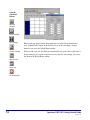
Calendar
Command
Buttons
Add New
Schedule
Delete Schedule
Save Changes
Buttons at the top of the Calendar Setup window let you add or delete schedules and
years. (Schedule and Calendar on the menu bar let you do the same thing.) Another
button lets you access the Weekly Hours window.
Rename Schedule
When you add a new year, the added year automatically sets up the same weekly hours as
the preceding year. If you don’t want the new year to have the same settings, you can set
new hours in the Weekly Hours window.
Add New Year
Delete Year
Set Weekly Hours
14
Spectrum CIRC/CAT Getting Started Guide
SCC5gs1200kn
Frequently asked questions
1
Where does the library name entered in Location Setup appear?
The library name is used on printed receipts, and is also displayed on
the title bar of the Spectrum CIRC/CAT program.
2
Is barcode partitioning necessary?
Not always. If you want to use the same range for both patron and
material barcode numbers, you don’t need a partition. When you enter
the number in circulation, the program looks for the material first. If it
doesn’t find a material with that number, it looks for a patron. If a
material and a patron have the same number, you must enter a “P”
before the patron’s number.
3
How many years can be stored in Calendar Setup?
Calendar Setup can store up to 42 years and automatically recognizes
which are leap years. However, this version of Spectrum CIRC/CAT
does not support years after 2039.
4
Why do I need to specify library opening and closing times in
Calendar Setup?
Specifying opening and closing times is necessary in order for
Spectrum to calculate hourly loan periods.
5
How do I print weekly hours and monthly calendars?
You can print weekly hours and monthly calendars by using
Spectrum's System Reports. Click the Reports button in the Navigator
toolbar, select System Reports and then select either Calendar–Hours
or Calendar–Months. In the System Reports window, click the Options
button to set which schedule you want to print, as well as the first
month you want to print for your monthly calendar.
Setting up passwords, location, and the calendar
SCC5gs1200kn
15
Setting up and managing material records
Setup features for material types
Manual alert!
Keep your Spectrum
CIRC/CAT User Manual
and Reference Manual
close by when you
make changes to your
materials database. All
of the steps for editing
one record at a time,
importing and
exporting files, and
using batch processes
are outlined in detail.
Plus, there is specific
information on making
changes to MARC 21
data, how to match
records, and how to
interpret and resolve
the errors noted in
importing and
exporting.
Now you are ready to categorize your materials into types and to set loan periods, fine
rates, and grace periods for each type. Whenever you want to add, edit, or delete material
types, choose Setup from the Winnebago menu, and then choose Material Types. This
opens the Material Types Setup window. Details about particular material types are
recorded on the General and Call Number Patterns tabs.
Material Types Setup window: Shows the list of material types you currently have and
permits you to add, edit, or delete types on this list. Spectrum installs 20 material types
for you to customize, but you can have as many as 999.
Note: You must set up material types before you import or add materials.
Click Add to add a new material type. You are first asked to verify what number the new
material type should have. The General Tab opens. You are asked for a description of the
new material type. Then you indicate the loan period, grace period, fine rate, and renewal
limit. If the material has an hourly checkout period, you decide if it can also be checked
out overnight. Other checkboxes ask if the material should be displayed in checked out
lists, whether advance bookings are allowed, and if it is a textbook or fixed asset. A
textbook or fixed asset does not count toward a checkout limit. You also indicate if you
want it to be searchable in the catalog. (Other material types are automatically
searchable.)
16
Spectrum CIRC/CAT Getting Started Guide
SCC5gs1200kn
Hint:
Whenever your
Spectrum CIRC/CAT
database finds a call
number it can’t
associate with a
material type, it
includes it in the
Default Material Type.
To see if you have
enough types, it is a
good idea to print a list
of materials from
Default. Then you can
determine if some of
those materials should
be in a material type
by themselves.
Clicking the Call Number Patterns tab lets you associate call number patterns with the
new material type and test them to make sure there are no conflicts. Material types and
their call number patterns can also be edited or deleted. Highlight the material type and
click the appropriate button at the bottom of the Material Types window—Add, Edit, or
Delete. The Call Number Patterns button also accesses the Call Number Patterns tab.
Call numbers patterns are necessary because they are used automatically to assign
material types to material records that don’t have material information in tag 961wl _t. If
no call number pattern matches those of the new material record you are importing or
manually adding, the program assigns the Default material type to the record. The
assigned Default material type is listed at the bottom of the Material Types window.
Change it by selecting the new default type from the list and clicking the Change Default
button.
Setting up and managing material records
SCC5gs1200kn
17
Material types do not have to be limited to traditional types like fiction or history. For
example, you might want to classify materials designated as lost in a library inventory in
a special material type such as “Lost 99.” If these materials remain lost, you might
consider deleting their records after a certain amount of time—such as three years. Other
material types could be created for placing materials temporarily on Special Reserve.
(Special Reserve is when you temporarily change a material’s material type to change its
checkout status for a short period of time.) Material types for Special Reserve might be
called “Winter holidays” or even “Mrs. Smith’s Class.”
For a list of all the material types you have, you can print a Material Type Descriptions
report. The Material Type Descriptions report lists the material type name and the
properties that describe that type for all material types. The report includes the call
number patterns for the material type. To access the Material Type Descriptions report,
click the Reports button in the Navigator toolbar and select System Reports > Material
Type Descriptions.
Managing material records
The Spectrum CIRC/CAT Materials module lets you add, delete, and edit material
records. You can use Easy Entry for most of your changes. The Edit MARC option is
available if you want to do detailed editing, including changes to information located in
any tag, indicator, or subfield. (You can also add, edit, and delete individual holdings
data.) Note: Be sure to set up your material types before adding materials.
Quick Add
The Quick Add feature provides a fast and simple way to enter new materials into your
Spectrum CIRC/CAT database. It is designed for entering only basic catalog information
and one holding. More detailed information must be added using the Material Edit
feature.
18
Spectrum CIRC/CAT Getting Started Guide
SCC5gs1200kn
Material Edit
With the Easy Entry window, you do not need to know MARC 21. Four tabs are offered
for different types of materials: Book, Video, Sound, and Computer File. The tab you use
to create a material record automatically inserts the correct MARC fields for that
category.
Setting up and managing material records
SCC5gs1200kn
19
The Edit MARC window lets you add, edit, or delete information in MARC 21 Holdings
data format. You can change information in any tag field, indicator, subfield, or leader or
control fields.
Viewing web sites
If you activate WebConnect in Catalog Setup, you can store Uniform Resource Locators
(URLs)—also known as web addresses—in tag 856 (Electronic Location and Access)
subfield _u. Then patrons can access the web sites from the Catalog using WebConnect.
Many URLs contain underscores ( _ ) which conflict with the Pre-1997 MicroLIF format.
To get around this, the characters %5F are used in place of an underscore, and the
MicroLIF standard then interprets this as an underscore. When entering an underscore in
a URL, press Control, Shift, and Underscore simultaneously. The window displays an
underscore plus a space that is converted to and from %5F when the record is saved or
loaded.
20
Spectrum CIRC/CAT Getting Started Guide
SCC5gs1200kn
Loading material records
To load a material record in the Easy Entry or Edit MARC window, you must first
choose an index from the Index menu to sort your records. Then the five load buttons—
First, Previous, Look Up, Next, and Last—let you browse records in whatever index
you’ve chosen.
To load a specific record instead of browsing, you also first choose an index. Then, click
the Look Up button or Look Up on the Record menu. The Key Value window opens.
Enter the value of the record you want. (By default, the index is material number.)
Easy Entry, Edit MARC, and the Holdings window provide four menus—Record, Index,
Material, and View—to let you add, delete, change, or view records.
Record menu
Buttons
New Record
Record menu
The record menu lets you add, save, duplicate, look up, and delete material records. In
addition, the Record menu helps you navigate through your material records using the
First, Next, Previous, and Next buttons.
Index menu
Save Record
Duplicate Record
The Index menu changes indexes as you search for particular material or holding records.
In Easy Entry and Edit MARC you can index material records by call number, material
number, author, title, subject, ISBN, and LCCN, as well as the two user-defined fields
you filled in during Location Setup. Holding records are indexed by call number, material
number, and the two user-defined fields.
Delete Record
Look Up Record
Setting up and managing material records
SCC5gs1200kn
21
Material menu
Material menu
Buttons
Authority Control
Insert MARC Text
Set Material Type
Add Holdings
Delete Holdings
View menu
Buttons
Show Edit MARC
Show Easy Entry
Show Holdings
Show Card Image
The Material menu lets you perform several library tasks. The commands available
depend on if you are in Easy Entry, Edit MARC, or the Holdings window.
Authority Control, for example, is an important feature available in Easy Entry in the
Material menu. It provides consistency and accuracy in cataloging because it lets you
minimize spelling, capitalization, and punctuation inconsistencies in your data. The
command is only available when the cursor is placed in one of the boxes in Easy Entry.
The box it is placed in determines what Authority Control window opens—title, author,
or subject.
Easy Entry also offers the Set Next Number command. This lets you set the next material
record number to be assigned.
Edit MARC’s Material menu offers the Insert MARC Text command. As in Authority
Control, Insert MARC Text minimizes mistakes by letting you pick a valid value from a
preset list. Edit MARC also offers Set Next Number and Use Number: n, which assigns
the displayed number to the current record.
At the Holdings window, you are able to Set Material Type. This command assigns a
material type to a particular holding record. Set Next Number and Use Number: n are
also offered.
View Menu
The View menu lets you view your material and holdings data in several ways. Material
records can be viewed in Easy Entry, Edit MARC, and Card Image format. You can also
view the holdings data for each material record.
Edit MARC lets you change the font and font size of records with the View menu. You
can also change the type of descriptive text you see—that is, the names of fields,
subfields, and indicators.
Managing your holding records
Spectrum CIRC/CAT distinguishes between materials and holdings. Materials are books,
CDs, cassettes, and so on (of the same title and author, for example) and holdings are
individual copies of a particular material.
You can add, edit, and delete data in the holdings records of materials. The Holdings
window for a particular record can be accessed from that record’s Easy Entry or Edit
MARC window.
22
Spectrum CIRC/CAT Getting Started Guide
SCC5gs1200kn
When the Holdings window is open, all functions such as New, Delete, and Browse refer
to holdings records and not material records. Holding records contain a number of
editable fields, but some contain system-generated data and cannot be edited directly.
After you complete the first holding’s record, you can add more holdings for the same
material by clicking the Add Holdings button. The Add Holdings window opens where
you enter the number of Holdings to add. The data from the first holding is automatically
copied to the second. Any data that differs for the new holding can be edited.
Setting up and managing material records
SCC5gs1200kn
23
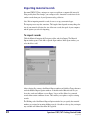
Importing material records
Spectrum CIRC/CAT lets you import or export records from a computer file instead of
doing each by hand. For example, you can import a file of material records from a book
vendor to make them part of your Spectrum catalog collection.
Note: Before importing material records, be sure to set up your material types.
The import process may take some time. The length of time depends on many things: the
size of your material collection, the size of the new records, the speed of your computer,
and the options you select for importing.
To import records
Click the Materials button in the Navigator toolbar, and select Import. The Material
Import window opens. Click Add to open the Open window. In the Open window, you
select the files to add.
After selecting files, return to the Material Import window and click the Change button to
reach the Material Import Options window. A checkbox in the Materials tab lets you
locate key words and add them to your library’s key word list. Others let you match
records when certain conditions are met. This enables you to update or replace existing
records.
The Holdings tab of the Material Import Options window lets you specify how material
numbers are assigned to incoming holding records. A checkbox at the top lets you import
any available user-defined data from 961 tag fields.
24
Spectrum CIRC/CAT Getting Started Guide
SCC5gs1200kn
When the importing process is done, the Material Import Information window opens. It
indicates how many records were added and if there were any problems with adding
records. Your user manual lists some of the possible error messages, their causes, and
what can be done about them. (See the "Importing material records" section in the
Materials chapter of your user manual.)
Important! If you have Windows 98 on your client computer, make sure that Power
Management is not turned on when you import, export, or batch process material records.
If Power Management shuts down your computer during any of these processes, your
database could become corrupt.
Setting up and managing material records
SCC5gs1200kn
25
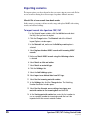
Importing scenarios
The import options you choose depend on how you want to import your records. Below
are two scenarios showing how various setups can produce different outcomes.
MicroLif file of new records from book vendor
In this scenario, you want to add new records, merge and replace MARC with existing
records, and add new holdings.
To import records into Spectrum CIRC/CAT
1 In the Material Import window, click the Add button and select
the file(s) that you want to import.
2 Click the Change button. The Materials tab of the Material
Import Options window opens.
3 In the Materials tab, make sure the Build key words option is
selected.
4 Select Replace database MARC records with incoming MARC
records.
5 Make sure Match MARC records using the following criteria
is selected
6 Select Match on title and author.
7 Select Match on material type.
8 Click the Holdings tab.
9 Select the Add holdings option.
10 Select Import user-defined data from 961 tags.
11 Select Use the incoming material number.
12 In the Holdings tab, click the Change button. The Matching
Number Resolution window opens.
13 Select Use the alternate source settings to assign a new
material number to the incoming data and click OK.
14 In the Starting material number box, enter the first number to
use as a material number for incoming records that can't be
imported with their current material number.
26
Spectrum CIRC/CAT Getting Started Guide
SCC5gs1200kn
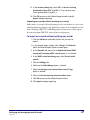
15 In the Location code group, select 852 ‘a’ contains shelving
location data. Move 852 ‘a’ to 852 ‘c’ if you currently store
shelving information in tag 852_a.
16 Click OK to return to the Material Import window and click
Import to begin importing.
Importing new records without matching any records
In this scenario, you want to add each incoming record to your database as a new record
without matching any existing records. (Follow this scenario if you’re importing records
from a Winnebago CIRC/CAT for MS-DOS program and want your records to appear
the same in Spectrum CIRC/CAT as they did in your old program.)
To import new records without matching any records
1 Click the Add button and select the files that you want to
import.
2 In the Material Import window, click Change. The Materials
tab of the Material Import Options window opens.
3 In the Materials tab, make sure the Replace database MARC
records with incoming MARC records option is not selected.
4 In the MARC record matching group, select Do not match
records.
5 Click the Holdings tab.
6 Make sure the Add holdings option is selected.
7 Make sure the Import user-defined data from 961 tags
option is selected.
8 Select the Use the incoming material number option.
9 Click OK to return to the Material Import window.
10 Click Import to begin importing.
Setting up and managing material records
SCC5gs1200kn
27
Frequently asked questions
28
1
How do I bring up a record that I know is in the database?
Use the Index menu to select a field. If you know the title, select Title.
Then use the Record menu and select Look Up. In the text box, type
the title of the material you want to find.
2
Where do I enter material acquisition information?
Material acquisition information such as fun and price can be entered
in the Holdings window.
3
What data is stored in the 961_t, _u and _v tags?
The 961_t stores the material type number. The 961_u tag stores
information from the user-defined fields. The 961_v tag stores
information from the volume field. Sometimes the indicators “wl” are
used to indicate that these are “Winnebago local” fields.
4
Where does Spectrum’s MARConnect store cataloged web site
information?
MARConnect stores web site information in the 856_u tag field of
your Spectrum database records.
5
How can I change the material barcode number of an existing
material?
Find the material you want to edit. From the Record menu, choose
Duplicate. Modify the material barcode number in the Holdings
window and save the record. Find the original material with the
incorrect material barcode number and delete the record.
Spectrum CIRC/CAT Getting Started Guide
SCC5gs1200kn
Setting up and managing patron types
Setup features for patron types
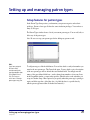
In the Patron Type Setup section, you determine your patron categories and set their
privileges. Patrons of one type all share the same circulation privileges. You can have as
many as 999 types.
The Patron Types window shows a list of your current patron types. You can add, edit, or
delete any of the patron types.
Note: Be sure to set up your patron types before adding any patron records.
Hint:
If you have categories
like Senior Class,
consider naming this
type by graduation date
(for example Class of
'00). This way you
won't have to reassign
patron types every year.
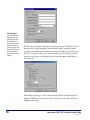
To add patron types, click the Add button. You are first asked to verify what number you
want for the new patron type. The General tab opens. You are asked to give a description
of the new patron type and are offered three user-defined fields. You simply enter the
names of the user-defined fields here—such as home phone number or classroom. Later,
in the Patron Edit window, you put in the specifics. Schedule refers to the schedules you
set up in Calendar Setup. Other options let you specify when this patron type’s privileges
expire and if this type has a global due date. (A global due date is a specific date by
which a patron type must return all checked out materials.)
Setting up and managing patron types
SCC5gs1200kn
29
Manual alert!
You’ll find detailed
information in the
Spectrum CIRC/CAT
User Manual and
Reference Manual on
the fields in patron
records, how to edit
patron records, and
what patron text
file formats you can
import.
The Privileges tab determines privileges for the new patron type. Checkboxes exist for
placing reserves, checkout with fines, checkout with overdues, renewing overdues,
exceeding renewal limits, and whether this patron type should be able to set their own
due dates. You are also asked to set a checkout limit, to specify if materials currently
checked out to this type can be displayed in the Circulation window, and if there is a
special fine rate.
When editing a patron type, you also enter data in the General tab and Privileges tab
windows. With Delete you are simply asked to verify if you really want to delete the
highlighted patron type.
30
Spectrum CIRC/CAT Getting Started Guide
SCC5gs1200kn
If you want a list of all of your patron types, you can print a Patron Type Descriptions
report. The Patron Type Descriptions report lists the patron type name and the properties
that describe that type for all patron types. To access the Patron Type Descriptions report,
click the Reports button in the Navigator toolbar and select System Reports. Then select
Patron Type Descriptions from the expanded menu.
Managing patron records
Record menu
Buttons
New Record
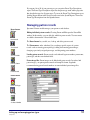
Spectrum’s Patrons module manages your patron records database.
Editing individual patron records: Choosing Patron and Edit opens the Patron Edit
window. In this window, you can add, edit, and delete patron records. Two new menus
are added to the menu bar—Record and Patron.
The Record menu lets you add, save, look up, and delete patron records.
Save Record
The Patron menu, on the other hand, lets you change specific aspects of a patron
record—such as renewing patron privileges, adding and removing patron images,
changing a previously assigned patron type, and designating patron numbers.
Save as Default
Loading patron records: Patron records can be indexed by patron number, patron name,
patron type, and three user-defined fields.
Look Up Patron
Patron image files: Patron images can be linked with patron records. In order to link
patron images, your patron pictures must be in bitmap file format. Sagebrush
recommends using patron barcode numbers to name individual patron image files.
Delete Record
Patron menu
Buttons
Renew Privileges
Set Type
Set Next Number
Setting up and managing patron types
SCC5gs1200kn
31
Importing patron records
Patron records files can be imported as long as they are in the proper format. New patron
records can be added to your database, or you can replace old records with incoming
records if the imported files match by name or number. The method you use to import
depends on whether the records are new or intended to replace old ones.
Note: Be sure to set up your patron types before importing any patron records.
Important! If you have Windows 98 on your client computer, make sure that Power
Management is turned off when you import, export, or batch process patron records. If
Power Management shuts off your computer during the process, your database could
become corrupt.
32
Spectrum CIRC/CAT Getting Started Guide
SCC5gs1200kn
Frequently asked questions
1
What could I put in the three user-defined fields?
If yours is a school library, you might include a student’s homeroom,
advisor, phone number, guardian, or a teacher’s department. In public
or corporate libraries, you might want work phone number, office
number, or e-mail address.
2
How can I go back to a last saved version of a patron’s record if I
make mistakes while editing?
Use the Revert to Saved command under the Record menu.
3
How do I renew a patron’s borrowing privileges?
There are three ways to renew a patron’s borrowing privileges.
• Click the renew icon in the Patron Edit window.
• Use the Renew Privileges command from the Patron menu in the Patrons
module.
• Use the Renew Privileges command from the Patron menu in the
Circulation module.
Setting up and managing patron types
SCC5gs1200kn
33
Setting up and using the catalog
Catalog Setup features
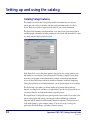
The settings you enter in the Catalog Setup windows determine how you and your
patrons use your catalog for searches and what catalog information they are able to
access. There are seven areas (represented by tabs) for you to enter information.
The General tab determines search parameters—how many items a patron may print in
one bibliography, the number of items permitted in each search, and the number of copies
of a single material displayed in each search.
In the General tab, you set how many minutes elapse before the catalog windows reset
and whether or not to display Catalog Setup items. Choosing to display Catalog Setup
items lets you customize each workstation. For example, workstations with Internet
access can have WebConnect activated, while those without it would not. Displaying
Catalog Setup items is not recommended unless you also password protect local settings.
The General tab is also where you decide whether to let patrons limit searches by
material or reading levels. And there is an option here to provide local passwords in case
you want to limit use of certain workstations to specific patrons.
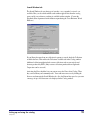
The Open Patrons’ Catalog full-screen option provides extra security. If you select it, the
patrons catalog opens full-screen, concealing the taskbar on Windows workstation
computers and the menu bar on Macintosh workstation computers. Then patrons can’t
easily make changes to your computer settings. You can also set up a catalog exit
password in Passwords Setup—providing even more security.
34
Spectrum CIRC/CAT Getting Started Guide
SCC5gs1200kn
Search Window tab
The Search Window tab sets what type of searches—easy, expanded, or visual—are
available. Here you also decide which search window appears first when the catalog
opens, and if cross-reference searching is available in either window. (Contact the
Sagebrush Sales department for information on purchasing the Cross Reference Words
Database.)
If your library has more than one collection for patrons to search, check the Collections
available box here. This enables the Collections Available tab in the Catalog window.
Additional collections might include resource collections such as news articles and
abstracts produced by WRL. (Only resource collections purchased from Sagebrush
Corporation can be accessed.)
Activating the News checkbox lets your patrons access the News tab in Catalog. There
they can read library and community news. Your staff enters news text by clicking the
Set news text button in the Search Window tab. Also, the Bottom line space lets you enter
a message of up to 100 characters to be displayed in the Catalog window.
Setting up and using the catalog
SCC5gs1200kn
35
Found Window tab
The Found Window tab permits additional descriptions of materials by type, location, and
copyright date. The Materials Found window normally displays the call number, title, and
author of each material. The Found Window tab lets you add material type descriptions,
location information, and copyright dates to the display.
Details Window tab
Here you choose how material details are displayed in the Details Window. You can
include one or all of the choices—MARC record, Itemized list, Card image, Copies, and
WebConnect. You can even choose which appears first as you open the Details window.
Checking the WebConnect box displays the WebConnect tab in the Details window if
there is a web address in the record of a selected material. Also, the WebConnect box
must be checked to allow Internet access for Gale online resources.
36
Spectrum CIRC/CAT Getting Started Guide
SCC5gs1200kn
The Details tab is also the place to change the appearance and color of search terms and
hyperlinks. Examples show how the terms appear.
Reserve Tab
Here you can determine if patrons are able to view their own circulation status and place
their own reserves from the catalog. If you choose to let patrons access their own
circulation status or place reserves in the catalog, you also choose what information they
need to give before doing so and how many attempts they have to provide the correct
information.
Gale Setup tab
If your library uses a proxy server and has a subscription to Gale multimedia resources,
you set up the proxy server information in the Gale Setup tab of Catalog Setup.
Note: Sagebrush no longer offers Gale multimedia subscriptions, but we continue to
support Gale for those libraries that already have subscriptions to it.
Setting up and using the catalog
SCC5gs1200kn
37
Other Libraries (Z39.50) tab
Here you set up communication to remote library databases, such as the Library of
Congress or another library in your district. After you establish communication, you
search the remote databases using the Other Libraries tab in Catalog. Make sure you
select the "Other libraries" option in the Search Window tab of Catalog Setup, otherwise
the Other Libraries tab will not be available in the Search window in Catalog.
Note: Z39.50 Client may be sold separately from Spectrum CIRC/CAT. For information
on obtaining Z39.50 Client, contact Sagebrush’s Sales Department at 1-800-533-5430.
38
Spectrum CIRC/CAT Getting Started Guide
SCC5gs1200kn
Catalog use features
Librarians and patrons using the Spectrum catalog have many options for doing quality,
in-depth searches. Those wanting to do simple searches, as well as those needing to do
intensive work, will discover the steps easy to learn. For convenience, Spectrum has
included three different search windows—Easy Search, Expanded Search and Visual
Search.
Easy Search
Catalog Window
Buttons
Easy Search offers simplified search by title, author, subject, or key word. This catalog
window may be easier to understand for some patrons.
F1 - Help
Clear
See Also
Expanded Search
Browse
Search
Expanded Search permits in-depth searches with Boolean operators. Boolean operators
define search parameters in the Expanded Search window by the use of the words and,
or, and and not. For example, you can search for Shakespeare and plays and not
comedies. This eliminates Shakespeare’s comedies, but not his histories or tragedies. You
can also search by key word, title, author, and subject, in addition to series title, call
number, material type, copyright date, ISBN, and LCCN.
Setting up and using the catalog
SCC5gs1200kn
39
Visual Search
If your library has purchased Visual Search, you can define specific searches and link
them to visual search buttons. Once you have done this, patrons can perform the defined
searches simply by clicking the linked visual search button. Patrons don’t need to worry
about search terms, Boolean operators or anything else. As long as they know how to
click a button, they can search with Visual Search. And, since you can add a descriptive
picture to each visual search button, patrons can search simply by choosing a picture.
Note: Visual Search is sold separately from Spectrum CIRC/CAT. For information on
obtaining Visual Search, contact Sagebrush’s Sales Department at 1-800-533-5430.
40
Spectrum CIRC/CAT Getting Started Guide
SCC5gs1200kn
Materials Found window
Materials Found
Window Buttons
The Materials Found window lists materials that match your search.
Go Back
Details Window
Buttons
Help
Go Back
Lock
F1 - Help
Details window
Unlock
Reserve
The Details button at the bottom lets you access the
Details window for more information on specific
materials. There are five tabs: Itemized list, MARC
record, Card image, Copies, and WebConnect.
First
Previous
Stop
Next
Print
Last
Details
HyperSrch
Reserve
Copy MARC
Setting up and using the catalog
SCC5gs1200kn
41
Frequently asked questions
1
How are wildcard characters used in searching?
Wildcard characters can be appended to the end of a search term in
order to broaden your search. You can use wildcards in title, author,
call number, subject, and key word searches. For example, if you input
air* on a wildcard search, the search would return hits on airplane,
aircraft, airline, airship, and so on.
Before you can use wildcards to search, you must enable them in the
Search Window tab in Catalog Setup.
2
How is Boolean logic used in searching?
You can use Boolean logic in the Expanded Search window to:
–broaden a search by using or
–narrow a search by using and
–limit a search by using and not to exclude items.
42
3
How can I maximize catalog station security?
During Setup, set patron catalog stations to always open at the
maximized position. Then patrons won’t have access to the desktop
and won’t be easily able to make changes. Also, password protect your
Patron Catalog so that unauthorized persons can’t close the catalog
window.
4
Do I have to click the clear icon before each search?
No. You can simply change the logic, source, key word, or phrase on
any line.
Spectrum CIRC/CAT Getting Started Guide
SCC5gs1200kn
Setting up and using circulation
Circulation Setup features
In the Circulation Setup windows, you decide how your library’s day-to-day circulation
activities are handled. There are five tab areas for you to consider: general, fines, logs,
lookup, and color.
General tab
Circulation basics are established here, such as whether or not to have audible computer
sounds when checking out materials, and if you want fine alerts (when the barcode of a
patron with fines is entered).
You decide at the General tab if you want additional information displayed about
materials just checked in. Choosing this option lets you see which patron just returned the
material and the first person on its reserve list.
In the General tab, you also decide if patron information should be cleared from the
window after each transaction. In addition, there is an option here for patron privacy that
suppresses all material titles (regardless of material or patron type) in the Circulation
window. Other options permit you to track in-library materials usage, set the exact hour
when overnight checkouts are due, and allow payment of fines at checkin.
Setting up and using circulation
SCC5gs1200kn
43
Fines tab
Here you set the details of fines—how and when you want them to accrue.
Logs tab
At this tab you choose whether to activate fine logs and circulation logs. For the best
accuracy, you should keep the logs activated at all times. For example, materials checked
out when the circulation log is turned off are not logged even if the circulation log is on
when they are checked in.
44
Spectrum CIRC/CAT Getting Started Guide
SCC5gs1200kn
Lookup tab
This is where you decide whether you want the Lookup window in Circulation to appear
automatically each time an invalid barcode is entered. The Lookup window lets you
search for a patron or material and return the item to the Circulation window in order to
complete the transaction.
In the Lookup tab you also set the default Lookup material and patron indexes. In other
words, will the Material Lookup window first show material number, title, author, call
number, or subject?
Setting up and using circulation
SCC5gs1200kn
45
Color tab
The color options that you choose in the Color tab of Circulation Setup determine the
colors of certain circulation attributes. You can set a different color for overdue items in a
patron's checked out list and Check In window, holdings on special reserve, projected
fines in the Fines tab in Patron Inquiry, and so on. If you specify different colors for
options in Circulation Setup, it makes it easy to spot if a patron has expired privileges or
fines, for example, when you load a patron in Circulation.
46
Spectrum CIRC/CAT Getting Started Guide
SCC5gs1200kn
Circulation
Buttons
Check Out
Circulation use features
The circulation part of the program performs all of your circulation duties, including
basic ones like checkout, checkin, renewing materials, and managing fines. It also lets
you see information about the patron, including what materials the patron has checked
out and when they are due.
Check In
Renew Check Out
Advance Booking
Reserve
Clear All
Depending on what you have specified during Setup, the Circulation module alerts you to
anything you need to know before completing a transaction. You learn, for example, if a
material is reserved or if a patron has fines.
A very important feature lets you designate Special Reserves. Here you temporarily
change the material type of an item so you can change the loan period, fine rate, or its
status. This is particularly helpful if your library is in a school and teachers want to set
aside books on various topics when they are being studied. In a public library, Special
Reserve might be used to separate books for book clubs.
There are many circulation commands. Some commands do different things depending
on what menu you are in. The following are some examples:
Setting up and using circulation
SCC5gs1200kn
47
Material-related
Buttons
Look Up
Look Up
This command lets you locate patrons from the Patron menu or materials from the
Materials menu and return selected ones to the Circulation window.
Inquire
This command lists general information about the patron in the Patron menu, including
what materials the patron has checked out.
Inquiry
Clear Item
Patron-related
Buttons
Look Up
In the Materials menu, the Inquire command displays the material’s itemized list, MARC
record and card image. In this menu you also get local information, including holdings,
status, and the due date if it is checked out. You can save time by checking more than one
record at a time.
Circ Log
This command lets you see the circulation history of materials if accessed from the
Materials menu. In the Patron menu, it lets you view a patron’s circulation history.
Advance Booking
This command reserves the selected material(s) for a specific date in the future over a
specific time period, regardless of the material's loan period.
Inquiry
Reserves
Clear Patron
This command reserves materials for a patron in the Circulation window, lists what an
individual patron has reserved in the Patron menu, and shows who has reserved a specific
material when you approach it from the Material menu.
Messages
This command permits librarians to add, delete, or view messages on either the Patron or
Material menus.
48
Spectrum CIRC/CAT Getting Started Guide
SCC5gs1200kn
Frequently asked questions
1
How do I find out who has a certain material checked out?
Look up the material by title. Select the material and choose Inquire.
(You can do this from the Materials menu or by clicking the Material
Inquiry button.) The local Information window shows the status and
name of the person who has the material.
2
How can I tell who last checked out a particular material?
Enter the material and select it. Then select the Circ Log under the
Materials menu to view the names of the patrons who have checked it
out, or choose Inquire from the Materials menu to see the last user.
3
Why would I put a message on a material?
You can use a message to keep track of any information about a
particular material that you want recorded, such as damage or money
paid for lost items that would need to be refunded.
4
What is Special Reserve and how does it work?
Special Reserve temporarily changes the material types of various
records. When reset, the material types revert to their original
categories.
5
How can I keep track of lost books?
Change the material’s status to lost, or use Special Reserve to change
the material type to one designating lost.
Setting up and using circulation
SCC5gs1200kn
49
Printing reports, notices, and labels
Manual alert!
The Spectrum
CIRC/CAT User
Manual and
Reference Manual
give detailed
information for
printing all of the
various report
types.
50
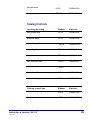
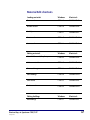
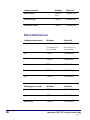
Spectrum CIRC/CAT lets you print a wide variety of reports to help you manage and
analyze your circulation and catalog processes. You can print material and circulation
reports, circulation statistics and notices, labels, inventory reports, and system
information. The windows for printing these various reports are accessed from Reports in
the Winnebago menu.
Available reports
Material Reports
Report
Indexed by
Authors
author
Call Number Statistics
call number
Key Words
key word
Materials
material number, title, author, call number,
material type, material user-defined fields,
material custom indexes
Materials by Copyright Date
copyright date
Materials by Date Added
holding date added
Materials by Tag/Subfield
material number
Materials MARC 21 Data
material number, title, author, material
custom indexes
Materials with Subjects
material number, material custom indexes
Number of Holdings by Type
material type
Publisher Statistics
publisher
Shelflists
call number
State Database
material number, material type, date added
Subjects
subject
Spectrum CIRC/CAT Getting Started Guide
SCC5gs1200kn
Report
Indexed by
Subjects with Materials
subject
Unused Material Numbers
material number
Circulation Reports
Report
Indexed by
Circulation Activity Log
material number, patron number
Combination Circulation Lists
Primary: patron number, patron name,
patron custom index
Secondary: title, author
Expired Patron Cards
patron number, patron name, patron type,
patron user-defined fields, patron custom
index
Fine Activity Log
material number, patron number, fine date
Fines
Primary: material number, title, author,
call number, material type, material userdefined fields, patron number, patron name,
patron type, patron user-defined fields,
patron custom index
Secondary: patron name, patron type,
patron user-defined fields
Material Messages
material number
Materials Checked Out
material number, title, author, call number,
material type, material user-defined fields,
patron number, patron name, patron type,
patron user-defined fields, patron custom
index
Materials with Usage
material number, title, author, call number,
material type, user defined fields, material
custom indexes
Printing reports, notices, and labels
SCC5gs1200kn
51
Report
Indexed by
Overdues
Primary: material number, title, author,
call number, material type, material userdefined fields, patron number, patron name,
patron type, patron user-defined fields,
patron custom index
Secondary: patron name, patron type,
patron user-defined fields
Patron Messages
patron number
Patrons
patron number, patron name, patron type,
patron user-defined fields, patron custom
index
Patrons with Usage
patron number, patron name, patron type,
patron user-defined fields, patron custom
index
Reserves
Primary: title, author, patron number,
patron name, patron type, patron userdefined fields, patron custom index
Secondary: patron name, patron type,
patron user-defined fields
52
Unused Patron Numbers
patron number
Advance Bookings
material number, patron number, patron
name, patron type, patron user-defined
fields
Advance Booking Pick List
call number
Spectrum CIRC/CAT Getting Started Guide
SCC5gs1200kn
Circulation Statistics reports
Report
Indexed by
Checkout and Fine Statistics
file order
In-Library Usage by Material
material number
In-Library Usage by Material Type
material type
Number of Patrons by Type
patron type
Usage by Material Type
material type
Usage by Patron Type
patron type
Usage Totals from Circulation Log
material number, patron number
Circulation Notices
Report
Indexed by
Fines
patron number, patron name, patron type,
patron user-defined fields
Overdues
patron number, patron name, patron type,
patron user-defined fields
Reserves
patron number, patron name, patron type,
patron user-defined fields
Advance Bookings
patron number, patron name, patron type,
patron user-defined fields
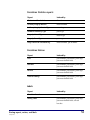
Labels
Report
Indexed by
Circulation Barcodes
n/a
Mailing Labels
patron number, patron name, patron type,
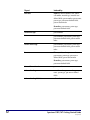
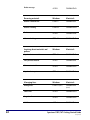
patron user-defined fields, selected
barcodes
Printing reports, notices, and labels
SCC5gs1200kn
53
Report
Indexed by
Material Barcodes
material number, title, author, call number,
material type, material user-defined fields,
selected barcodes, material custom indexes
Material Spine Labels
material number, title, author, call number,
material type, material user-defined fields,
selected barcodes
Patron Barcodes
patron number, patron name, patron type,
patron user-defined fields, selected
barcodes, patron custom index
Inventory Reports
54
Report
Indexed by
Materials Entered
material number, title, author, call number,
file order
Materials Entered Out of Order
call number
Materials Entered that were Overridden
material number, title, author, call number,
file order
Materials Found this Period
material number, title, author, call number,
file order
Materials Lost
material number, title, author, call number,
material type, file order
Materials Not Lost
material number, title, author, call number,
material type, file order
Materials Remaining to be Entered
material number, title, author, call number,
file order
Unrecognized Barcodes
call number
Spectrum CIRC/CAT Getting Started Guide
SCC5gs1200kn
System Reports
Report
Indexed by
Calendar—Hours
n/a
Calendar—Months
n/a
Material Type Descriptions
material type number
Patron Type Descriptions
patron type number
System Information
n/a
After installing and setting up your Spectrum CIRC/CAT program, it is a good idea to
print a System Information report. The System Information report contains data about
your Spectrum CIRC/CAT system, such as partition levels, circulation statistics, numbers
of materials and patrons, and so on.
You can print a System Information report by clicking the Reports button in the
Navigator toolbar and then selecting System Reports > System Information. Click Create
to print the report.
Most Spectrum CIRC/CAT reports are generated in your Internet browser window, where
you can preview and print them. The browser offers you many options for customizing
how the report displays and prints. It also creates one or more .htm files that you can use
in many ways, such as publishing them on an Intranet, e-mailing to other library staff or
administration, and so on. Circulation notices and labels are generated in a Spectrum
preview window rather than in your browser like the rest of the program reports.
Generating to a program window lets you easily position your notices and labels on the
page.
Printing reports, notices, and labels
SCC5gs1200kn
55
Material and patron reports are among the reports you may want to print soon after
setting up Spectrum CIRC/CAT. Material and patron reports can be indexed using the
custom indexes you created in the Material and Patron Custom Index windows.
Once you have chosen your type of report, you select how it is organized and the range of
data to include. Various options are available, depending on the type of report.
The Custom Index Range Selection window lets you set a specific range for the custom
index you want to use by letting you enter ranges for each of the indexes’ three data
fields.
To print barcode labels, click the Reports button in the Navigator toolbar and select
Labels. Then select the type of barcode labels you want to print from the Label box.
Barcode labels can be printed for both materials and patrons. You can use a variety of
printers, but the legibility of the barcodes may vary. For example, the more characters in
your barcodes, the thinner the lines. Sagebrush recommends 600 dpi resolution or better
for printing barcodes. The quality of your toner cartridge also affects print quality. And
keep in mind that using label protectors may make a slightly imperfect barcode even
more difficult to scan.
56
Spectrum CIRC/CAT Getting Started Guide
SCC5gs1200kn
A drop-down menu in the Labels window lets you choose circulation barcodes, material
barcodes, or patron barcodes. (You can also print mailing labels and material spine
labels.) In the Labels window, you also choose how you want your material or patron
labels indexed (Circulation barcodes do not require an index).
The Options button at the bottom of the Labels window is available when you choose
either material or patron barcodes. Click it to reach an Options window where you are
asked how many copies, should they be converted to 14-digits, how they should be
printed on the label—landscape or portrait—and the range you want printed. Patron
barcode labels also let you include a leading ‘P’ to identify it as a patron barcode, userdefined fields, and an expiration date.
After you have used Spectrum CIRC/CAT for circulation functions, you may want to
print one or more of the Circulation reports. The Circulation reports give information
about fines, overdues, materials checked out, and so on.
Printing reports, notices, and labels
SCC5gs1200kn
57
The example below explains the process for printing an Overdues report. This example
creates a report of overdues grouped by classroom (the patron user-defined 1 field is set
up as "classroom" in this example). By following the steps below, you create a separate
overdue list for each classroom with students listed in alphabetical order.
To print an Overdues report
1 Click the Reports button in the Navigator toolbar.
2 Select Circulation Reports > Overdues.
3 From the Index box, select Patron User-Defined 1. (In this
example, Patron User-Defined 1 was set up as classroom.)
4 From the Secondary Index box, select Patron Name.
5 Click the Options button. The Circulation Reports Options
window opens.
6 Click the box next to Page break on main index change to
place a check in it, and click OK.
7 Click the Create button to create the report.
8 Click the Print button in the navigation bar. The Print window
opens.
Note: If you use Internet Explorer on a Macintosh, the Print
button is not available. Choose Print from the File menu and
click Print.
9 Click OK (Windows) or Print (Macintosh) to print the report.
58
Spectrum CIRC/CAT Getting Started Guide
SCC5gs1200kn
Frequently asked questions
1
How do I make a list of everything that’s checked out to a patron?
From the Reports button in the Navigator toolbar, choose Circulation
Reports > Materials Checked Out. In the Circulation Reports window,
set the index to either Patron Number or Patron Name. Set the range
appropriately for the name or number desired.
2
How can I print replacement barcode labels?
From the Reports button in the Navigator toolbar, choose Labels >
Patron Barcodes or Material Barcodes. In the Labels window, select
Selected Barcodes as your index. Click the Select Barcodes button.
Enter the barcode numbers needing replacement labels.
3
How can I print barcode labels for records I’ve added or edited, even
if they don’t have a range in common?
From the Reports button in the Navigator toolbar, choose Labels >
Material Barcodes or Patron Barcodes. In the Labels window, choose
Selected Barcodes from the Index box. Click the Select Barcodes
button. In the Selected Barcodes window, choose whether the
barcodes are patron or material barcodes. Enter the barcode number
and click Add New for each barcode you want to print. Click OK
when you've entered all the barcode numbers and click Create to
generate your report.
Printing reports, notices, and labels
SCC5gs1200kn
59
Making backups
It is very important that you make regular backups of your Spectrum CIRC/CAT system.
If you don’t, it may prove very costly to your library at some point. Many things can
damage your data. Someone can accidentally delete a file or use a defective disk. Static
electricity can wipe out data.
It is also important to keep several copies of your data. One copy is not enough because
any small defect in the backup or what you stored it on could cause major problems.
Your Spectrum program provides a backup program called Ctdump. Unlike outside
backup programs, you run Ctdump when your server is running. However, when you are
backing up your files you must not add, edit, or delete material or patron data, or check
materials in or out. Catalog searches can continue as normal—as long as no one reserves
materials from the catalog.
Everything you need for making backups is installed when you install your Spectrum
Server program. Spectrum automatically installs Ctdump, Ctrdmp (a restore program),
and script files for making backups.
During installation you are asked if you would like to set up an automatic daily or weekly
backup schedule. If you do not choose automatic backup, the server’s configuration file
will not include any backup script to be run. But all of the files for backing up are still
installed, so you can use them later. At that time you can modify the server’s
configuration file to include a line telling the server which script to run–weekly, daily, or
immediately. Check your user manual for detailed explanations of the script files.
Backing up without using Ctdump
Backing up the database requires copying all of the database files and placing them
elsewhere for safekeeping. However, the process becomes more complicated when you
have a program (such as Spectrum Server) controlling access to the database files.
When the Spectrum Server program is not running (or when there is no server, as in the
single-user Spectrum program), the full backup can be done by any industry-standard
backup utility. However, when Spectrum Server is running, it has control of the Spectrum
database files.
Because some database files are open (in use by Spectrum Server), they’re locked from
being used by any other program, such as a database utility or backup program. (The only
way to access the files is to be a client of the Spectrum Server program.) The standard
60
Spectrum CIRC/CAT Getting Started Guide
SCC5gs1200kn
backup program can’t back up files that are being used (in this case, by the Spectrum
Server program). Because some files would be backed up and some wouldn’t be, the
backup data would be incomplete. It wouldn’t consist of all the database files necessary
to completely restore the Spectrum database.
Before Spectrum CIRC/CAT 4.0, you could not back up (or have a good backup if you
did so) without first shutting down the Spectrum Server program. Since Spectrum
CIRC/CAT 4.0, Spectrum includes a backup program (Ctdump) that automates and
facilitates the backup process—including letting you make backups while the server
program is running. However, you can still make backups without taking advantage of
Spectrum CIRC/CAT’s backup program.
To back up without using Ctdump
1 Shut down the Spectrum Server program.
2 Copy all the necessary files (.dat and .idx) to another location.
Or, use a standard backup program to copy all the necessary
files in the Spectrum Server folder. (Note: If you miss any files,
your backup is incomplete, and therefore not capable of
restoring your system to a good condition.)
3 Start the Spectrum Server program again.
Making backups
SCC5gs1200kn
61
Backing up using Ctdump
Using the Ctdump program, you can make a backup of your Spectrum database files
(either immediately or at a scheduled, perhaps recurring, time), without ever shutting
down your Spectrum Server program. In fact, you must keep Spectrum Server running
during this backup.
What about your Spectrum client programs (such as Spectrum CIRC/CAT or Spectrum
Patrons’ Catalog)? Although you don’t have to shut them down, you may want to.
While a backup is in progress, your client programs must not perform any functions that
can change material data, patron data, or circulation information. You must not add, edit
or delete material or patron data or check materials in or out, reserve materials, and so on.
If you do so, the Ctdump program may not be able to back up those open (busy) files, and
your backup will be incomplete and not sufficient to be used for restoring data.
However, your client programs can perform some normal functions, such as catalog
lookups (as long as no one reserves materials from the Patrons’ Catalog program), and
the backup will go unnoticed by your library patrons.
Still, to be safe, you may want to make sure your backups are created safely by backing
up when the library is closed or when all Patrons’ Catalog programs are shut down.
Compatibility
The Spectrum backup processes apply to the client/server variations of Spectrum
CIRC/CAT, Spectrum CIRC, and Spectrum CAT. These processes don’t apply to the
single-user variations of these programs.
Disk space requirements
The size of the backup file will be the same as all the files being backed up. (The backup
process doesn’t compress your files in any way.) So, to find out how big the backup file
will be, you can add up the sizes of all your data (.DAT) and index (.IDX) files.
Server must be on
If either your Spectrum Server program or your server computer is off, the Ctdump
program cannot back up your database files. Even if your server computer is temporarily
off when the scheduled backup time passes, the backup process won’t execute. Instead, it
will wait for the next scheduled backup time.
62
Spectrum CIRC/CAT Getting Started Guide
SCC5gs1200kn
Shortcut keys in Spectrum CIRC/CAT
Circulation shortcuts
Looking up records
Windows
Macintosh
Look up patrons
CTRL+8
COMMAND+8
Look up materials
CTRL+6
COMMAND+6
Display holdings (in Lookup window)
ALT+D
COMMAND+D
Load item
ALT+L
COMMAND+L
Circulating materials
Windows
Macintosh
Check out
CTRL+1
COMMAND+1
Renew checkout
CTRL+2
COMMAND+2
Check in
CTRL+3
COMMAND+3
Clearing data
Windows
Macintosh
Clear all
CTRL+5
COMMAND+5
Managing Circulation messages
Windows
Macintosh
Add message
ALT+A
COMMAND+A
View message
ALT+I
COMMAND+I
Shortcut keys in Spectrum CIRC/CAT
SCC5gs1200kn
63
64
Delete message
ALT+D
COMMAND+D
Reserving materials
Windows
Macintosh
Reserve a material title
CTRL+4
COMMAND+4
Reserve a holding
CTRL+H
COMMAND+H
Delete a reserve
ALT+R
COMMAND+R
Advance booking
CTRL+B
COMMAND+B
Inquiring about materials and
patrons
Windows
Macintosh
Inquire about a material
CTRL+7
COMMAND+7
View previous material
ALT+S
COMMAND+S
View next material
ALT+N
COMMAND+N
Inquire about a patron
CTRL+9
COMMAND+9
Managing fines
Windows
Macintosh
Manage fines
CTRL+0 (zero)
COMMAND+0
(zero)
Collect fine
ALT+O
COMMAND+O
Negotiate fines
ALT+N
COMMAND+N
Add fine
ALT+A
COMMAND+A
Spectrum CIRC/CAT Getting Started Guide
SCC5gs1200kn
View fine details
ALT+D
COMMAND+D
Print receipts
CTRL+T
COMMAND+T
Catalog shortcuts
Searching the catalog
Windows
Macintosh
Enter a search term
ALT+R
COMMAND+R
Browse key words
ALT+B
COMMAND+B
Set material type limits
CTRL+M
COMMAND+M
Set reading/interest levels
CTRL+R
COMMAND+R
Reserve a material
CTRL+T
COMMAND+T
View circulation status
CTRL+L
COMMAND+L
Show a collection
CTRL+S
Search the collection
ALT+S
COMMAND+S
Clear the Catalog window
ALT+L
COMMAND+L
Choosing a search type
Windows
Macintosh
Key words
ALT+K
COMMAND+K
Titles
ALT+T
COMMAND+T
Shortcut keys in Spectrum CIRC/CAT
SCC5gs1200kn
65
66
Searching the catalog
Windows
Macintosh
Authors
ALT+A
COMMAND+A
Subjects
ALT+U
COMMAND+U
Reviewing found materials
Windows
Macintosh
Sort materials by call number
ALT+N
COMMAND+N
Sort materials by title
ALT+T
COMMAND+T
Sort materials by author
ALT+A
COMMAND+A
Sort materials by material type
ALT+Y
COMMAND+Y
Go back to previous window
ALT+G
COMMAND+G
Lock materials
ALT+L
COMMAND+L
Unlock materials
ALT+U
COMMAND+U
Reserve materials
ALT+R
COMMAND+R
Print bibliography
ALT+P
COMMAND+P
View details about materials
ALT+D
COMMAND+D
Spectrum CIRC/CAT Getting Started Guide
SCC5gs1200kn
Material Edit shortcuts
Loading materials
Windows
Macintosh
First record
CTRL+F
COMMAND+F
Previous record
CTRL+K
COMMAND+K
Look Up
CTRL+=
COMMAND+=
Next record
CTRL+G
COMMAND+G
Last record
CTRL+L
COMMAND+L
Editing materials
Windows
Macintosh
View MARC record / Easy Entry
CTRL+E
COMMAND+E
Add new material
CTRL+N
COMMAND+N
Show card image
CTRL+I
COMMAND+I
View Holdings
CTRL+H
COMMAND+H
Save record
CTRL+S
COMMAND+S
Delete record
CTRL+D
COMMAND+D
Editing holdings
Windows
Macintosh
Add holdings
CTRL+9
COMMAND+9
Shortcut keys in Spectrum CIRC/CAT
SCC5gs1200kn
67
Loading materials
Windows
Macintosh
Delete holdings
CTRL+0
(zero)
COMMAND+0
Set material type
CTRL+T
COMMAND+T
Use material number
CTRL+U
COMMAND+U
Patron Edit shortcuts
68
Loading patron records
Windows
Macintosh
Choose record search index
ALT+I
COMMAND+I
Use arrow keys to
select an index.
Use arrow keys to
select an index.
First
CTRL+F
COMMAND+F
Previous
CTRL+G
COMMAND+G
Look Up
CTRL+=
COMMAND+=
Next
CTRL+K
COMMAND+K
Last
CTRL+L
COMMAND+L
Editing patron records
Windows
Macintosh
New record
CTRL+N
COMMAND+N
Save record
CTRL+S
COMMAND+S
Delete record
CTRL+D
COMMAND+D
Spectrum CIRC/CAT Getting Started Guide
SCC5gs1200kn
Loading patron records
Windows
Macintosh
Use Number
CTRL+U
COMMAND+U
Select patron type
CTRL+T
COMMAND+T
Add patron image
CTRL+I
COMMAND+I
Remove patron image
CTRL+M
COMMAND+M
Shortcut keys in Spectrum CIRC/CAT
SCC5gs1200kn
69
Computer basics
Managing your desktop
Both Windows and Macintosh let you customize your computer desktop so you can
access programs and locate files easily.
Creating shortcuts in Windows
You can create shortcuts for Spectrum programs and utilities on a Windows-based
computer. The directions below tell you how to create shortcuts both on the desktop and
in the Start menu for the Spectrum Rebuild utility. Follow these directions, entering the
utility-specific information (marked with a bullet (•) below) at the appropriate time.
To create a shortcut on the Windows desktop
1 While the mouse cursor is over the desktop (not over a folder or
icon), click the right mouse button. A popup menu appears.
2 From the popup menu, choose New > Shortcut. The Create
Shortcut window opens.
3 In the Command line box, enter the file name and path of the
program’s executable file or use Browse to find the file.
•
For Spectrum Rebuild, enter c:\program
files\winnebago\spectrum client\rbld32t.exe (Note: If your
program is stored on a drive other than c:\, substitute the
appropriate drive letter in this command. Your Spectrum
Rebuild program may have been installed to a different
folder during installation.)
4 Click Next. The Select a Title for the Program window opens.
5 In the Select a name for the shortcut box, enter the name of
the program you’re creating the shortcut for.
•
For Spectrum Rebuild, enter Spectrum Rebuild.
6 Click Finish. The shortcut is created on the desktop.
70
Spectrum CIRC/CAT Getting Started Guide
SCC5gs1200kn
To create a shortcut in the Start menu
1 Using the right mouse button, click an empty area of the
taskbar (not over an application). The taskbar is the toolbar on
your desktop that contains the Start button. A popup menu
appears.
2 From the popup menu, choose Properties. The Taskbar
Properties window opens.
3 Select the Start Menu Options tab, Start Menu Programs tab,
or Advanced tab, depending on your operating system.
4 Click Add. The Create Shortcut window opens.
5 In the Command line box, enter the file name and path of the
program’s executable file or use Browse to find the file.
• For Spectrum Rebuild, enter c:\program
files\winnebago\spectrum client\rbld32t.exe (Note: If your
program is stored on a drive other than c:\, substitute the
appropriate drive letter in this command. Your Spectrum
Rebuild program may have been installed to a different
folder during installation.)
6 Click Next. The Select Program Folder window prompts you to
select a folder.
7 If the folder you want to place the shortcut in exists, select it
and click Next. If the folder doesn’t exist, click New Folder,
enter the folder name, and click Next.
• For Spectrum Rebuild, select or enter the folder name
Spectrum Rebuild.
8 In the Select a name for the shortcut box, enter the name of
the program you’re creating the shortcut for.
• For Spectrum Rebuild, enter Spectrum Rebuild.
9 Click Finish. The shortcut is created in the Start menu.
10 Click OK to close the Taskbar Properties window.
Computer basics
SCC5gs1200kn
71
Creating aliases in Macintosh
You can create aliases for Spectrum programs and utilities on a Macintosh computer. The
directions below tell you how to create aliases on both the desktop and in the Apple
menu.
To create an alias on the Macintosh desktop
1 Double-click the icon of your hard drive on your desktop.
2 Select the icon of the program file you want to make an alias of
(for example, Rebuild TCP/IP).
3 From the File menu, choose Make Alias. A copy of the icon
appears in the same location as the icon name (for example,
Spectrum Rebuild alias) in italics.
4 Drag the alias to the desktop and rename it as necessary.
Note: These steps may vary slightly depending on the version of your operating system.
To create an alias and place it in the Apple menu (Mac OS 7.5 and
higher)
1 Double-click the icon of your hard drive on your desktop.
2 Select the icon of the program file you want to make an alias of
(for example, Spectrum Rebuild).
3 From the Apple menu, choose Automated Tasks > Add Alias
to Apple Menu.
4 To find the new alias, open your System Folder and then open
the Apple Menu Items folder.
5 To run the program using the alias, click the Apple menu icon
and choose the alias.
Deleting items
You can delete items on the desktop (folders and files) by selecting them and then
pressing the Delete key. You can also select the item and then drag it to the Recycle Bin
(Windows) or the Trash (Macintosh).
72
Spectrum CIRC/CAT Getting Started Guide
SCC5gs1200kn
Ejecting a disk
You should eject a disk when you finish using it. To eject a disk from a Macintosh
computer, select the disk and drag it to the Trash. To eject a disk from nearly all other
computers, press the Eject button (near the disk drive).
Window conventions
This section offers tips for navigating Microsoft Windows and describes common
Windows terminology.
Defining drive and directory
The word drive refers to the physical device that stores your data. A letter is associated
with each drive on your computer, such as (C:) or (F:). Information on drives is organized
into folders, or directories. Most Windows programs use the term folder instead of
directory. The word directory is used most often in MS-DOS programs. For example,
your C: drive might contain a Program Files folder containing program files, a My
Documents folder containing document files, a Windows folder containing Windows
system files, and so on. The statement "C:\Windows" refers to the Windows folder on
your C: drive. Folders can contain other folders and files.
Note: Drive and hard disk are often used as synonyms in everyday conversation.
However, a hard disk is actually the device used to store data, and a drive is the device
that reads and writes data to a disk.
To view the hierarchy of folders and files using Windows Explorer
1 On the taskbar, click the Start button (located in the bottom
left-hand corner of the screen).
2 Point to Programs, and then click Windows Explorer. The
Exploring window opens. (On some operating systems, you
should click Programs > Accessories > Windows Explorer.)
3 Click a folder on the left side of the window to display its
contents on the right. Click the plus signs (+) to display more
folders.
Note: To quickly open a folder and display its subfolders, double-click the folder on the
left side of the Exploring window.
Computer basics
SCC5gs1200kn
73
To view the hierarchy of folders and files using the My Computer
icon
1 Double-click the My Computer icon. The My Computer
window opens.
2 Double-click the icon of the drive you want to look at. Windows
displays the files and folders contained in the drive.
3 To open a file or folder or to start a program, double-click it.
Note: To return to the previous folder, press the Backspace key on
your keyboard or click the Up button on the toolbar that
resembles a folder with an arrow in it.
Finding a file or folder
If you know a file or folder’s name but are not sure of its location, you can search for it
by using the Find feature.
To find a file or folder
1 Click the Start button (located in the lower left-hand corner of
the screen), and then point to Find.
2 Click Files or Folders. The Find: All Files window opens.
Find: All Files
Use this window
to search for a file
or folder.
3 In the Named box, type all or part of the file's name. (If you
want to specify where Windows should begin its search, click
Browse.)
4 Click Find Now.
74
Spectrum CIRC/CAT Getting Started Guide
SCC5gs1200kn
Toolbar tips
If the toolbar is not visible, click the View menu, and then click Toolbar. You can use
tool tips to learn the function of any toolbar button. By resting your mouse pointer on a
toolbar button for a few seconds, the button name (function) is displayed.
Browsing to locate a file or folder
You can browse to locate a file or folder from the current program. You may be locating
a folder to either open or import a file.
To browse to locate a folder or file
1 In the Open window, search for the file you want to open.
The Look in box shows
the folder currently
displayed
Shows the content of
the folder listed in the
Look in box
Shows the available drives
and directories
Navigates up one level to the drive
or folder containing the folder
you're currently viewing
Creates a new folder
Shows a detailed view of
the folder's contents
Shows a list view of the
folder's contents
File currently selected
Click this button to open
the file currently selected
Only files of this type
appear in the window
Click this button to close
the Open window without
selecting a file to open
2 If the file you’re searching for is displayed in the Open window,
select it and click Open. If the folder containing the file is
displayed in the Open window, select the folder and click
Open. (It’s contents become visible.) Then select the file you
want to open and click Open. If neither the file nor its folder are
in the Open window, you need to locate the drive and then the
folder where the file is stored (continue with step 3).
3 To navigate to the correct folder, click the down arrow located
to the right of the Look in box.
4 Find the correct drive or folder, select it and click Open. The
contents of the item you selected are displayed in the Open
window.
Computer basics
SCC5gs1200kn
75
5 Find the correct folder, select it and click Open.
6 After you find the correct file, select it and click Open. The file
name appears in the File name box.
7 Click Open.
Software conventions
Some of these conventions depend on your computer’s operating system.
Using commands
There are four ways to use commands in the program (all four methods may not be
available for every command):
• Click a button—located in the Navigator toolbar, the toolbar of many program
windows, and in other areas of program windows.
• Choose a menu command—located in the menu bar in the Winnebago
Spectrum CIRC/CAT window. For example, in Patron Edit, the Save command
is located in the Record menu.
• Enter a shortcut key—use by pressing a combination of keys on your
keyboard. Shortcut keys are displayed beside commands in the menu, and also
indicated by an underlined letter in a function’s name. For example, the shortcut
key for the Save command is Ctrl + S. Press the Control key and the S key on
your keyboard simultaneously.
Note: Three useful shortcut combinations are: Ctrl + X (cut), Ctrl + C (copy),
and Ctrl + V (paste).
• Scan a barcode command—Available for many commands in Circulation. For
example, to check out a book, you can scan the book’s barcode with a barcode
reading device, and then scan the checkout barcode command from a preprinted list of commands.
Using Undo
You can use the Undo command in the Edit menu to undo many commands. However,
you can only undo the last action.
76
Spectrum CIRC/CAT Getting Started Guide
SCC5gs1200kn
Selecting items
You can select item(s) and commands and activate buttons by clicking and doubleclicking them.
• Clicking. To click a button or command, move the cursor over the item and
press the left mouse button once.
• Double-clicking. In many situations, you can save yourself steps by doubleclicking items instead of clicking them and then clicking the “action” button
(Open, Save, and so on). To double-click a button or command, move the cursor
over the item and press the left mouse button quickly twice in succession.
• Select default buttons. Throughout Spectrum CIRC/CAT, you can “click”
default buttons by pressing the Return or Enter key or by scanning the Return
command barcode.
Selecting/deselecting options
You can select an unselected option—and deselect a selected option—by clicking the
option. Windows where you select or deselect options usually have some options selected
by default. The following chart shows options in their selected and deselected states.
Option element
State
Radio button
Selected
Appearance
Deselected
Checkbox
Selected
Deselected
Computer basics
SCC5gs1200kn
77
Navigating a list
Use the horizontal or vertical scroll bars to view more information in a list or window.
• Use the up, down, left and right scroll arrows to move the
list or window in small increments. Click the arrow in the
direction you want to move the list or window.
• Use the scroll box to move the list or window quickly.
Click the scroll box and drag it in the direction you want to
move the list or window.
Scroll bar
Scroll box
Scroll arrow
• Click in the gray area of the scrollbar (not the scroll box)
and hold the mouse button until the list or window moves
quickly to the area you want to view.
• If you have an extended keyboard, you can use the Page Up, Page Down,
Home, and End keys to move around in a scrollable list instead of using the
scroll bar. In some windows, the arrow keys also work. (See also “Navigating
without a mouse” later in this section.)
Selecting/deselecting items in a list
You can use the following methods to select items in a list, such as materials in the
Materials checked out list. These methods apply to most lists in the Spectrum CIRC/CAT
program.
• To select only one item, click it.
• To select consecutive items in a list,
hold down the Shift key and click the
first and last item in the range you
want.
• To select nonconsecutive items in a
list, hold down the command key
(Macintosh) or the Control or Ctrl key
(Windows) and click the individual
items you want.
You can deselect all items selected by clicking a blank row in the list. You can also
deselect one item at a time by holding down the command key (Macintosh) or Control
(Ctrl) key (Windows) and clicking highlighted items you want to deselect.
78
Spectrum CIRC/CAT Getting Started Guide
SCC5gs1200kn
Managing your windows
Moving windows
You can move a window to view a window underneath it or place it in a more convenient
location on your computer screen. To move a window, click its title bar and drag it to the
desired location.
Resizing windows
You can resize most windows. Making a window bigger can save you time because you
don’t need to scroll as much to see more information in the window.
In Windows you can position the cursor over a window’s border or corner.
When the cursor changes to a double arrow, you can resize the window. Just
click and drag the corner or border until the window is the size you want.
In Mac OS, you can resize any window that has a size box in the lower right corner
Click and drag the size box to make the window larger or smaller.
.
In Windows, you can also maximize a window to its largest size available by selecting
in the upper right corner. To resize the window to its original size,
the maximize box
click the
box. To minimize the window, click the minimize
box.
Navigating between windows
Spectrum CIRC/CAT 4 lets you open many windows simultaneously. To move from one
window to another (for example, from the Patron part of the program to the Circulation
part of the program), you don’t need to close the first window to view the second. You
can use the shortcut Ctrl + Tab (or Ctrl + F6) to move between windows.
Closing windows
You can close windows when you’re done using them. To close a window, click the close
in Windows.
box in the upper left corner— in Macintosh—or upper right corner—
Computer basics
SCC5gs1200kn
79
Navigating without a mouse
You can operate your Spectrum program without using a mouse. Spectrum provides
several methods to access and move around windows by pressing certain keys on the
keyboard. Refer to Spectrum online Help for more information.
80
Method
Description
Direction keys
The program supports OS-standard movement keys, such as
the Tab and arrow keys. Press the Tab key to move from one
field to the next field (Press Shift + Tab to move to the
previous field). Move through radio button lists and other lists
with the arrow keys.
Activation keys
The program supports keys, like the Enter key and the
spacebar, that enter, select, or change settings. For example,
when the field you want is highlighted, press the spacebar to
switch the option on or off—or modify the contents by typing
the correct values.
Shortcuts
The program provides keyboard shortcuts (indicated by an
underlined "hot" letter in a function's name). In the Save
command, for example, the letter S is underlined (Save)—
showing that you can press Alt + S (Windows) or Command +
S (Macintosh) to save the data.
Spectrum CIRC/CAT Getting Started Guide
SCC5gs1200kn
Frequently asked questions
Computer basics
SCC5gs1200kn
1
How do I start a program in Windows?
With your mouse click the Start button on-screen, point to Programs,
and point to the name of the program. Then click the program.
2
How do I create a shortcut in Windows?
Find the item in Explorer or in My Computer. Then single click on it
with your RIGHT mouse button. You have two choices. You can
create a shortcut icon in that window that may be moved elsewhere, or
you can use the SEND TO option to create a shortcut that is
automatically placed on your desktop. The item can be a file, program,
folder, printer, or computer.
3
How do I load a program in Windows?
Insert the floppy or CD-ROM into the correct drive. Click the Start
button, and then click Run. In the open box, type the drive location
and the name of the program you want to load. If you are unsure of the
name of the file, click Browse and click the name of the file.
4
How do I find the MS-DOS prompt in Windows?
The MS-DOS prompt is found in the Programs folder in the Start
menu. Click the Start button, point to Programs, and then click MSDOS prompt.
5
How do I switch from one open window to another in Windows?
Click the button on the taskbar that has the name of the window you
want to switch to, or press and hold the ALT key while pressing the
tab key until the correct window is displayed.
6
I’d like Spectrum to open automatically when I turn on my client
stations. Can I do that?
Yes. On the client station, click the Start button and point to Settings.
Click Taskbar and then click the Start menu Programs tab. Click Add,
and then click Browse. Locate and select the Spectrum client program
and click open. Click Next and double-click the Startup menu. Type
the name you want to see on the Startup menu and click Finish.
81
To remove the program from the Startup menu, click Start, Settings,
and then Taskbar. Click the Start menu programs and remove. Double
click the Startup folder and select the Spectrum client program. Click
Remove. Click Okay.
7
What is TCP/IP?
TCP/IP stands for Transmission Control Protocol/Internet Protocol. It
is the set of procedures or rules on which communication in the
Internet is based. The Spectrum Server must have TCP/IP installed so
that the clients can locate the server across the network.
8
How do I start the Spectrum Server after I’ve installed it?
Windows 95/98: Click the Start button, point to Programs, point to
Spectrum Server, and then click Spectrum Server.
Windows NT: Go to Programs and select Spectrum Server.
Windows 95/98/NT: Find and open the Winnebago folder, click the
Spectrum Server icon, and then select the program icon called
ctsrvr.exe.
Macintosh: Select the program icon called ctsrvr.exe.
9
82
When shutting down the server, what is the password and should I
change it?
The Administrative Password is ADMIN and must be typed in all
upper case letters. We do not recommend changing this password. If
you do change the password and forget it, you can delete the
faircom.fcs file in the Spectrum Server folder and restart. The server
recreates this file and the password reverts to the default of ADMIN.
Spectrum CIRC/CAT Getting Started Guide
SCC5gs1200kn
Where to go for more information
Spectrum CIRC/CAT is easy to learn. But as with anything else, there are certain basics
you need to master. And once you have mastered the basics, you discover Spectrum
contains many other facets that save time and make your library run much smoother.
Whenever you need to do a task you have not used Spectrum for in the past, you should
check your manual.
A few minutes with the manual really does save you hours. You are sure to find features
you didn’t know existed. Over and over we hear people say, “You mean I can do that
with Spectrum? I wish I had known that last year!”
Another place to go is as close as your Spectrum program. Spectrum CIRC/CAT comes
with Help, a complete online reference tool. Whenever you get stuck, Help is there with
examples and step-by-step directions you can follow as you work. You can even find
help on how to use Help! For more information on using online help see "Using the
Spectrum Help system" earlier in this guide.
You can also subscribe to a listserv. This is an electronic mailing list. There are many
geared to library professionals. Sagebrush’s Spectrum listserv is WINNEBAGOLIBNET. To subscribe, enter your mail program and type the e-mail address,
[email protected]. In the body of the message, type Subscribe WINNEBAGOLIBNET. You will receive a response acknowledging your membership.
And, of course, you can reach Sagebrush Technical Support with one call at
1-800-654-3002. With your purchase of Spectrum CIRC/CAT you receive one full year
of Sagebrush’s Customer Support Agreement Plan. CSAP includes phone support,
replacement program disks or CDs, program updates as available, and manual revisions.
After the first free year of CSAP, you can purchase additional years of this valuable
support at a preferred customer rate simply by keeping your CSAP current.
Where to go for more information
SCC5gs1200kn
83
Glossary
Symbol
Apple menu
14-digit barcode number
A barcode number that includes a
type indicator, 4-digit location
code, and check digit, in addition
to the 8-digit core item number.
archive
To compress and store a record to
conserve disk space.
1987 MicroLIF
Microcomputer Library
Interchange Format.
Bibliographic information format
developed as a variation to the
USMARC/852 Holdings Data
format.
A
add-on
A program or feature purchased
separately which runs in
conjunction with other programs,
such as Sagebrush Corporation
programs.
alphanumeric
Relating to numbers and/or letters
of the alphabet. For example,
programs that let you enter
alphanumeric characters let you
enter both letters and/or numbers
such as the barcode b4ff-nn67.
Also, when in alphabetical order,
numbers are displayed first.
append
To put something at the end of
something else, for example to
append information at the end of
an import file.
84
bibliographic data
The menu at the far left of the
menu bar on Macintosh
computers that contains desk
accessories, control panels, and
aliases for frequently used
software applications.
B
Information about a material
record, often in USMARC
format.
bitmap
A graphical image used as a
method for displaying pictures on
a computer. The file name
extension for files in Microsoft
Windows and OS/2 that contain
bitmap representations of images
is .bmp.
bookmark
backup (n.)
A copy of computer data.
back up (v.)
The action of copying computer
data onto other media.
backup copy
A copy of programs/data and
related files that can be used to
restore lost or damaged programs
and files. Store your backup
copies in a secure place so if you
have problems, you'll be able to
restore your files.
barcode
A computer-generated symbol
assigned to a patron, material, or
command that indicates a number
value when scanned.
Ability to mark a topic or area in
online documents such as online
Help and Web pages/sites.
Boolean operators
The words And, Or, and And Not
used to specify the relationship
between multiple search terms.
browse
To search through a list or
database. For example, to search
through the CIRC/CAT database
for key words or records.
button
A clearly bounded area that
causes an action when clicked.
button bar
See tool bar.
byte
batch
Relating to a group process, such
as multiple adding or editing of
records.
A unit of data storage containing
eight bits, equivalent to one
character.
batch process
To delete or make changes to a
group of material or patron
records.
Spectrum CIRC/CAT Getting Started Guide
SCC5gs1200kn
C
call number
A set of letters/numbers that
indicate where a material should
be shelved in a library. Examples
of call numbers include B10290,
and ART33.
call number patterns
A code that helps attach material
types to material records that
don't have material type
information in the 961 wl tags. So
when a material record is added
or imported, the program reads
the call number patterns of each
of those material records, and
assigns them material types
accordingly.
card image
A format for viewing a material
record's data that closely
resembles a catalog card.
case-sensitive
A setting that tells the program to
distinguish uppercase letters from
lowercase letters.
CAT
The CAT part of Spectrum
CIRC/CAT that can either
supplement or replace traditional
card catalogs.
cataloging source
A MARConnect program term.
This field’s value will be entered
as the Cataloging source and will
automatically be entered into tag
040 subfield _a of the MARC
record. This is the USMARC
code or the name of the
organization(s) that created the
original record or modified an
existing record. (The source of
this code is USMARC Code List
for Organizations, maintained by
the Library of Congress.)
CD
Compact Disc. A medium for
storing data in digital form, which
can be accessed with a CD-ROM.
CD-ROM drive
A drive that reads CDs. It may be
installed in the computer or it can
be externally connected.
character
A symbol as in a letter or number.
character set
A defined list of characters
recognized by the computer
hardware and software. Each
character is represented by a
number. The ASCII character set,
for example, uses the numbers 0
through 127 to represent all
English characters as well as
special control characters.
check digit
The last number in a 14-digit
barcode number. The check digit
is calculated using the other digits
of the barcode number. This digit
enhances data security. A check
digit is also included in an ISBN
to verify that the ISBN is valid.
CIRC
The CIRC part of Spectrum
CIRC/CAT that can replace
traditional, manual circulation
routines, such as checking
materials in and out, and so on.
circulation log
The record of checkin and
checkout transactions done at a
library.
circulation message
A message that can record
information about a material or
patron. For example, a material
message can record damages a
material has (such as missing or
torn pages). A patron message
can document that a patron's
reserved materials are now
available.
circulation sound
A beep or beeps that occur when
you do certain circulation-related
actions.
client
A computer connected to the
server from which it accesses
information. A Patron lookup
computer (also known as a
Patrons' Catalog computer) is a
client computer to the Spectrum
server.
close box
A small box in the upper right
(Windows) or left (Macintosh)
corner of a window which, when
clicked, closes the window.
code page
Another name for character set.
See character set for more
information.
command
A letter, or word, or instruction
entered that tells a program what
to do.
Glossary
SCC5gs1200kn
85
command barcode
A barcode that can be scanned to
carry out a circulation command
instead of choosing a menu
command, clicking a button, or
using a keyboard shortcut.
compatible
Relating to software or hardware
that can work together without
special modification, as in IBMcompatible--meaning software or
hardware that can be used with
IBM computers.
condition
A circumstance that must be met
before the specified process is
performed.
configuration file
A file that contains program
settings. These files have a .cfg
extension and should not be
deleted.
context-sensitive Help
Help associated with the current
task opposed to the general Help
information for the application.
You can press the F1 button or
the Help button to call contextsensitive Help.
control fields
Fields on material's USMARC
record (tags 001-007) whose
format is similar to the leader.
copy
See holding.
copy/paste
These actions quickly enter
repeated text in text boxes. The
following shortcut keys copy and
paste text:
- Macintosh - copy = Command +
C, paste = Command + V
- Windows - copy = CTRL + C,
paste = CTRL + V.
86
corporate author
database
The name of a commercial entity
that produces media such as a
company or group, examples
include IBM or SADD (Students
Against Drunk Driving).
CPU
Central Processing Unit. Portion
of a computer that directs the
sequences of operations and
initiates the proper commands to
the computer for execution.
cross-reference word
A catalog key word that is related
to another catalog key word. Also
called a See Also word.
cursor
A collection of files from which a
program retrieves information.
For example, the Spectrum
CIRC/CAT database files contain
data about material records,
patron records, circulation
transactions, and so on.
date stamp
Field attached to each holding
record that shows the date added
to the system, mostly used in
reports.
default
A value the computer selects
when no other is specified.
Delete key
The screen pointer, usually
blinking, that marks your
position.
D
data
Numerical or other information
represented in a form suitable for
processing by computer.
data compression
The storage of data in a way that
makes it occupy less space than if
it were stored in its original form.
Compression programs work to
reduce the size of files. You can
fit more data on a floppy disk if
your files are compressed first
because compressed files
minimize the amount of disk
storage space required.
The key used to erase or remove
data from memory or disk.
desktop
The whole computer screen,
representing your workspace.
Shortcuts (Windows) or aliases
(Macintosh) can reside on your
desktop.
diacritic
A mark added to a letter to
change that letter's phonetic
value. For example, the ~ mark
which appears above the letter n
in Spanish words is a diacritic.
disk
A magnetic storage medium for
data (either hard disk or floppy).
DNS
Domain Name System.
Hierarchical system that identifies
computers in a network. DNS
uses a combination of text names,
separated by periods, to create a
unique "address" that refers to the
IP address of a computer.
Spectrum CIRC/CAT Getting Started Guide
SCC5gs1200kn
double-click
error message
To click the mouse button twice;
used to open programs and files.
download
To transfer a file or program from
a main computer to a secondary
computer or disk.
A display on the screen indicating
the process did not succeed.
Escape key
A key on the keyboard that lets
the user leave the current process.
executable
drag
To move an object by using a
mouse. To do this, move the
mouse pointer to the object, then
hold down the mouse button and
move the mouse.
A file containing a program
which is ready to be executed
(run).
expanded search
A catalog search for selected
records using two or three search
terms and/or one or more Boolean
operators.
drive
A device built-in or attached to a
computer for reading and writing
data recorded on disks.
export
To write data from the current
database to a separate file.
due date restriction
See Global due date.
expression
A meaningful combination of
symbols (such as "barcode >
14000") used in the condition of
an if-then statement.
E
Easy Entry
A part of the Spectrum
CIRC/CAT program in which you
can add, edit, and delete a
material record's bibliographic
data, but the complete MARC
record can not be viewed.
Compare to Edit MARC.
easy search
The catalog tab at which key
words and/or key phrases can be
used to search for material
records.
Edit MARC
A part of the Spectrum
CIRC/CAT program in which you
can add, edit, and delete a
material record's bibliographic
data, and view the complete
MARC record - including tags,
indicators, and so on. Compare to
Easy Entry.
Glossary
SCC5gs1200kn
F
Finder
This lets Macintosh users copy
and manipulate files and execute
programs by moving icons on the
desktop. Shows programs
currently running.
fine
Monetary penalty a patron can
receive for returning materials
late, damaged, and so on.
fine log
The record of a patron's fine
activity, including fine reduction,
payments, and increases.
firewall
A security procedure that
separates and protects data on a
local network from being
accessed from the Internet.
fixed-length tags
See control fields.
floppy disk
Portable media used for data
storage.
folder
field
A group of characters that are
treated as a unit. For example,
postal code would be one field in
an address record in a mailing list
file. Also, the location in a record
where specific information is
stored, such as the Address field
in a patron record.
file
A group of related documents or
data stored under a common
name.
file server
A computer, usually with a large
hard disk, that sends, receives,
and stores files and programs on a
network.
Another name for subdirectory or
directory (as in MS-DOS).
Retains files with similar
characteristics.
format
To prepare a disk for storing data.
Necessary before a new disk can
be used. Formatting also destroys
all the data already on a disk.
FTP
File Transfer Protocol. There are
computers on the Internet set up
as file repositories. Using an FTP
client on your computer, such as
WS_FTP, you can log onto one of
these computers and send and
receive files.
87
function keys
Keys at the top or side of the
keyboard that are assigned a duty
by the active program.
G
general note
This field contains general
information about a material. This
information is stored in tag 500_a
of a MARC record.
global due date
The date by which all patrons
must return all checked out
materials.
global password
One password that works at all
password prompts. Also called
master password.
grace period
The length of time after a material
is overdue before fines accrue.
H
hard copy
A printout of computer data.
hard disk
A disk used to store large
quantities of data for quick
retrieval that may be located
inside or outside the computer.
hardware
The physical equipment of a
system such as the computer,
printer, and keyboard.
headers
The field names that appear at the
top of columns and reports.
Help key
hot key
The key on the keyboard (the F1
key for Windows and the Help
key for Macintosh) that calls up a
screen or window designed to
give more details about processes
in the program.
Help topics command
A key or combination of keys that
allows quick movement to
specific places on the screen or
short cuts to specific actions.
These are useful when using a
computer without a mouse.
HTTP
A command that displays the
opening window of Help for the
program's online Help system.
holding
Hypertext Transfer Protocol. The
Internet transfer protocol used by
the World Wide Web.
hyperlink
A holding is a term used in
Spectrum CIRC/CAT. A material
record contains all the data
describing a material, such as the
USMARC information and
commonalties associated with all
copies of the material (title,
author, subject, and so on). A
holding is a record of each copy
of a material (not to be confused
with copy in CIRC/CAT for MSDOS). It includes information
specific to each copy of a
material, including barcode
number, local call number, and so
on. Every material record must
have at least one holding.
Home Page
The file available for access at a
World Wide Web site intended
chiefly to greet visitors, provide
information about the site, and
direct them to other sites with
more related information.
hosts file
File containing the matched IP
address and machine names of
computers in a network.
A "jump" or link to another
location within a document or to a
location in a different document
online. The target of a hyperlink
can be text, or it can be an image,
audio or video file.
hypertext
Text in a computer displayed
document that contains a "jump,"
or link to another part of the
document or to another
document.
I
icon
A graphic that conveys more
information and, in some
instances, can perform certain
actions in programs and on the
desktop.
import
To enter data from a properly
formatted file into a program
database.
index
A common characteristic that
programs arrange items by.
Help button
A button used to access details on
a program's use and operation.
88
Spectrum CIRC/CAT Getting Started Guide
SCC5gs1200kn
indicator
IP address
One of the two characters after
the tag number in a MARC
record. Also refers to the first
number of a 14-digit barcode.
This number identifies the
barcode as a material or patron
barcode.
Internet Protocol address. The
location address of a computer in
a network. Computers within the
network use this address to
communicate with one another.
An IP address consists of four
sets of numbers, from 0 to 255,
separated by dots.
in-library usage
The record of materials used only
within the library and not checked
out. The use of these materials
can be recorded by "checking in"
materials found around the library
after patron use.
IPX/SPX
Internetwork Packet Exchange /
Sequential Packet Exchange. A
protocol for transmitting
information on Novell NetWare
networks. Primarily used on older
Novell networks.
inquiry
A command in Circulation that
lets you view a record's
information.
ISBN
International Standard Book
Number. A 10-digit code, not
unique to each copy of a book.
interest level
The grade or age level of students
most likely to want to read a
particular book.
Internet
A group of interconnected
computer networks reaching
around the world. A "network of
networks."
K
key phrase
Phrases in the title, subject, or
note fields of material records
(used in material searches).
key word
Three or more characters in the
title, subject, or note field of
material records (used in material
searches).
A barcode number that doesn't
exist in a database.
A library's total assets. The
inventory part of Spectrum
CIRC/CAT verifies what
materials are accounted for/not
accounted for by requiring you to
enter barcodes of items found in
your library.
Language codes are a three
character code that are stored in
the language code portion of the
008 MARC field. Some common
language codes are: eng - English,
spa - Spanish, ger - German, fre French, and rus - Russian.
LCCN
Library of Congress Call
Number. A sequence of numbers
used to identify materials.
leader
The first field in a material's
MARC record.
leading zeros
Zeros at the beginning of a
barcode number to make it 14digits long.
librarian's computer
invalid barcode
inventory
language code
key word pointers
A connection between the key
words used in the catalog and the
instance of those characters in the
database. These pointers need to
be created before searching by
key word can be done in catalog.
A computer reserved for the
librarian/media specialist to set up
the program, edit records, print
reports, and complete circulation
transactions. Also known as
circulation computer.
ligature
A double character, or a type
consisting of two or more letters
or characters united, such as the
double "ss" in the German
language.
linefeed
The operation that prepares the
next character to be printed and
then moves the cursor down to
the next line on a page. Originally
this would have been done by
"feeding" paper through the
printer.
L
landscape page orientation
Makes a page longer horizontally
than vertically.
Glossary
SCC5gs1200kn
89
link
A highlighted word or picture in a
document that "jumps" to another
location within a document or to a
location in a different document.
The target of a link can be text, or
it can be an image, audio or video
file. Also called hyperlink.
loan period
The amount of time a material
may be checked out (this does not
include grace period).
local data
Library-specific information for
each copy of a material, including
material numbers, call number,
and so on. The holding of a
material contains this data.
local password
A password that limits catalog
access at a computer that the
Spectrum Patrons' Catalog
program is installed on. A local
password only applies to the
individual Patrons' Catalog
computer, so local passwords
need to be set up at each Patrons'
Catalog computer.
location
This can refer to either shelving
location or location code,
depending on which part of the
program you are in. See the
program help or manual to
determine which is referred to in
the program.
location code
A four-digit code identifying the
library site the material belongs
to. The location code is included
in 14-digit material numbers and
their barcodes.
lookup computer
MARC 21
A computer reserved for catalog
functions. Also known as Patrons'
Catalog computer.
M
m_import.log file
Tracks errors that occur during
the material import process.
machine name
Name of a physical computer.
Can be used as the address for
where a computer is located on
the network.
map call number pattern
Procedure that lets you assign
material types to incoming
materials according to their call
numbers.
MARC
Machine-Readable Cataloging.
Relating to the computer-readable
Library of Congress-designed
system of storing data about
materials.
MARC_001 file
The file that MARConnect
creates in order to store your
cataloged websites This file is
stored in the same directory as
your MARConnect program. The
program shouldn't change this file
unless you tell it to. By default,
the MARC file named
MARC_001 is created the first
time you catalog a website.
The MARC 21 Format for
Bibliographic Data is a set of
codes and content designators
defined for encoding machinereadable records. It is designed to
be a carrier for bibliographic
information about printed and
manuscript textual materials,
computer files, maps, music,
serials, visual materials, and
mixed materials. Bibliographic
data commonly includes titles,
names, subjects, notes,
publication data, and information
about the physical description of
an item. This supercedes
USMARC and CAN/MARC
formats.
MARC data
A material's bibliographic
information that appears in
USMARC format.
MARC record indicator
A MARC record indicator usually
impacts material record data in
very specific ways. For example,
tag number 100 holds the author
data. The first indicator you
choose determines whether the
actual author name entered is a
forename (indicator value 1),
single surname (indicator value
2), multiple surnames (indicator
value 3), or family name
(indicator value 4). You do not
have to choose a second indicator.
master password
This password is able to access
any part of the program. The
master password is the same as
the level 9 password.
logic conditions
See Boolean operators.
90
Spectrum CIRC/CAT Getting Started Guide
SCC5gs1200kn
master word
The word entered at the See Also
window to create references for.
A word patrons might enter in a
catalog search that could have
alternative or related words to
broaden or limit their search.
material barcode number
A material identification number
consisting of up to 30 digits. Each
material record is assigned a
material barcode number.
material code
The numbering system
accounting for each unique title in
Union CAT.
material copies
See holdings.
material inquiry
A circulation feature that lets you
view details about a material
currently selected in the
Circulation window. When you
inquire about a material, you see
information about it in these
views: itemized list, MARC
record, card image, and local
information.
material list
A report listing materials
currently in the system.
material type
The number that represents the
category of a material. Materials
of one type all share the same
circulation properties.
material type description
The name of the material type
(for example, Fiction, Reference,
Art, Oversize books, and so on).
material usage
The number of times a material is
checked out or renewed. Material
usage statistics are system
maintained.
megabyte
One million characters, or bytes.
Abbreviation: MB.
memory
The place where information is
stored on a computer. Computer
memory is erased when the
computer is turned off. Hard disk
memory is maintained when the
computer is turned off.
menu
A list of items to choose from.
network
Two or more computers
connected to each other to allow
easy sharing of information.
Computers in a network can be
connected by cables, telephone
lines, or even through wireless
communication.
note field
The field in both the MARC and
MicroLIF records of a material
containing a brief description of
the material.
notice
A reminder that can be printed
and sent to a patron regarding
their fines, overdues, reserves, or
bookings.
MicroLIF
Microcomputer Library
Interchange Format. A variation
of MARC record designed by
computer companies for easier
reading.
mode
A particular functioning
arrangement or condition, such as
the Add, Edit, and Browse modes.
modem
A device that lets 2 or more
computers communicate data to
each other over conventional
phone lines.
N
Name (of library)
The name of the institution that
uses Spectrum CIRC/CAT. This
institution's name can appear on
some notice and barcode labels.
O
online Help
Documentation about the
program that is built into the
program. The program's Help
system is often available by
clicking a Help button in program
windows or from a Help menu.
You do not need a Web browser
to access online Help.
OPAC
Online Public Access Catalog.
operating system
Master control program that runs
the computer. For example,
Windows 95/98/NT/2000 or Mac
OS.
overnight privileges
The ability for a material to be
checked out from the library
overnight.
material type limits
Settings that let you search the
catalog for specific types of
materials.
Glossary
SCC5gs1200kn
91
patron usage
P
Page Down key/Page Up key
Keys on the keyboard that move
the screen information down and
up one length.
partition
A divider that separates barcode
number ranges between materials
and patrons.
password
The code word used to protect all
or part of a program.
password levels
Degrees (1-9) that determine how
much of the program a password
can access. The higher the level
of a password, the more powerful
that password is. The program
regards the master password and
level 9 password as equal.
patron inquiry
A circulation feature that lets you
view the name, barcode number,
address, data added, date library
privileges expire, patron types,
user-defined information,
materials checked out, materials
on reserve, fine information (can
also be printed), usage total, and
the number of messages attached
to the patron's record of the
patron currently in the Circulation
window.
patron type
The number that represents the
category of a patron. Patrons of
one type all share the same
circulation properties.
patron type description
The name of a patron type (for
example, Library staff, 2001
class, and so on).
92
popup
The number of times a patron
checks out or renews. Patron
usage statistics are system
maintained.
personal digital assistant
(PDA)
A lightweight, hand-held, usually
pen-based computer, which most
of the time uses the Palm
operating system. This can be
used in conjunction with the
Spectrum-in-Hand program to
enter barcodes for portable
circulation and inventory.
ping
A DOS command that verifies
connections to a remote computer
or computers by sending echo
packets to the computer and
listening for echo reply packets. It
can be used to test both the
computer name and the IP
address of a computer.
place website assessment in tag
A MARConnect program term.
This field’s value determines
which field in the MARC record
will store your website quality
rating. If you do not want to store
a quality rating, leave this field
blank. The recommended tag is
514.
pointer
The connection between a key
word entered at the search
window and one instance of the
key word's characters in a
material record. Pointers are
created through Build/rebuild key
words in Material Import and
Update Key words in the Rebuild
program.
An online Help text window that
temporarily displays information
when the user clicks the hotspot
text. This window does not
remain open while working with
the program like main online
Help windows.
port
An input/output channel though
which a peripheral device can
communicate with the computer.
portable barcode
reader/scanner
Hand-held device for scanning
barcodes. Good for performing
circulation activities and
inventory.
portrait page orientation
Makes a page longer vertically
than horizontally.
posted fine
A fine calculated when an
overdue material is checked in, or
when fines are added manually by
the library staff. A posted fine is
the amount due, not the projected
fine amount.
preview
To view data on-screen in the
format it is printed.
Print Receipts option
(Circulation menu)
Note: This option is only
available if you’ve purchased the
SLIP feature for Spectrum
CIRC/CAT.
If selected, checkout slips are
printed with only the checkout
receipt options and fine receipt
options you set up. If it’s not
selected, no checkout or fine
receipts print regardless of what
options you've set up.
Spectrum CIRC/CAT Getting Started Guide
SCC5gs1200kn
Print Screen key
The "Print Screen" key on the
keyboard that, sometimes in
conjunction with another key,
captures the displayed screen so it
can be printed from another
program such as Paint on
Windows.
public note
This field contains information
relating to the electronic location
of the source identified in the
field. This information is stored in
tag 856_z of a MARC record.
purge
To delete.
privacy option
Option in Circulation and Reports
that can conceal the identity of
materials from association with
patrons.
privilege
The library abilities assigned to a
patron type. Examples of these
abilities include checkout limit
and ability to renew overdue
materials.
privilege field
A field that is protected from
being edited under normal
circumstances.
projected fine
A fine calculated for materials not
yet checked in (this amount is
subject to change before
becoming a posted fine). A
material with a projected fine has
an asterisk (*) next to it in the
Patron Fine window.
prompt
A message from the computer
that requires a reply from the
user. The cursor position where
the user's reply is entered.
protocol
The language that computers in a
network use to communicate.
Two computers must use the
same protocol to communicate
with each other.
Glossary
SCC5gs1200kn
R
Recycle Bin
The place in the Windows
operating system where deleted
files are stored, corresponding to
the Trash on Macintosh.
renewal limit
The number of times a particular
material can be repeatedly
checked out to the same patron.
report
RAM
Random Access Memory (readwrite memory). Memory that can
be read or written to.
range
A set of data defined by starting
and ending values.
read
To access a data file and examine
its contents without making any
modifications.
reading level
The difficulty of a material as
measured by the grade level of a
student who would most benefit
by reading it.
reading/interest level limits
Settings that let you search the
catalog for materials that are of
interest to people of certain
reading grades, interest ages,
and/or interest grade levels.
rebuild
To repair or partially recreate
files.
record
A group of related data fields,
such as material information.
Fields make up records, and
records make up files.
Printed copy of related
information. For example, the
Materials Checked Out report is a
report documenting all the
materials currently checked out of
the library.
Resource Collection
A database that consists of article
records that compliment the
library's material records. These
records can contain whole or
condensed magazine/newspaper
articles. You can search a
Resource Collection using the
catalog. Although Resource
Collections are designed to work
with certain Sagebrush
Corporation programs, they must
be purchased separately.
restore
To copy data or a program from a
backup for the purpose of
returning that data or program to
the condition of the data or
program at the time the backup
was generated.
retry
To try to perform a process again
after receiving an error message.
right-click
To click with the right (or
secondary) mouse button.
93
ROM
Read Only Memory. A permanent
memory chip for program storage
that contains data that can't be
changed.
S
schedule
Custom calendar setting for each
patron type. Different library
schedules can be set up for
different patrons based on the
times when they use the library.
screen
The entire viewing area of a
monitor. Not to be confused with
window.
scroll
To move sequentially among
consecutive items in a list.
search
To look for specific items by
specific characteristics.
search engine
A utility that lets Web users enter
keywords (and in some cases,
additional search criteria), then
compiles a list of Internet
locations containing the key
words. Example of search engines
include Northern Lights, Yahoo,
Alta Vista, and Lycos.
searchable
Whether a material can be found
by a catalog search. This material
type designation is useful if you
don't want patrons to locate
certain library materials (such as
textbooks or fixed assets) when
searching through the catalog.
searchable collection
The portion of your database
records that can be accessed by a
catalog search.
94
See Also word
size box
A catalog key word that is related
to another catalog key word (also
called a cross-reference word).
Similar meanings or common
categories usually link their
words. For example, the words
work and labor are See Also
words because they can both
mean the same thing.
sequence
The arrangement of records in
order according to an index.
server
The computer in a networked
system that responds to requests
from other computers on the
network.
set a due date
Procedure that lets you establish a
date by which materials are due.
set up
To prepare the program for use,
to tailor the system to your
particular needs.
shelving location
A description of the physical
location of the holding within the
specified location.
shortcut key combinations
Key combinations, or hot keys,
that simplify navigation in
windows when entering data.
shut down
To close out of programs or turn
equipment off.
single user program
The Spectrum CIRC/CAT
program for one computer only.
Administrative functions and
material searches are done on the
same computer.
A small box in the corner of most
windows used to alter window
sizes.
SLIP
Supply Library Information to the
Patron. Software created by
Sagebrush Corporation that
enables printed checkout receipts,
fine receipts, and fine notices
from Spectrum CIRC/CAT. SLIP
printouts are printed on a narrow
slip of paper instead of an 8 ½ x
11 sheet. These printouts can be
kept for a library's records or can
be given to patrons.
SLIP comments
Text that can appear on your
checkout and fine slips. For
example, you may want to put a
comment on your fine notices
reminding patrons of your fine
payment policy. Each comment
can be up to 40 characters long.
software
Programs that run on a computer.
For example, Spectrum
CIRC/CAT.
sort
To arrange your material records
according to one or more indexes.
source
The field(s) in material records
that the computer searches for a
match in catalog resources. The
program takes key words from
these fields to build, rebuild, or
update key word pointers.
special fine rate
A patron type’s fine rate that
overrides a material type's usual
fine rate.
Spectrum CIRC/CAT Getting Started Guide
SCC5gs1200kn
special reserve
A Circulation command used to
assign temporary material types
to a material used in an atypical
situation.
Spectrum MARConnect
A program that lets library
professionals catalog websites
and add them to their collection.
Spectrum Web Catalog
A program that lets patrons at
remote sites access and search
your library's collection with the
aid of a Web browser. It also lets
library professionals develop and
customize a home page for their
library without needing to know
HTML.
Spectrum WebConnect
A program that provides a link to
electronic resources as cataloged
in the USMARC 856u tag.
spine labels
Labels that contain the call
number of a material. These
labels are called "spine" labels
because they are often located on
the spine of a book.
splash screen
An image that appears for a few
seconds before a Help topic is
displayed or a program starts.
start page
The page used to first access an
HTML-based Help site.
status
The state of a material. For
example, checked in or checked
out.
stock
Physical description of the
material you're using to print on.
For example, paper stock or label
stock.
Glossary
SCC5gs1200kn
storage device
symbology
The equipment that accesses the
storage media. For example, zip
drives and tape drives.
The way a barcode is printed.
Symbology is designed to give
you the ability to provide labels to
different library systems and their
specific needs.
storage media
A device on which you can store
computer data, such as backups.
Examples: a computer's internal
hard disk, floppy disks, tape
cartridges, zip disks, and so on.
system
The full combination of computer
hardware and software.
system details note
store
This information is found in tag
538 subfield _a of the MARC
record. It contains system
information about an item.
To keep in computer memory or
on disk.
subfield
A subfield divides the data in a
field into more details. For
example, Publication, tag number
260, has several subfield codes:
a – place of publication
b - name of publisher
c - date of publication
subfield codes
Characters (letters or numbers)
that represent each subcategory of
a field.
subfield data
The information stored in a
subfield.
summary
Information that describes the
general contents of the described
material. You could place a
summary, an abstract, a review,
or simply a phrase describing the
material or website in the
summary field. This information
is stored in tag 520_a of a MARC
record.
suppressed materials
Checked out materials that do not
appear in the Materials checked
out list in the Circulation window.
system-generated fine
Fine for overdue materials that
the program automatically
accrues. Fines are calculated
according to the fine rates that are
set.
T
tab space
The space created between
characters when the Tab key is
pressed.
tag
(v.) To mark an item,
distinguishing it from all
unmarked items, for the purpose
of assigning a particular status to
it.
(n.) A field that holds specific
information about a record. It
includes a tag number, indicator,
and subfields.
tag descriptor
The name of the tag field.
tag field
The tag number and its data.
95
tag number
A number that identifies a field in
records that are in either the
MicroLIF or MARC format.
TCP/IP
Transmission Control Protocol /
Internet Protocol. A set of
networking protocols used with a
large variety of systems. TCP/IP
serves as the networking protocol
currently used for communication
on the Internet.
text to precede assessment
A MARConnect program term.
MARConnect will automatically
add text from this field to your
quality rating of a website when it
creates the MARC record. For
instance, if you want your quality
rating to have descriptive text
precede it, such as "Quality rating
(1-low to 5-high)", enter the text
here.
textbook/fixed asset
A type of library material such as
a textbook, an item of furniture,
or A/V equipment, which can be
treated differently than typical
library materials, such as books.
Materials with the textbook/fixed
asset designation aren't counted in
a patron's checkout limit.
textbox/text field
Entry line or box where users
enter requested values.
title bar
A bar on top of a window. The
title bar contains the name of the
file or application. In many
graphical user interfaces,
including the Macintosh and
Microsoft Windows interfaces,
you move (drag) a window by
grabbing the title bar.
96
tool bar
uninstall
A row of small buttons usually
arranged across the top of your
program window. Each button
represents a commonly used
command. These buttons can
behave like pushbuttons, check
boxes, or radio buttons.
To remove installed software or
hardware from the computer.
Some applications must be
removed with an uninstall
program, which removes all files
that were installed with the
program and restores any
modifications made to system
files.
tool tip
Most toolbars use ToolTips to
describe button commands. A
tool tip is a small popup window
that appears near a toolbar button
to explain its purpose to the user.
You view tool tips by keeping the
mouse pointer over the button
you want to see a description for.
upload
To transfer data from a secondary
computer, portable unit, or disk to
a main computer.
user-defined
Named or determined by the user.
USMARC
transmit
The MARC format for material
records cataloged for use in the
United States prior to 1998. This
format is superceded by the
MARC 21 format. See MARC 21.
To send electronically via modem
communications.
type (n.)
The classification of a patron or
material. See also material type
and patron type.
USMARC/852 Holdings Data
Machine Readable Cataloging
Bibliographic information format
developed by the Library of
Congress in the 1960's.
type (v.)
To enter information from the
keyboard.
type of computer file or data
note
A MARConnect program term.
This field’s value will
automatically be entered into tag
516 subfield _a of the MARC
record. This field contains
information that characterizes the
computer file.
utility
A program providing a limited
service applicable in a variety of
situations, as a tool or component
intended to be used with other
programs.
V
value
U
Uniform Resource Locator
(URL)
The data entered that a program
uses to identify a particular record
or group of records.
See Web address.
Spectrum CIRC/CAT Getting Started Guide
SCC5gs1200kn
value set from
A MARConnect program term.
The value of the data comes from
either the options you set in the
Options window, or the
information you enter in the main
MARConnect window.
W
Web address
A sting of letters and/or numbers
that locates a World Wide Web
page/site on the World Wide
Web. For example, Sagebrush
Corporation's Web address is
www.sagebrushcorp.com.
Web browser
Commonly called "browser."
Software program for displaying
Web pages/sites on the World
Wide Web. Examples of browsers
include Microsoft Internet
Explorer and Netscape Navigator.
Web page
An HTML document published
on an Internet Web server. The
primary medium of the World
Wide Web. Welcome pages and
Home pages are examples of Web
pages.
Web server
A computer on which the
hypertext documents of Web sites
reside, accessible by users of the
World Wide Web.
web site
A set of pages published on a
Web server and accessed via the
Internet by means of software
called a browser. Web sites have,
at a minimum, one page. Most
sites have a Welcome page (often
called "Home Page") from which
the viewer can, by means of
hypertext links, jump to related
pages of the site or even to
different websites.
Z
Z39.50
A communications standard used
by Winnebago Spectrum,
prepared by the National
Information Standards
Organization (NISO).
Welcome page
The first page displayed when
you access a website. Typically
serves as a website's greeting and
table of contents. Often called
"home page."
wildcard character (*)
The asterisk (*). When you search
the catalog, you can use the
wildcard character to replace
other characters in your search.
window
The area on the screen which
displays the program/file
currently open. Not to be
confused with screen.
window elements
The checkboxes, popup menus,
text boxes, buttons, and other
control and entry devices in a
window.
write (to disk)
To copy data from one storage
medium to another.
write over
To overwrite. To replace existing
data with new data.
Glossary
SCC5gs1200kn
97
98
Spectrum CIRC/CAT Getting Started Guide
SCC5gs1200kn
About Sagebrush Corporation
Sagebrush Corporation is a rapidly growing library and information services company
focusing on the education market. Sagebrush delivers a powerful array of integrated
information resource management solutions to the education world. We are dedicated to
providing solutions to enhance educational access to information, to help librarians and
students achieve their goals, and to build bridges for educational success. Sagebrush
Corporation offers solutions in three main areas: technology, learning resources, and
library services.
Technology Solutions
Under the Sagebrush, Nichols, and Winnebago names, we have been bringing
information technology solutions to libraries for nearly 20 years. Sagebrush Corporation's
core technology solutions, Athena and Winnebago Spectrum, are integrated library
automation systems developed for Windows. We also offer a host of complementary
products including Athena WebServer and Spectrum Web Catalog, which put a library's
entire catalog on the Internet.
Learning Resource Solutions
Sagebrush Corporation is committed to providing schools and libraries with the highest
quality products and services through Econo-Clad Books and American Library
Publishers. In addition to quality-bound books, Sagebrush also offers reading program
software and other education materials to schools and libraries.
Library Service Solutions
Sagebrush Corporation offers book publishers and distributors the highest quality MARC
records, cataloging, and processing services. Sagebrush is known for the strength of its
Dewey/Sears database, its excellent hit rate for school library collections, and its
outstanding customer service.
Through these three distinct but closely related solution areas, Sagebrush Corporation
spans the breadth of library and information services for schools and libraries.
For more information on Sagebrush Corporation, visit Sagebrush’s website:
www.sagebrushcorp.com.
About Sagebrush Corporation
SCC5gs1200kn
99
About Sagebrush's Technical Support
Sagebrush is committed to providing fast, knowledgeable technical support when you
need assistance.
Phone
1-800-654-3002
Fax
1-507-725-5530
E-mail
[email protected]
You can also visit our website at www.sagebrushcorp.com for contact and technical
support information. Plus, at our website you’ll be able to see the most up-to-date
company and product information, including documentation that you can download in
PDF format (viewable with Adobe Acrobat Reader 3.0 or later).
100
Spectrum CIRC/CAT Getting Started Guide
SCC5gs1200kn
Customer Support Agreement Plan (CSAP)
With the purchase of Spectrum CIRC/CAT, you receive a Sagebrush Customer Support
Agreement Plan (CSAP) FREE, which guarantees you a full year of unlimited technical
support. With a Sagebrush CSAP, you’ll enjoy:
•FREE support via phone, fax, modem, or the Internet.
!
Call Sagebrush Technical
Support toll-free at
1-800-654-3002
•FREE program enhancement updates.
•FREE documentation updates.
•FREE replacement disks if yours are damaged or lost.
•A FREE subscription to our customer newsletter with news, tips, and ideas you
can use.
•A FREE subscription to our customer listserv—the perfect place to share ideas
with your peers.
CSAP does not include repairing equipment that is out of warranty or fixing data. If you
have any questions about this service, please call our Sales Department at 1-800-5335430 or e-mail them at [email protected].
Customer Support Agreement Plan (CSAP)
SCC5gs1200kn
101
Technical Support checklist
To help us assist you more efficiently, please have your customer number or serial
number available when you contact our support staff with questions about your program.
Note: You can e-mail your questions to technical support at
[email protected].
Before you call, follow this checklist:
" Make sure you have current backups.
" Write down the steps you performed before the problem occurred.
" Write down any error messages that the computer displayed.
" Consult your manual or Help for any information related to the problem.
" Make sure you know the operating system that you use and its version
number.
" Make sure you know your Sagebrush program’s version number.
" Place your phone by the computer and make sure you know its phone number
(in case our support staff must call you back).
" Have your customer number ready.
" Write down the following information and store it in a handy place.
Customer number: _____________________________________________
Date of program purchase: _____________________________________
CSAP expiration date: _____________________________________________
102
Spectrum CIRC/CAT Getting Started Guide
SCC5gs1200kn
Comments or suggestions?
If you have any comments or suggestions about your Spectrum CIRC/CAT product, we’d
like to hear from you! Your comments help us develop products that meet your
satisfaction.
There are a variety of ways you can send us suggestions or comments about the Spectrum
CIRC/CAT program or its accompanying documentation (the user manual and Help).
You can:
•Send an e-mail to [email protected]
•Call Sagebrush Corporation at 1-800-654-3002
•Fax Sagebrush Corporation at 1-507-725-5530
In your correspondence, please be sure to indicate whether you’re commenting about the
Spectrum CIRC/CAT software or its documentation. We appreciate your input. Thank
you for helping us serve you better.
Comments or suggestions?
SCC5gs1200kn
103
1-800-654-3002
[email protected] • www.sagebrushcorp.com
© 1995-2001 Sagebrush Corporation, All Rights Reserved.